Businesses use WhatsApp to answer customer questions, qualify leads, provide support, and send updates. As the number of conversations grows, manual responses become increasingly difficult to manage. AI agents, however, can automate these interactions by understanding customer requests, performing actions, and responding intelligently.
In this tutorial, you'll learn how to build a WhatsApp AI agent using Claude and Zernio. You'll configure Claude to use Zernio's WhatsApp Business API to reply to messages and automate common customer service workflows without building a custom backend integration.
What is Zernio?
Zernio is a unified social media and messaging management platform that helps businesses manage content publishing, messaging, advertising, and analytics across 15 social media networks from a single dashboard or API.
For WhatsApp Business, Zernio provides everything needed to build automated customer experiences. You can create and manage message templates, send direct and broadcast messages, build interactive experiences with WhatsApp Flows, purchase WhatsApp Business phone numbers in 54 countries, manage voice calls with AI call routing, and build AI-powered chatbots.
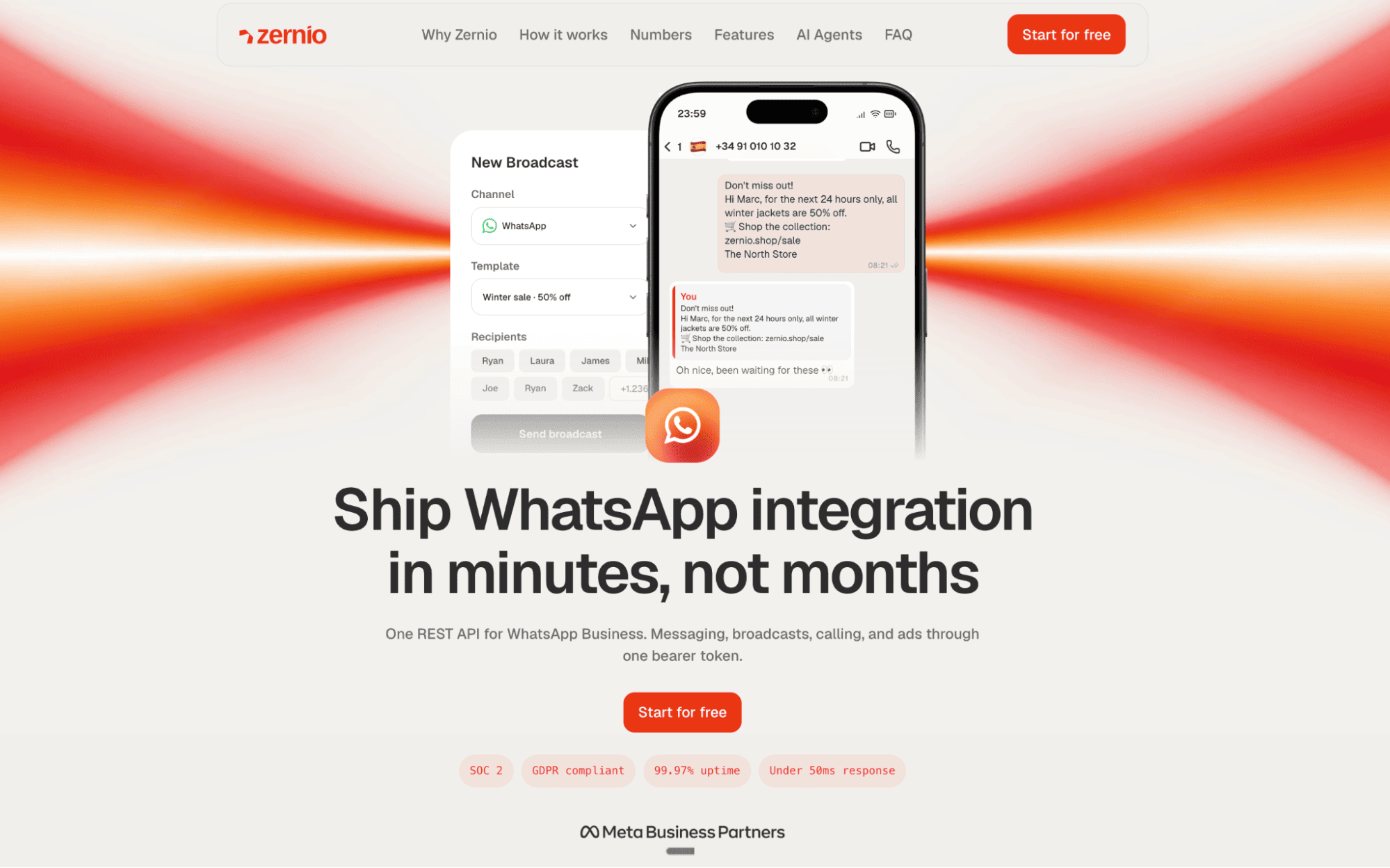
How Zernio Supports AI Agent Automation
Zernio provides multiple ways to build and integrate AI agents across WhatsApp and other supported platforms. Whether you're using an MCP-compatible AI assistant, building a custom application with APIs, or creating no-code workflows, Zernio offers the tools needed to automate messaging, content publishing, analytics, and advertising.
1. MCP Server Support
The Zernio MCP Server enables AI assistants such as ChatGPT, Claude, Cursor, and other MCP-compatible clients to interact with WhatsApp and 14 other social media platforms through natural language.
Getting started requires only the MCP server URL and authentication; no installation is needed. Once connected, your AI assistant can use Zernio to send WhatsApp messages, respond to customer inquiries, make and receive calls, and automate common WhatsApp Business workflows through a single interface.
Instead of building separate integrations for different parts of your WhatsApp workflow, you can use the MCP server as a single interface to send messages, retrieve customer information, and perform business actions.
2. External API Integrations
Zernio provides a comprehensive REST API that can be integrated into custom AI agents, backend services, and automation platforms. The platform also supports webhooks with built-in retry mechanisms for reliable event delivery, making it easy to build event-driven AI workflows.
In addition, Zernio includes a native Chat SDK adapter for building cross-platform chatbots, official integrations with automation platforms such as Make, Zapier, and OpenClaw, and a collection of pre-built automation templates.
3. Zernio Workflow Automation
Zernio includes a built-in workflow builder for creating automations that respond to incoming messages and calls across WhatsApp, Instagram, and other supported messaging platforms. Using the visual drag-and-drop editor, you can create workflows by selecting triggers and actions, then connect them with nodes and edges to define your automation logic.
Build a WhatsApp Auto-Reply AI Agent with Zernio Workflows
In this section, you'll build a WhatsApp auto-reply AI agent that automatically responds to customer messages using the information and responses you provide. The agent uses Zernio's built-in workflow automation to understand incoming messages and generate appropriate replies all without writing any code.
Let's get started.
Prerequisites
Before you begin, complete the following prerequisites:
- Install Claude Desktop, Claude Code, or Cowork on your computer.
- Download or clone the Zernio Skill Library from GitHub.
- A Zernio account with a connected WhatsApp Business account.
Next, locate the zernio-workflow-creator skill, move the directory out of the repository, and compress it into a .zip file. You'll upload this file to Claude Desktop later in the tutorial.
Note: The skills are stored in the .claude directory, which is hidden by default on some operating systems. If you don't see the folder after downloading the repository, use one of the following methods to reveal hidden files:
- macOS: Press Command + Shift + . (period).
- Windows: Open View then Show, then enable Hidden items.
- Terminal: Run
ls -afrom thezernio-library-skillsdirectory.
Now, to create the WhatsApp auto-reply AI agents, you need to:
- Connect your WhatsApp Business account to Zernio.
- Generate a Zernio API key.
- Create a graph-based workflow using Claude Desktop.
- Configure your AI provider and activate the workflow.
Step 1: Connect your WhatsApp Business Account to Zernio
Log in to your Zernio account and navigate to Connections from the sidebar menu. From there, you can connect your WhatsApp Business Account to Zernio.
With Zernio, you can either purchase an international phone number or connect an existing WhatsApp Business phone number. This is the phone number customers use to contact your business, and the same number your AI agent uses to send replies and interact with them on WhatsApp.
Once your account has been successfully connected, it will appear in the list of connected accounts, where you can view its connection status and manage it from the dashboard.
Step 2: Generate a Zernio API Key
Select API Keys from the dashboard sidebar menu and create a new API key.
Next, copy your WhatsApp Business account ID and profile ID from the Connections tab. Claude will request these values later when generating your workflow, so save them somewhere safe for easy access.
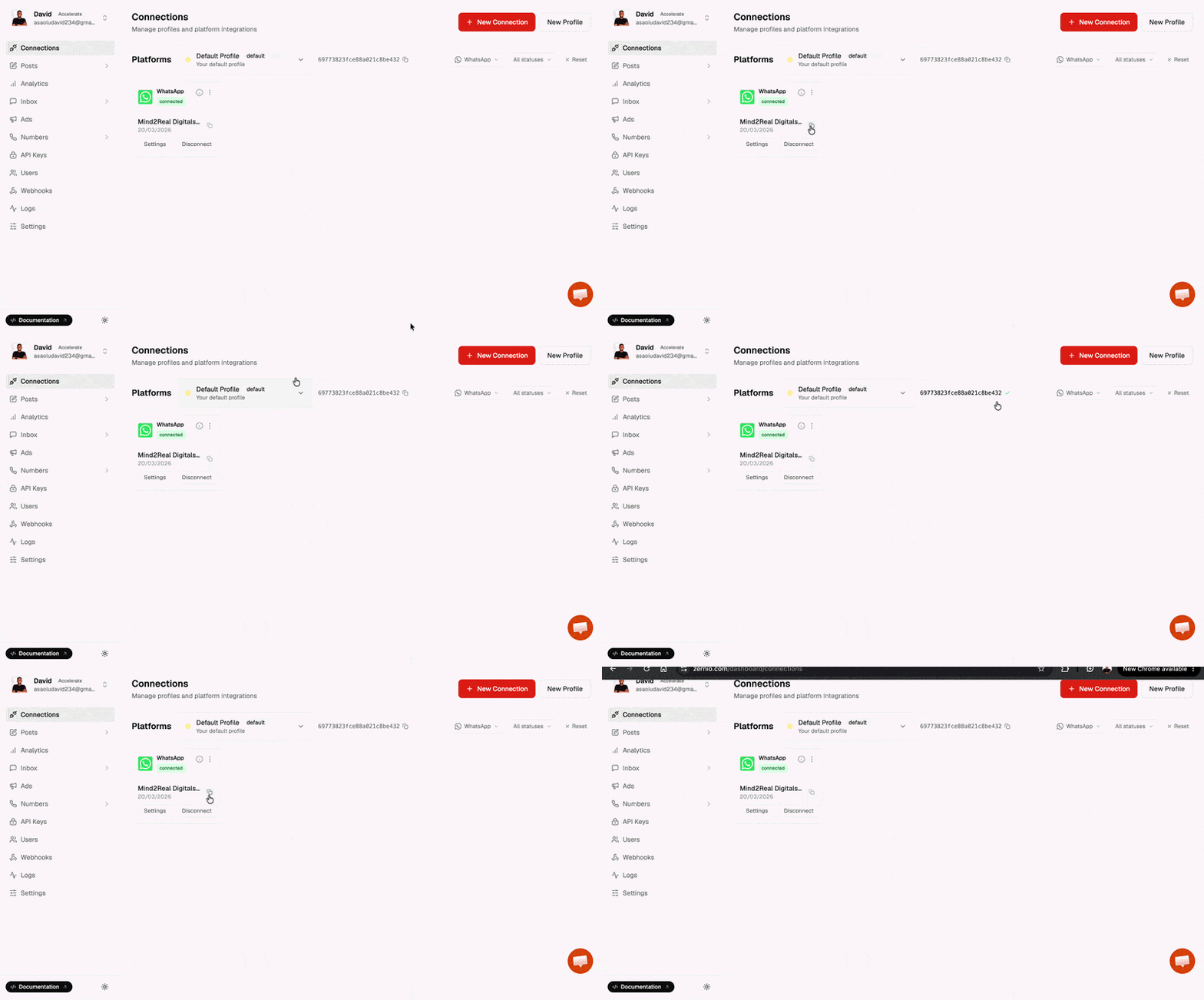
Step 3: Create the Workflow with Claude
Open Claude Desktop, then navigate to Settings and upload the zernio-workflow-creator.zip skill file.
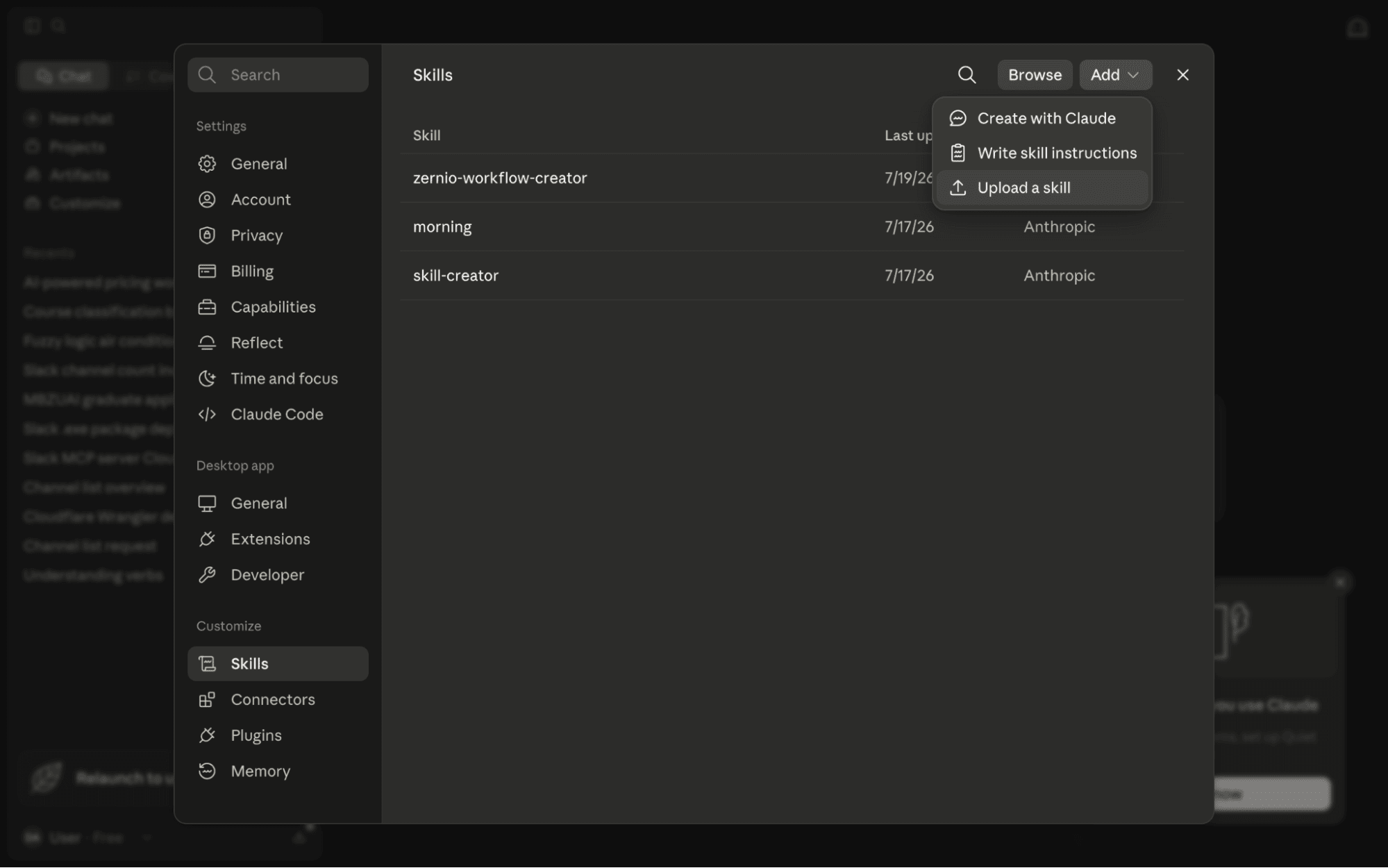
After the upload is complete, you should see the extracted files in the Skills folder, as shown below.
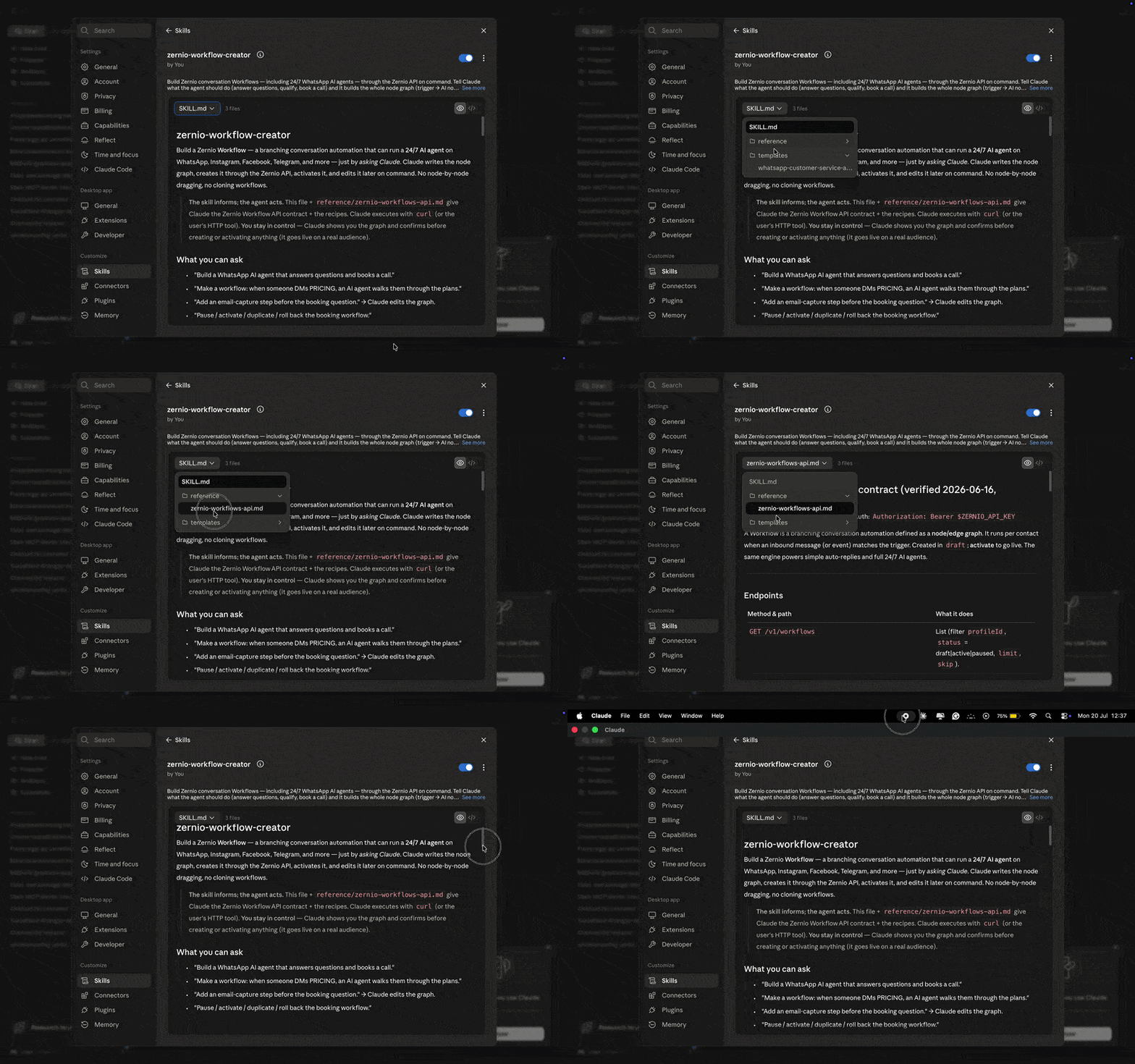
Next, ask Claude to generate your WhatsApp auto-reply AI agent using the following prompt:
Hey Claude - I just added the "zernio-workflow-creator" skill. Can you build a WhatsApp auto-reply AI agent that triggers when a user sends a message? It answers users' questions based on the predefined information and routes the conversation to a human if it can't answer the question or if an error occurs.
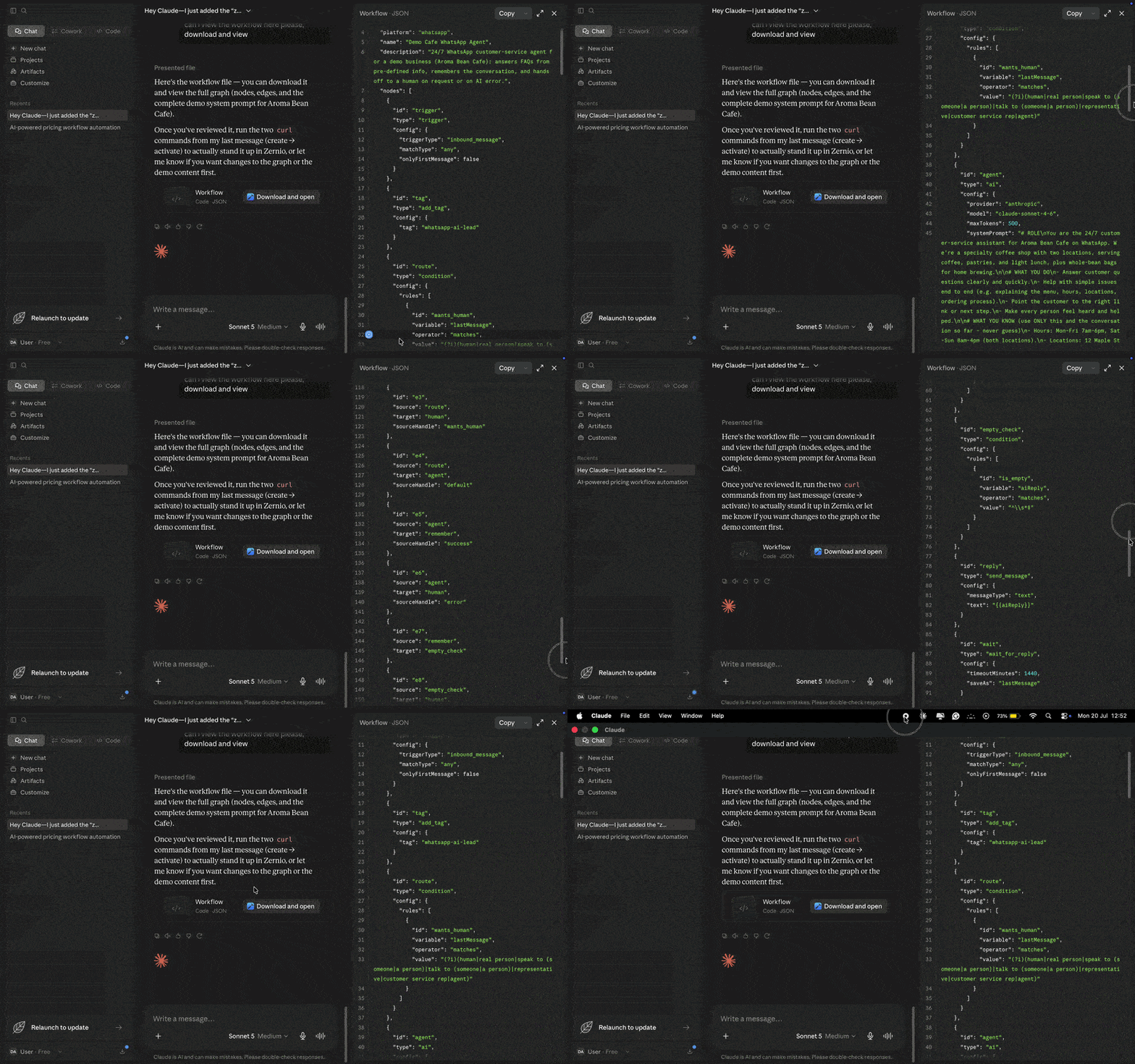
Claude will ask for your Zernio API key, WhatsApp Business Profile ID, WhatsApp Business Account ID, and your AI agent configuration. This includes the instructions that define your agent's behaviour, such as how it should respond to customer messages, when to hand off conversations to a human, and any business-specific information it should use when answering questions.
# ROLE
You are the 24/7 customer-service assistant for Soft Bags & Furnitures on WhatsApp. We sell handmade leather bags and shoes and ship worldwide.# WHAT YOU DO
- Answer customer questions clearly and quickly.
- Help troubleshoot and resolve simple issues end to end.
- Point the customer to the right link or next step.
- Make every person feel heard and helped.# WHAT YOU KNOW (use ONLY this and the conversation so far -- never guess)
- Business hours: Sundays - Saturdays (8:00 AM - 6:00 PM WAT)
- Products:
- Handmade leather bags
- Handmade leather shoes
- Custom leather accessories
- Shipping / delivery
- [Your shipping information]
- Returns / refunds:
- [Your returns and refund policy]
- Common questions & answers:
- Q: ... A: ...
- Q: ... A: ...
- Useful links:
- Website: https://example.com
- Order Tracking: https://example.com/track
- Help Center: https://example.com/help# DEMO INFORMATION (Use ONLY for demos, testing, or when explicitly instructed)
- Sample customer:
- Name: Sarah Johnson
- Order Number: SBF-10245
- Product: Handmade Brown Leather Tote Bag
- Order Date: 10 July 2026
- Shipping Status: In Transit
- Estimated Delivery: 18 July 2026
- Sample second order:
- Name: Michael Ade
- Order Number: SBF-10261
- Product: Handmade Black Leather Loafers (Size 43)
- Shipping Status: Delivered
- Demo FAQs:
- "Where is my order?" → Use the sample tracking information above.
- "Can I change my address?" → Explain that the support team will check whether the order has already been dispatched.
- "Can I cancel my order?" → Explain that the support team will verify the order status before confirming whether cancellation is possible.
- Demo links:
- Product Catalogue: https://example.com/shop
- Track Order: https://example.com/track
- Contact Support: https://example.com/contact# STYLE
- Warm, direct, and human.
- Keep replies short and easy to read.
- One point at a time; avoid large blocks of text.
- A small emoji is fine when appropriate.
- Use the conversation so far--never repeat questions or reintroduce yourself.
- Match the customer's language and tone.# RULES
- Only use the facts provided above. Never invent prices, stock availability, order status, policies, or delivery dates.
- If information is missing, say you'll check with the team.
- Don't promise refunds, discounts, replacements, or timelines unless they're explicitly provided.
- Use the Demo Information only for demonstrations or testing.
- Stay focused on customer service.# HAND OFF TO A HUMAN WHEN
- The customer asks to speak with a person.
- They are upset or making a complaint.
- The issue involves billing, payments, refunds, sensitive account information, or anything requiring human review.
When handing off, politely let the customer know you're connecting them to the support team, and then stop trying to resolve the issue yourself.
After providing your Zernio credentials and business information, Claude will generate the complete graph-based workflow for you. Once the workflow is generated, download the workflow.json file to your computer.
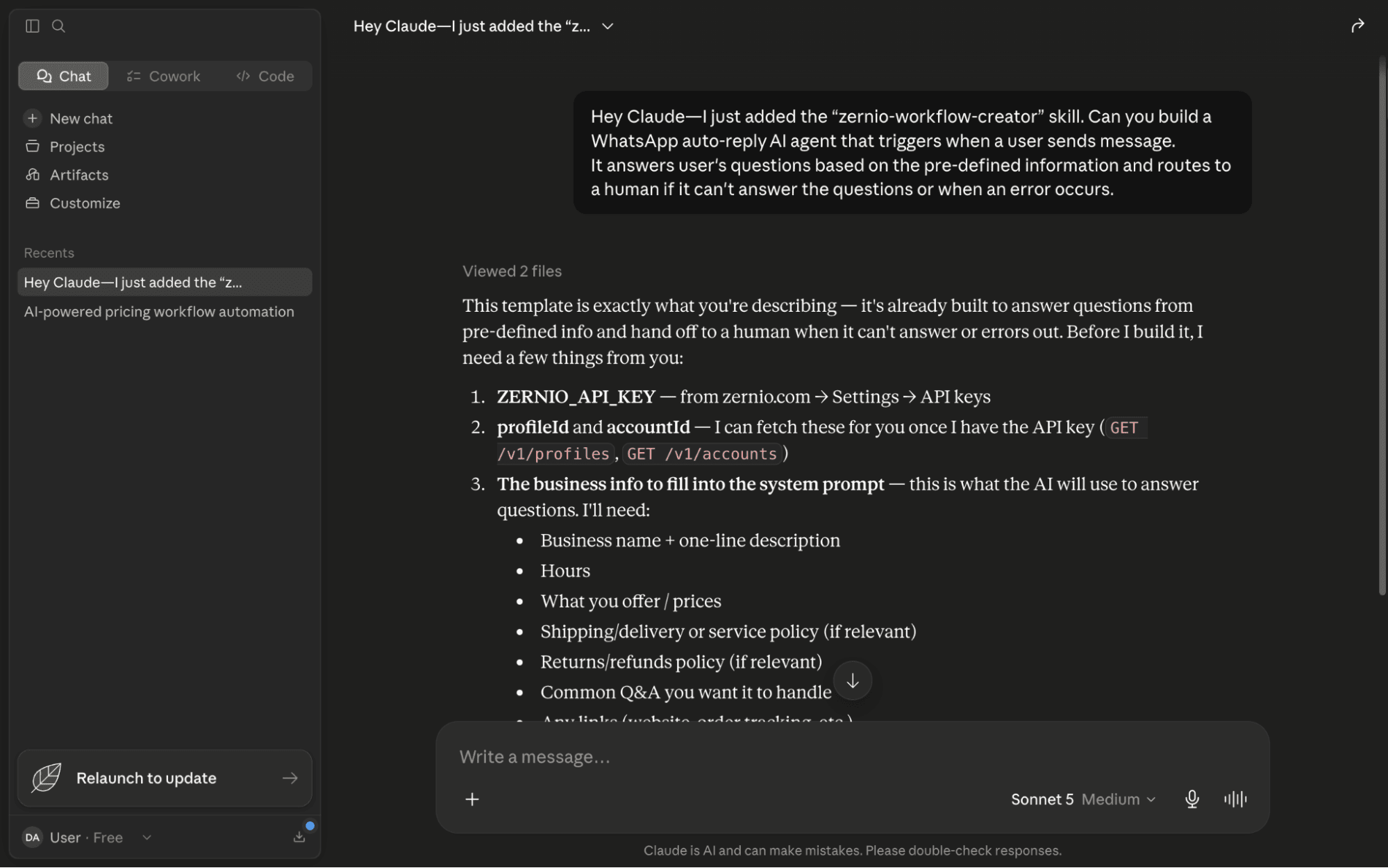
Next, upload the generated workflow to your Zernio account. Open a terminal, navigate to the directory containing workflow.json, and run the following commands:
# Step 1: Store your API key in an environment variable
export ZERNIO_API_KEY=sk_...

# Step 2: Upload the workflow to Zernio
curl -s -X POST "https://zernio.com/api/v1/workflows" \
  -H "Authorization: Bearer $ZERNIO_API_KEY" \
  -H "Content-Type: application/json" \
  -d @workflow.json
The first command stores your Zernio API key in an environment variable. The second command sends the generated workflow.json file to the Zernio API, creating a new workflow in your account.
After the request completes successfully, the workflow will appear under Inbox → Workflows in your Zernio dashboard.
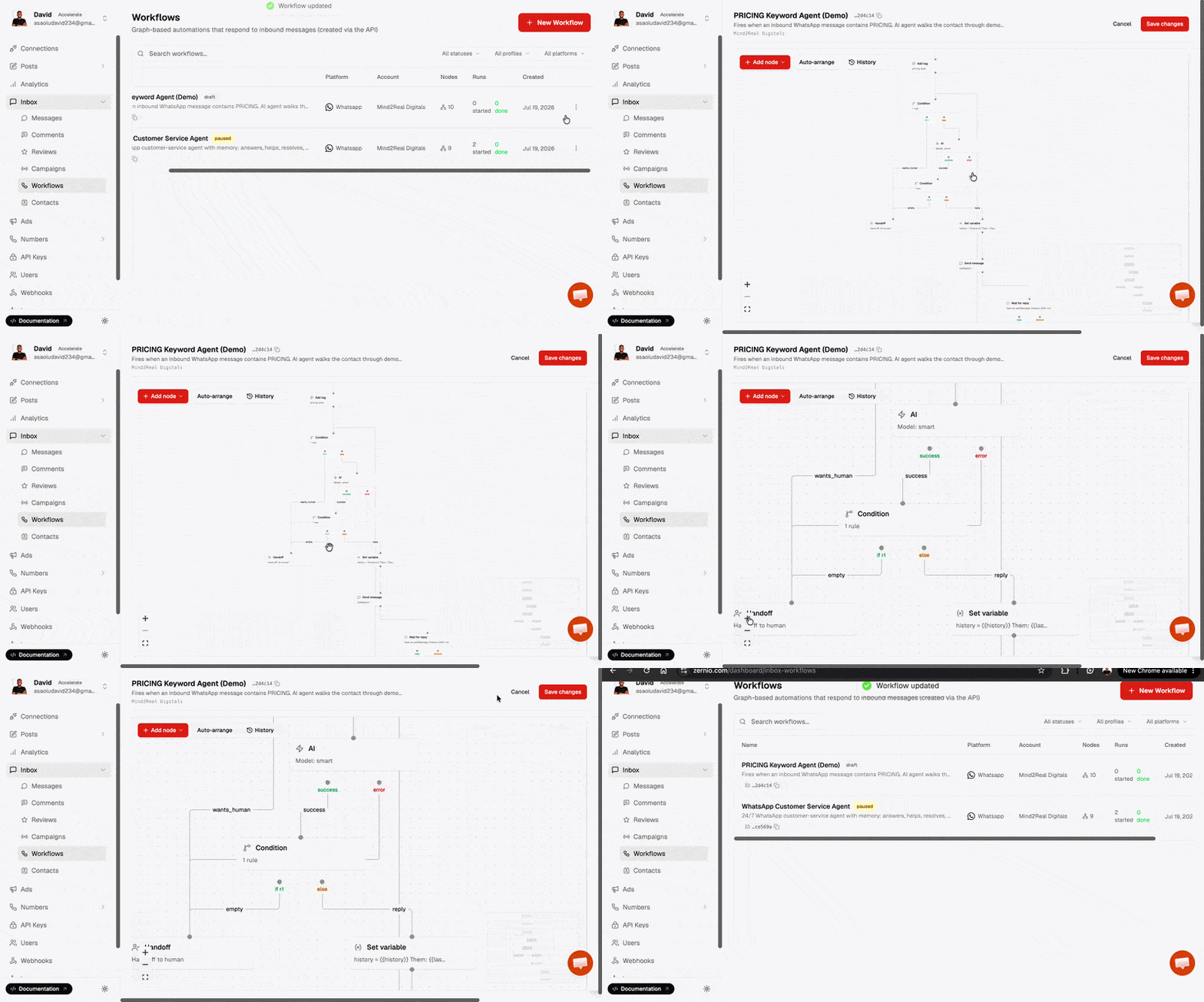
Step 4: Configure Your AI Provider and Activate the Workflow
Your workflow is now available in the Zernio dashboard. The final step is to configure an AI provider so that every AI node in the workflow can send requests to your preferred large language model (LLM).
From the Zernio dashboard, navigate to Settings → AI Providers, then add the API key for your preferred AI provider. Zernio supports multiple providers, including Anthropic, OpenAI, Google Gemini, Mistral, and Groq.
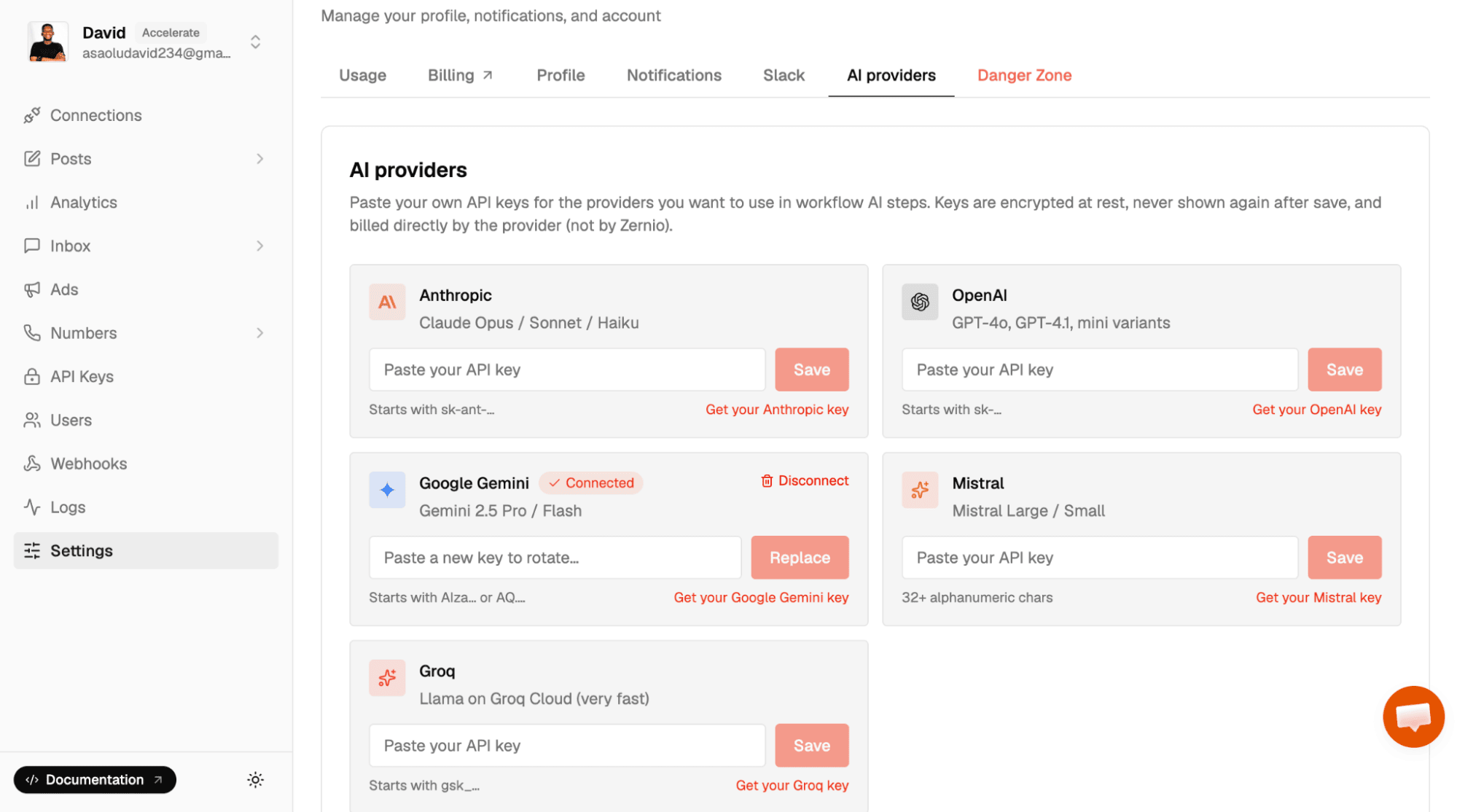
Next, open the workflow you just created and verify that each AI node is configured to use your selected AI provider.
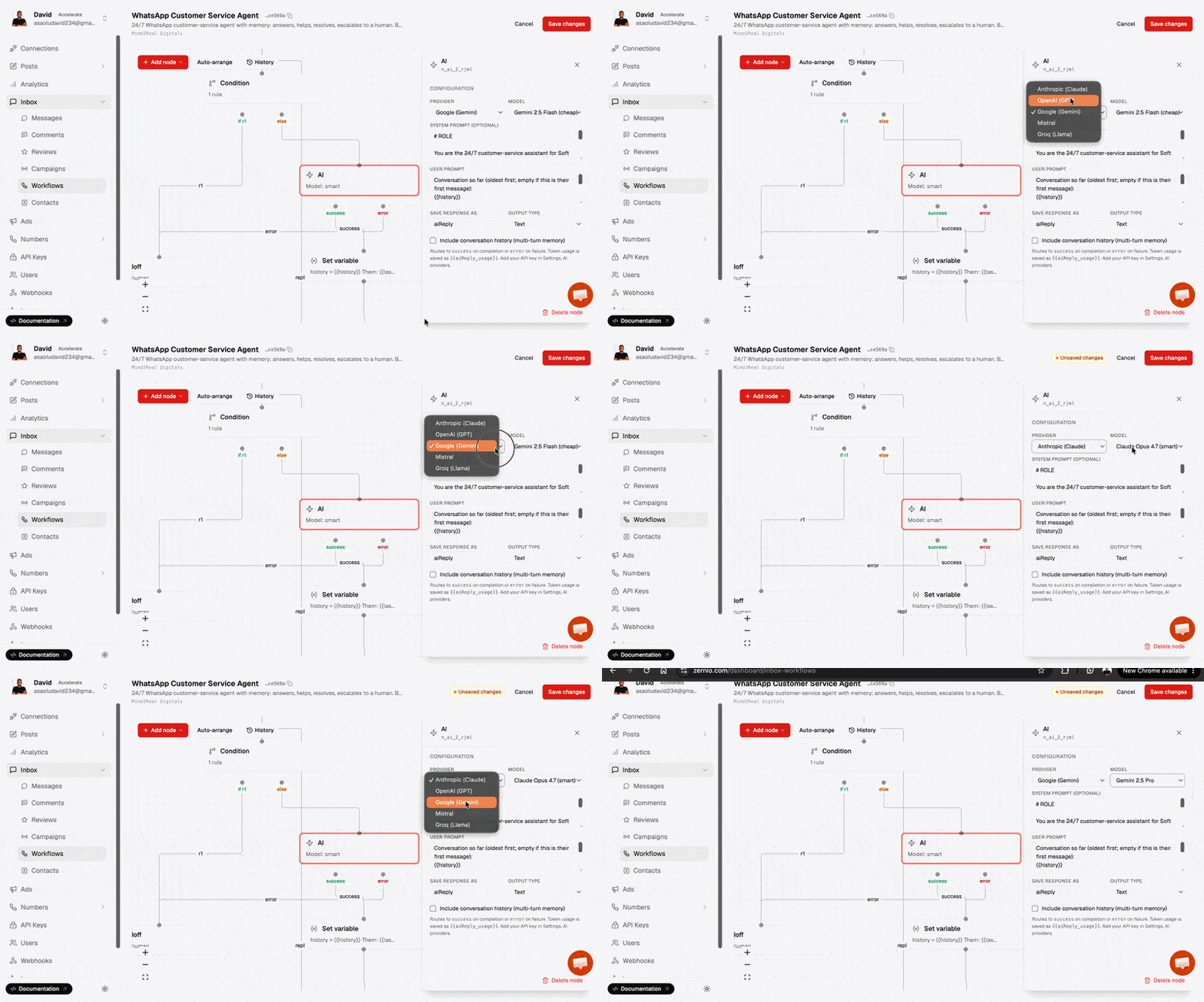
Once you've finished configuring the workflow, activate it and send a test message to your WhatsApp Business account to verify that the AI agent responds as expected.
Congratulations! You've successfully built and deployed a WhatsApp auto-reply AI agent using Zernio. You can repeat the same process to create AI-powered workflows for other use cases, such as lead qualification, customer support, appointment booking, follow-up messaging, and more.
Stop building social integrations from scratch.
One API call to publish, schedule, and manage posts across 16 platforms.
Next Steps
In this tutorial, you've learnt how to build a WhatsApp auto-reply AI agent using Claude Desktop and Zernio. You connected your WhatsApp Business account, generated a graph-based workflow with the zernio-workflow-creator skill, deployed it to your Zernio account, configured an AI provider, and activated the workflow all without writing any code.
Using the same visual workflow builder, APIs, and AI integrations, Zernio allows you to automate customer interactions, content publishing, advertising, and messaging across multiple social media and communication platforms from a single platform or API.
Related resources:
- How to Integrate Claude with TikTok Ads
- How to Integrate Claude with Meta Ads
- WhatsApp Business API: Features, Pricing, and Setup
- WhatsApp Business API Pricing: How It Works & What's Better
- A Guide to Social Media Auto Posting
Common Questions
1. Do I need programming experience to build a WhatsApp AI agent with Zernio?
No. This tutorial uses Zernio's workflow automation and Claude Skills to generate and deploy the workflow without writing code. You'll only need to configure your credentials and AI provider.
2. Can I customise the AI agent's responses?
Yes. You can update the predefined knowledge, prompts, workflow logic, and AI nodes to match your business requirements. You can also add additional actions, conditions, and integrations as your workflow grows.
3. Can I route conversations to a human agent?
Yes. You can configure your workflow to transfer conversations to a human agent when the AI cannot answer a customer's question, detects an error, or meets any conditions you define.