Before you can send business-initiated messages using the WhatsApp Business API or Platform, you must first create WhatsApp message templates and have them approved. Without approved templates, you won't be able to start conversations with your customers or contacts. So, how do you create templates that get approved, and what types of templates can you use?
In this guide, you'll learn what WhatsApp message templates are, why businesses need them for large-scale WhatsApp communication, how WhatsApp template pricing works, and the best practices for creating templates that have the highest chance of approval.
Let's get started.
Table of Contents
- What is a WhatsApp Message Template?
- WhatsApp Message Template Categories
- WhatsApp Template Pricing
- Creating WhatsApp Message Templates
- Creating and Sending WhatsApp Message Templates with Zernio
- Common Reasons for Template Approval Rejections
- Summary
- FAQs
What is a WhatsApp Message Template?
A WhatsApp message template is a pre-approved message that businesses use to start or continue conversations with customers after the customer service window has closed. Before your template can be sent, it must be reviewed and approved by WhatsApp to ensure it complies with the platform's messaging policies.
Unlike free-form messages, which can only be sent during an active customer service or free-entry window, message templates allow businesses to send business-initiated messages outside those windows.
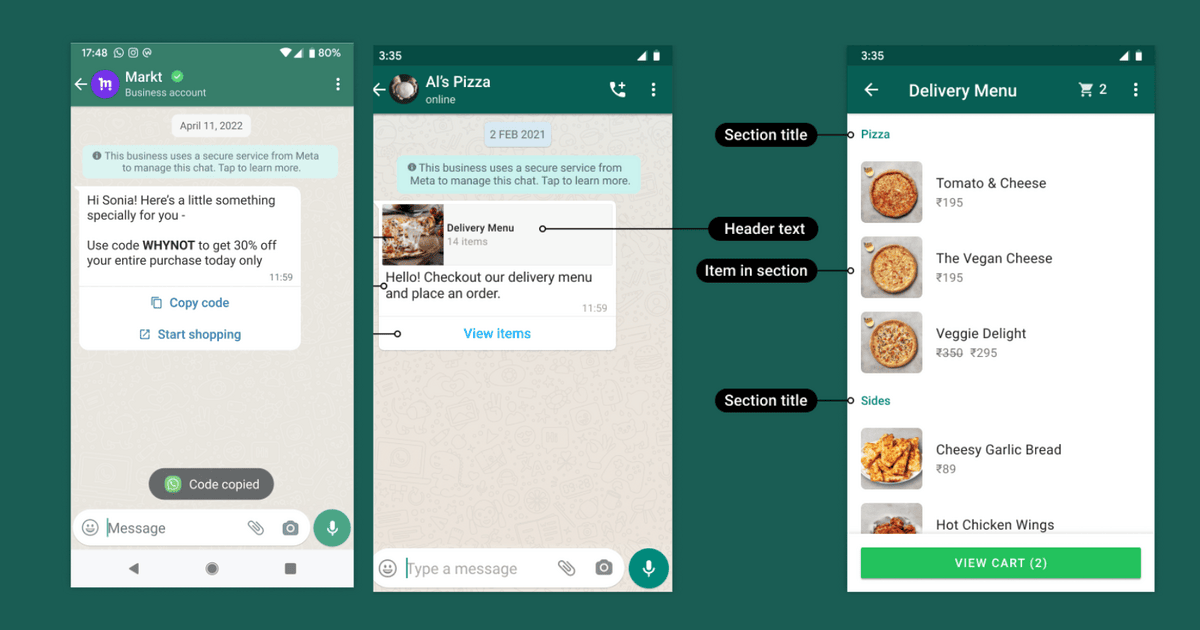
Source: WhatsApp Business Platform Documentation
When WhatsApp Message Templates Are Required
WhatsApp message templates are commonly used to send notifications, authentication codes, order updates, appointment reminders, marketing campaign messages, and customer support follow-ups. The time at which you send a message determines whether you need to use a message template or not.
The WhatsApp Business Platform provides the following messaging windows:
Customer Service Window
The customer service window opens when a customer sends a message to your business and remains active for 24 hours from the customer's most recent message. If the customer sends another message before the window expires, the 24-hour timer resets.
During this window, you can send free-form messages (text, images, videos, documents, and interactive messages) without requiring template approval.
Free-Entry Point Window
The free-entry point window lasts for 72 hours, after a user starts a conversation with your business via a Click-to-WhatsApp Ad or a Facebook Page call-to-action button, provided the conversation is managed using the WhatsApp Business app for Android or iOS.
The free-entry point window allows you to send any message type at zero cost, before the window expires. Once it expires, any subsequent message templates are billed according to Meta's pricing rates.
Note: Once both the customer service window and free-entry window have expired, businesses can only send messages by using approved WhatsApp message templates.
The table below summarises when you can send each type of WhatsApp message and whether Meta charges for it under each messaging window.
| Message type | Within the Customer Service Window | Outside the Customer Service Window & Within the Free-Entry Point Window | Outside the Customer Service & Free-Entry Point Windows |
|---|---|---|---|
| Free-form (non-template) | Can send; Not Billable | Cannot send | Cannot send |
| Marketing template | Can send; Billable | Can send; Not billable | Can send; Billable |
| Utility template | Can send; Not Billable | Can send; Not billable | Can send; Billable |
| Authentication template | Can send; Billable | Can send; Not billable | Can send; Billable |
Why Businesses Need WhatsApp Message Templates
The WhatsApp Business Platform uses message templates for business-initiated messaging, allowing businesses to start new conversations with customers and continue conversations after the customer service window has expired.
Some of the key reasons businesses use WhatsApp message templates include:
- Comply with WhatsApp Messaging Policies
WhatsApp message templates provide a structured way for businesses to send business-initiated messages. Before a template can be used, it must be reviewed and approved by Meta to ensure it complies with WhatsApp's messaging and commerce policies. This approval process helps maintain a trusted messaging ecosystem while reducing spam, misleading content, and policy violations. - Reusable for Customer Messaging
Message templates provide a reusable and consistent way for businesses to communicate with customers throughout their lifecycle. Instead of creating the same message repeatedly, businesses can create templates for common interactions such as welcome messages, order confirmations, shipping updates, appointment reminders, payment notifications, password reset codes, and marketing campaigns. - Personalise Messages at Scale
Message templates support dynamic placeholders that are replaced with customer-specific information when a message is sent. This enables businesses to personalise messages with details such as the customer's name, order number, appointment date, delivery status, or verification code while using a single approved template to communicate with multiple WhatsApp users. - Support Interactive User Experiences
WhatsApp message templates support interactive components such as quick reply buttons, call-to-action buttons, and copy code buttons. These components allow customers to perform actions directly from the message, such as visiting a website, calling a business, copying a verification code, or replying with a single tap, creating a faster and more engaging customer experience.
WhatsApp Message Template Categories
Selecting the correct category when creating your message template is important because it determines how Meta prices your template messages and helps ensure that your template is approved. When you submit a template for approval, Meta reviews both the template content and the selected category to verify that they adhere to the official guidelines for use.
WhatsApp message templates are categorised into three, which are:
1. Marketing Templates
Marketing templates are used for promotional communication that helps businesses achieve their marketing goals, such as creating awareness, driving sales, retargeting customers, and sharing offers or discounts. They encourage engagement, customer conversion, and support customer retention through relevant promotions.
Marketing templates cost between $0.0109 in Turkey and $0.1597 in the Netherlands and are the most flexible category, as they can include rich promotional content such as offers, recommendations, announcements, and campaign messages.
Some examples of marketing template messages include:
- Promotional offers and discounts
- Product recommendations
- New product or service announcements
- Abandoned cart reminders
- Seasonal campaign messages
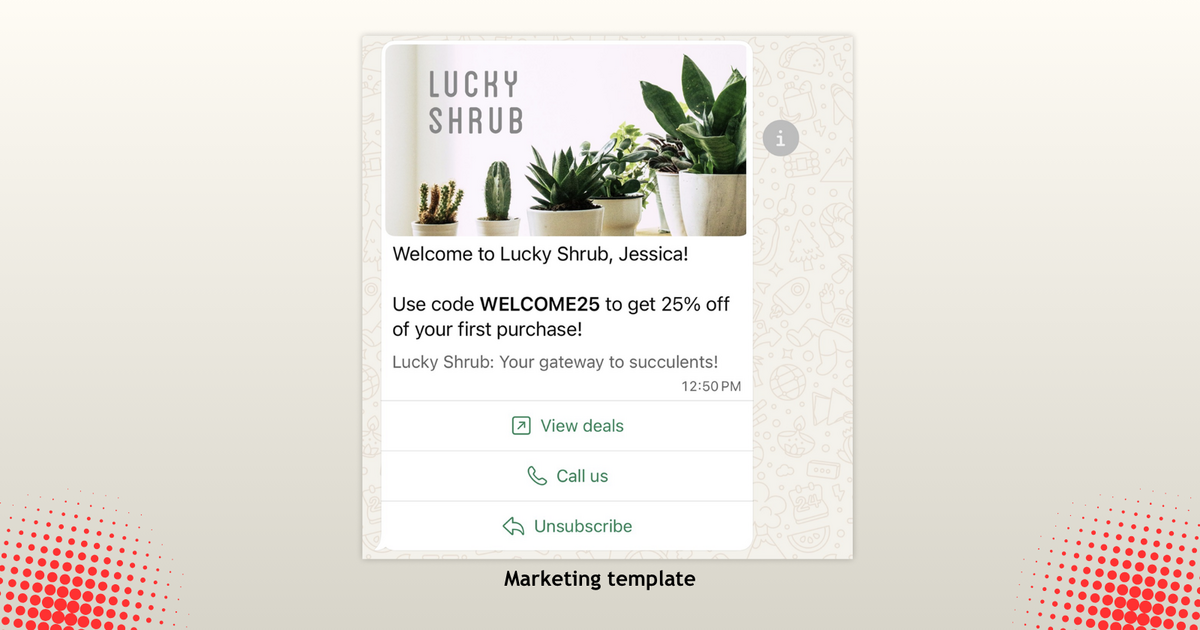
Source: WhatsApp Business Platform Documentation
2. Utility Templates
Utility templates are non-promotional messages that are either requested by the user or essential to an existing interaction, like transactions, account activity, or service updates. They enable businesses to follow up on user actions or provide important information related to an ongoing service. Utility template costs range between $0.0008 in Colombia to $0.0550 in Germany per delivered message.
Some examples of utility template messages include:
- Order confirmations and delivery updates
- Account notifications or security alerts
- Payment reminders and billing updates
- Feedback and survey requests
- Continuation of conversations initiated on other channels
- System outages or service disruption alerts
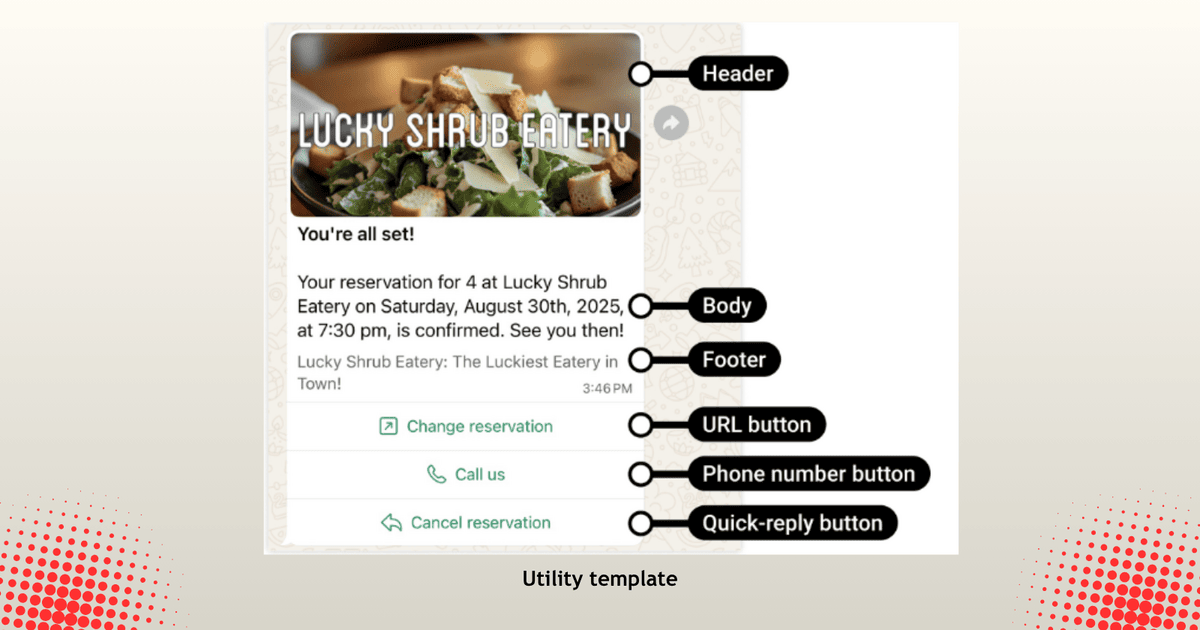
Source: WhatsApp Business Platform Documentation
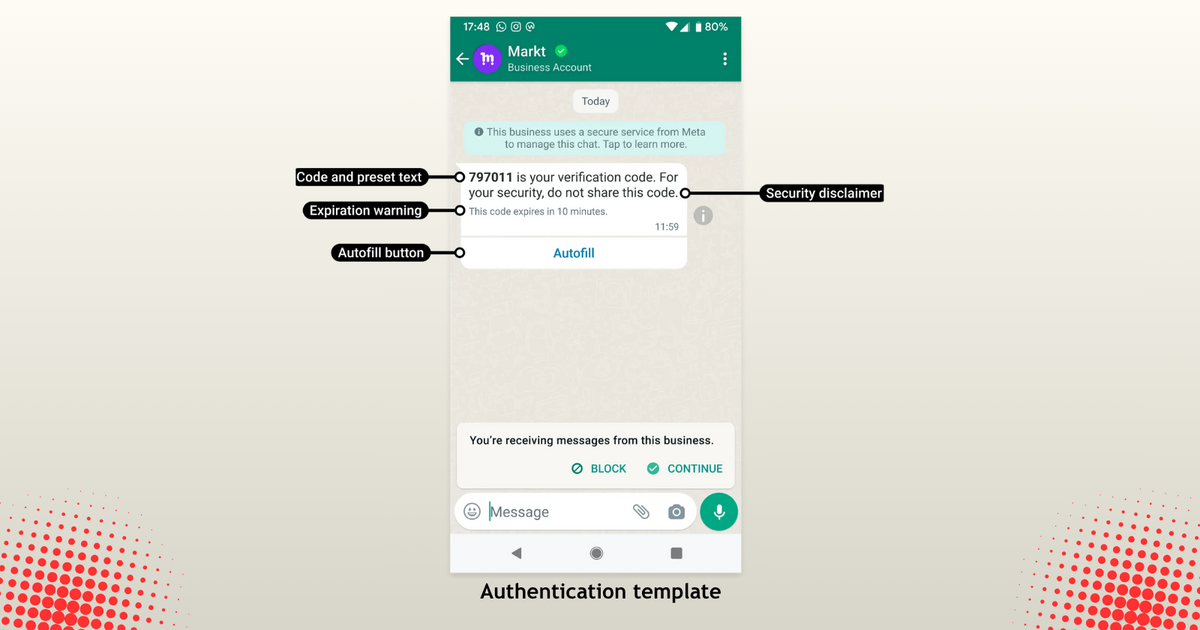
3. Authentication Templates
Authentication templates are used to verify users through one-time passcodes during login, account creation and recovery. They are the most restricted template category on the WhatsApp Business Platform. To be classified as an authentication template, businesses must:
- Use WhatsApp's predefined authentication format, including optional security disclaimers and expiry warnings.
- Configure a one-time password button (copy-code or one-tap)
- Follow strict content rules: no URLs, media, or emojis are allowed, and parameter length is limited to 15 characters.
Authentication templates also cost between $0.0008 in Colombia to $0.0550 in Germany per delivered message.
Some examples of authentication template use cases include:
- Account verification codes
- New account registration
- Password or account recovery
- Login authentication and security checks
Source: WhatsApp Business Platform Documentation
WhatsApp Template Pricing
Meta charges businesses for each delivered template message, and the cost is based on the recipient's country or region. For example, if a business located in Germany sends a template message to a customer in Brazil, the applicable rate is based on the recipient's location (Brazil), not the business's location.
Template message pricing also varies by template category. For example, as of July 1, 2026, marketing template rates range from $0.0109 for recipients in Turkey to $0.1597 in the Netherlands. Utility and authentication template rates range from $0.0008 in Colombia to $0.0550 in Germany.
Below is the complete pricing table for all countries and regions from July 1, 2026.
| Country | Marketing ($) | Utility ($) | Authentication ($) | Authentication-International ($) | Service |
|---|---|---|---|---|---|
| Argentina | 0.0618 | 0.0260 | 0.0260 | - | Free |
| Brazil | 0.0625 | 0.0068 | 0.0068 | - | Free |
| Chile | 0.0889 | 0.0200 | 0.0200 | - | Free |
| Colombia | 0.0125 | 0.0008 | 0.0008 | - | Free |
| Egypt | 0.0644 | 0.0036 | 0.0036 | 0.0650 | Free |
| France | 0.0859 | 0.0300 | 0.0300 | - | Free |
| Germany | 0.1365 | 0.0550 | 0.0550 | - | Free |
| Hong Kong | 0.0732 | 0.0260 | 0.0260 | - | Free |
| Hungary | 0.0860 | 0.0350 | 0.0350 | - | Free |
| India | 0.0118 | 0.0014 | 0.0014 | 0.0304 | Free |
| Indonesia | 0.0411 | 0.0250 | 0.0250 | 0.1360 | Free |
| Israel | 0.0353 | 0.0053 | 0.0053 | - | Free |
| Italy | 0.0795 | 0.0300 | 0.0300 | - | Free |
| Malaysia | 0.0860 | 0.0140 | 0.0140 | 0.0418 | Free |
| Mexico | 0.0305 | 0.0085 | 0.0085 | - | Free |
| Netherlands | 0.1597 | 0.0500 | 0.0500 | - | Free |
| Nigeria | 0.0516 | 0.0067 | 0.0067 | 0.0750 | Free |
| Pakistan | 0.0473 | 0.0100 | 0.0100 | 0.0750 | Free |
| Peru | 0.0703 | 0.0200 | 0.0200 | - | Free |
| Poland | 0.0366 | 0.0122 | 0.0122 | - | Free |
| Qatar | 0.0341 | 0.0120 | 0.0120 | - | Free |
| Romania | 0.0860 | 0.0290 | 0.0290 | - | Free |
| Russia | 0.0802 | 0.0400 | 0.0400 | - | Free |
| Saudi Arabia | 0.0501 | 0.0107 | 0.0107 | 0.0598 | Free |
| Singapore | 0.0732 | 0.0160 | 0.0160 | - | Free |
| South Africa | 0.0379 | 0.0076 | 0.0076 | 0.0200 | Free |
| Spain | 0.0707 | 0.0200 | 0.0200 | - | Free |
| Turkey | 0.0109 | 0.0009 | 0.0009 | - | Free |
| United Arab Emirates | 0.0499 | 0.0157 | 0.0157 | 0.0510 | Free |
| United Kingdom | 0.0635 | 0.0220 | 0.0220 | - | Free |
| North America | 0.0250 | 0.0034 | 0.0034 | - | Free |
| Rest of Africa | 0.0225 | 0.0040 | 0.0040 | - | Free |
| Rest of Asia Pacific | 0.0732 | 0.0113 | 0.0113 | - | Free |
| Rest of Central & Eastern Europe | 0.0860 | 0.0212 | 0.0212 | - | Free |
| Rest of Latin America | 0.0740 | 0.0113 | 0.0113 | - | Free |
| Rest of the Middle East | 0.0341 | 0.0091 | 0.0091 | - | Free |
| Rest of Western Europe | 0.0592 | 0.0171 | 0.0171 | - | Free |
| Other | 0.0604 | 0.0077 | 0.0077 | - | Free |
Authentication-international rates are special pricing rates that apply when a business sends authentication template messages to users in certain countries while operating from a different country.
Volume Tier Pricing
WhatsApp offers volume-based pricing discounts for Utility and Authentication template messages. This means that the more messages your business sends within a specific country and category, the lower your per-message cost becomes.
Volume tiers are calculated separately for each country and message category. For example, India-Utility or Brazil-Authentication. As your messaging volume increases, your account automatically moves into higher tiers and receives discounted rates.
It is also important to note that only chargeable messages are counted toward volume tiers. Messages sent for free within the customer service window or free entry point window are not counted.
Read more: WhatsApp Business API Pricing Explained
Creating WhatsApp Message Templates
In this section, you will learn the components of a WhatsApp message template and how to create one using the WhatsApp Business Platform.
WhatsApp Message Template Components
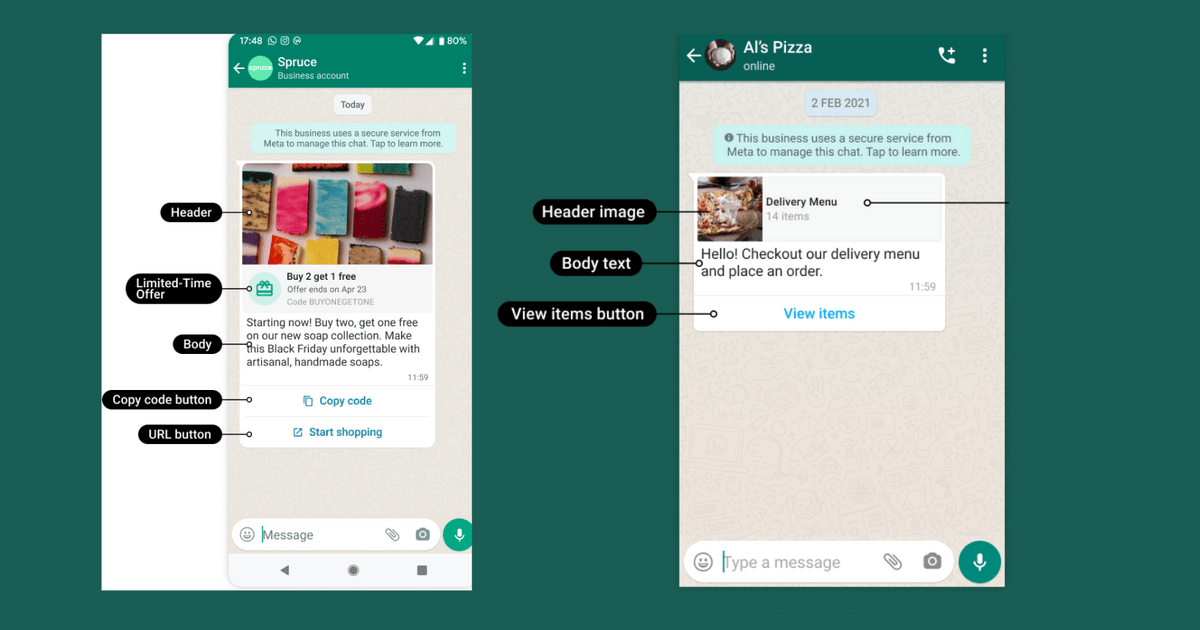
Every template contains a body component, while the header, footer, and buttons are optional. When creating a WhatsApp message template, choose the components based on the type of message you want to send.
A WhatsApp message template consists of the following components:
- Header
The header is an optional component displayed at the top of the message and can be a text, media (image, video, or document), or a location. - Body
The body is the only required component of a WhatsApp message template. It contains the main message and supports variables for personalising content, such as customer names, verification codes, or appointment dates. - Footer
The footer is an optional text-only component displayed below the message body. It is commonly used for additional information, disclaimers, opt-out instructions, or other supplementary text. - Buttons
Buttons are optional interactive components that allow customers to perform actions directly from the message. A template can have up to 10 buttons, depending on the button types used, which include: quick reply, call-to-action (phone number and URL), copy code, and multi-product buttons.
Source: WhatsApp Business Platform Documentation
How to Create a WhatsApp Message Template on the WhatsApp Business Platform
To get started, visit Meta for Developers, sign in, and click the My Apps button at the top of the page.
Next, enter your app details and select "Connect with customers through WhatsApp" as the use case.
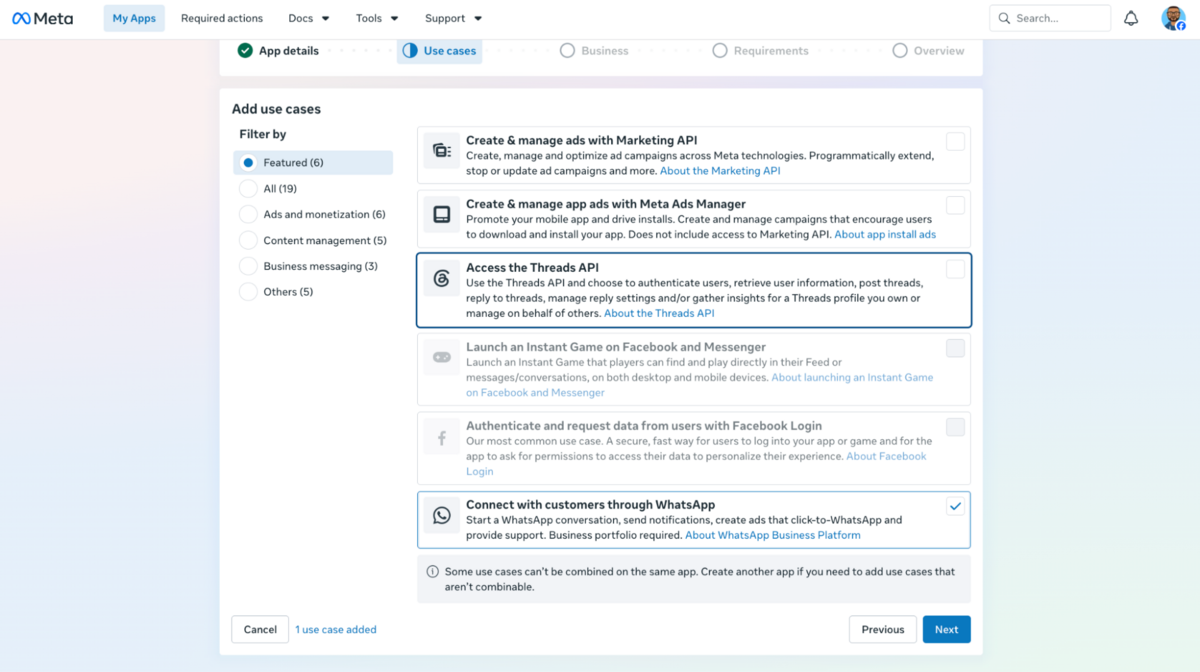
Verify the app details and create a new app.
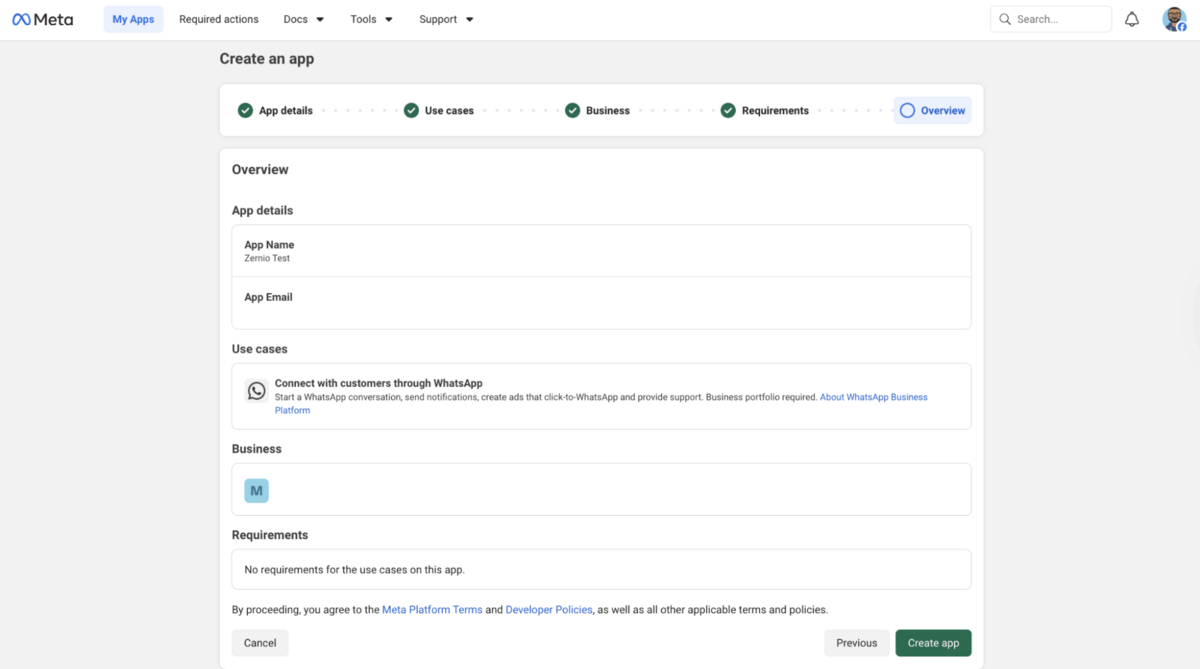
After creating the app, configure it based on your use case.
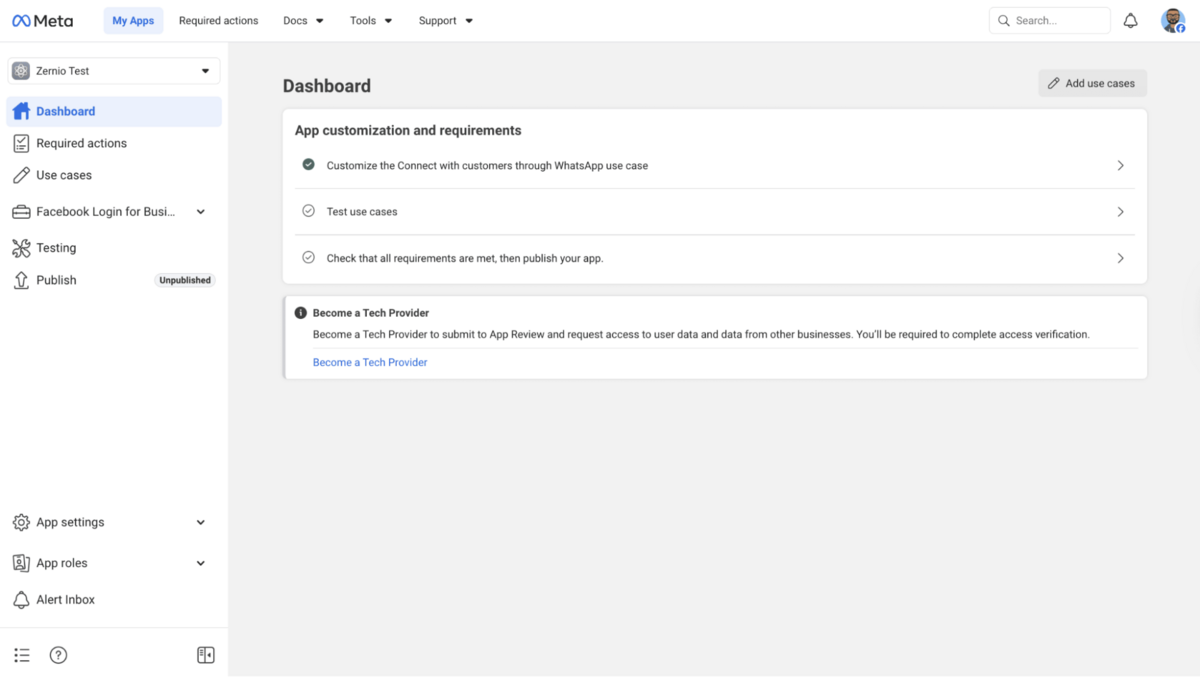
From your dashboard, select Step 1: Try It Out to send your first WhatsApp message using the WhatsApp Business Platform.

Next, click Generate Token to create a temporary access token. Then, add a recipient phone number and click Send Message to send your first WhatsApp message directly from the dashboard.
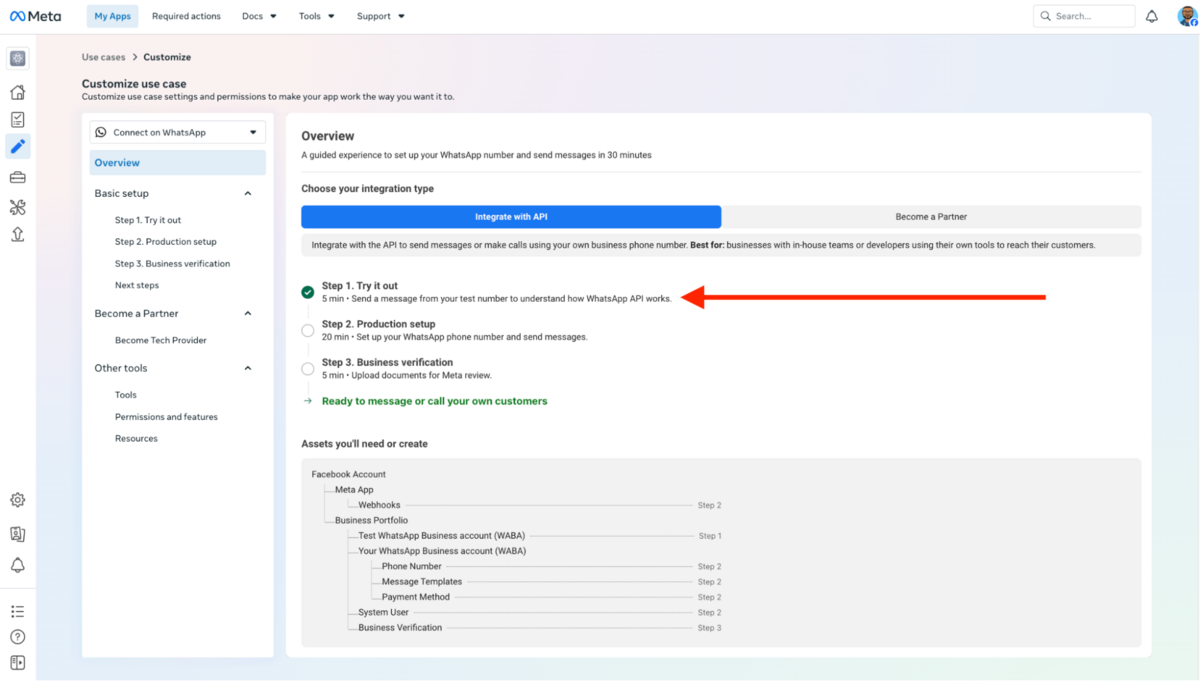
Congratulations! You've successfully sent your first WhatsApp message using the WhatsApp Business Platform.
To create a message template, select Next Steps from the sidebar, then navigate to Account and Messaging Tools and select Message Templates.
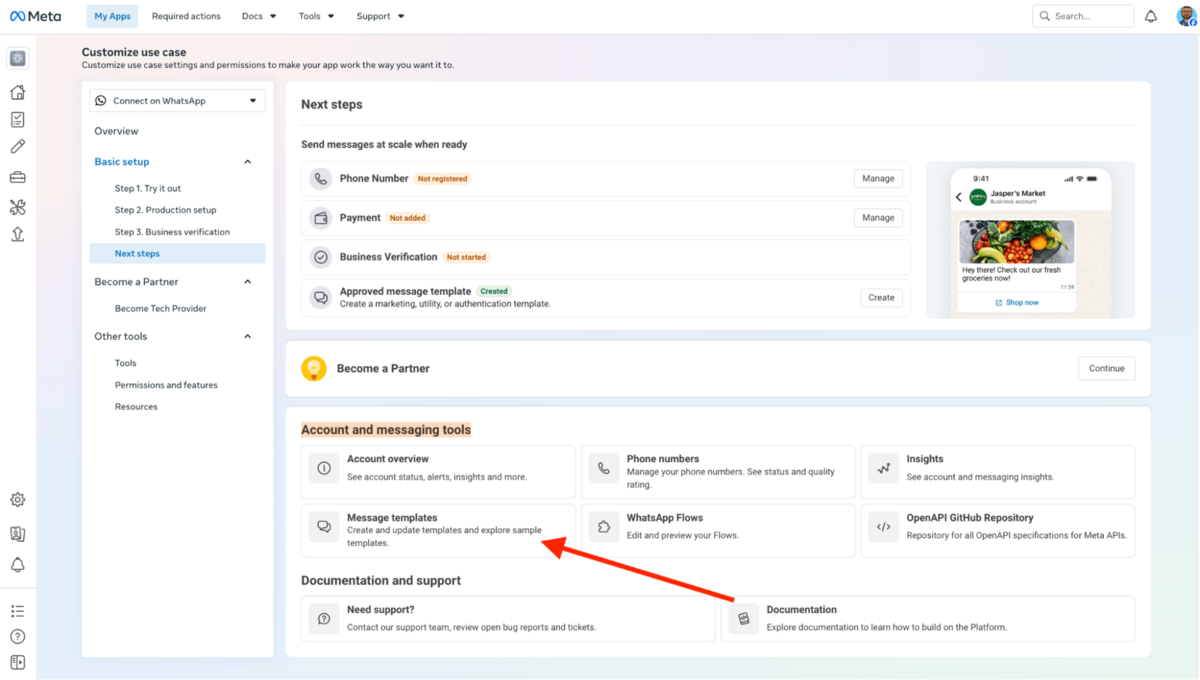
On the Message Templates page, click the Create Template button to create a new WhatsApp message template.
Finally, select your preferred template category and create a new template by adding content, buttons, and variables.

You may need to wait up to 24 hours for Meta to approve your template. Once approved, you can start sending messages to your customers or contacts.
Read more: How to Send Message Templates via the WhatsApp Business API
Stop building WhatsApp from scratch.
One API for numbers, messaging, calling, and automation on the official WhatsApp Business API.
Creating and Sending WhatsApp Message Templates with Zernio
The WhatsApp Business API provides a range of features that enable businesses to send messages at scale while maintaining a personalised experience. However, setting it up and managing it directly can be complex. Zernio simplifies the process by providing a complete WhatsApp Business API for quick onboarding, messaging, automation, and campaign management.
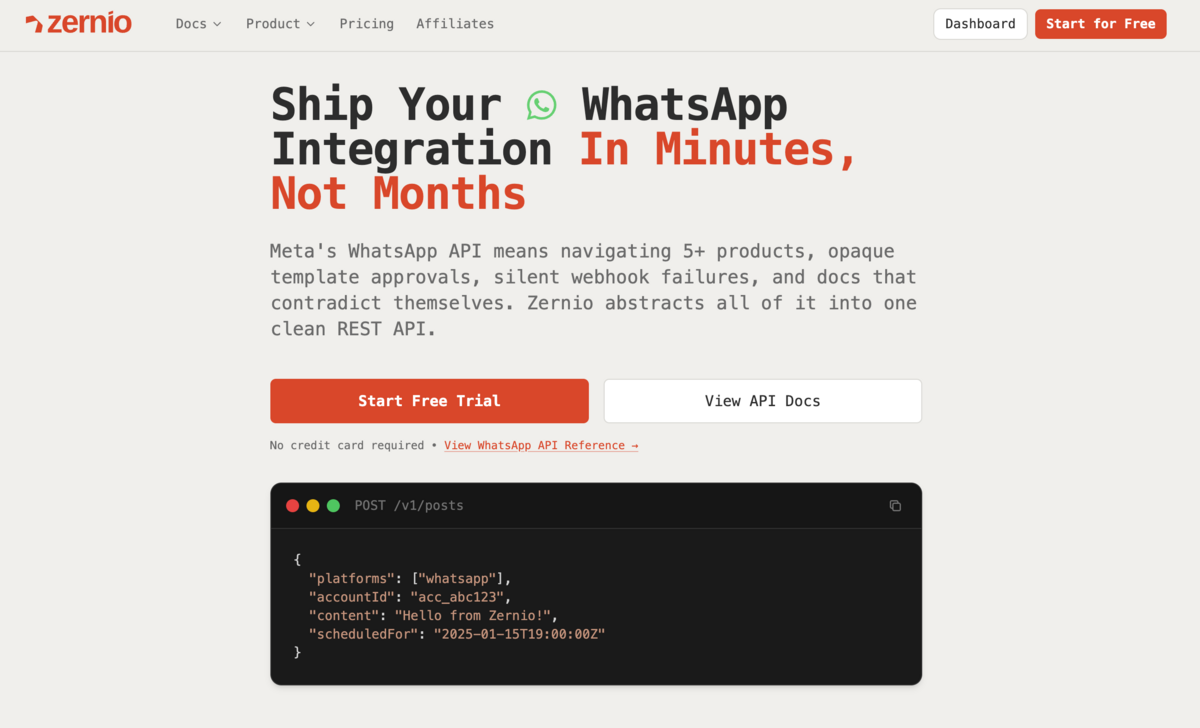
Zernio gives you everything you need to build and scale on WhatsApp. From API access and instant WhatsApp number provisioning (across 50+ countries) to messaging workflows, approved templates, a unified conversation inbox, ChatSDK and MCP support for managing and deploying WhatsApp agents and chatbots. It eliminates the complexity of configuring and maintaining the WhatsApp Business API and handles rate limits automatically to ensure reliable message delivery at scale.
Here, you'll learn how to create and send WhatsApp message templates using the WhatsApp Business API with Zernio.
Using the Zernio Dashboard
Zernio allows businesses to send WhatsApp messages either through its web dashboard or API. In this section, we'll focus on sending template messages using the Zernio dashboard.
Follow the steps below:
- Connect your WhatsApp Business Account to Zernio.
- Create and get your message template approved.
- Send a message using the approved template.
Step 1: Connect your WhatsApp account to Zernio
To get started, log in to your Zernio account and navigate to Connections from the sidebar menu. From there, you can connect your WhatsApp Business Account to Zernio.
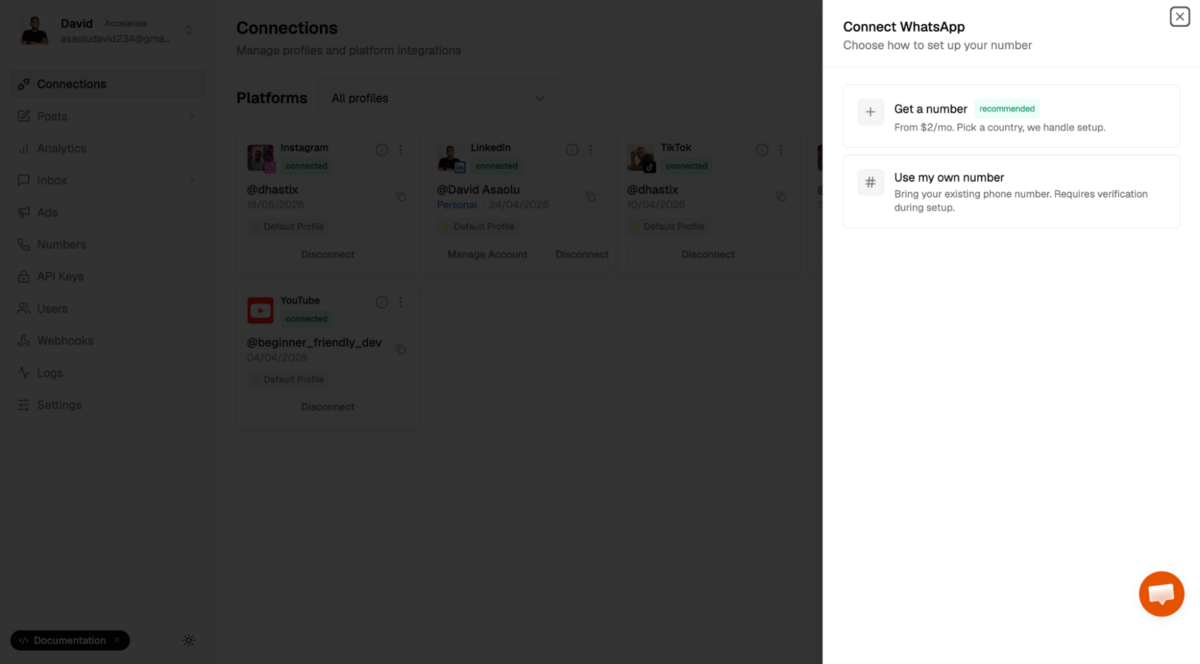
With Zernio, you can either purchase an international phone number or connect an existing WhatsApp Business phone number.
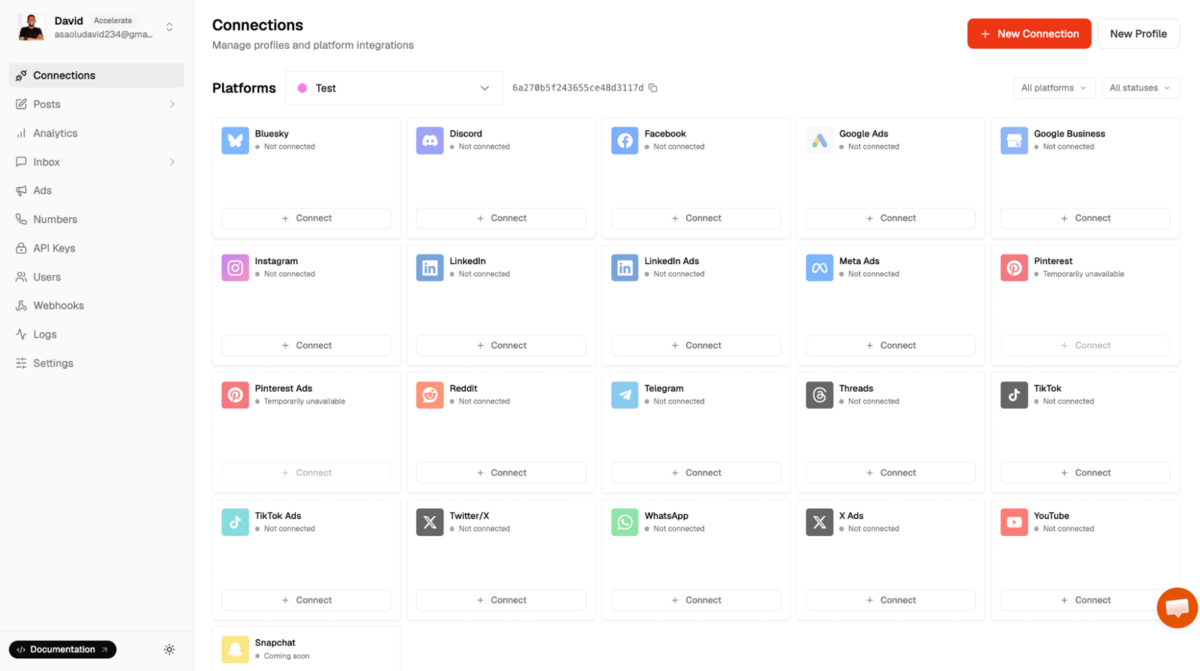
Once your account has been successfully connected, it will appear in the list of connected accounts, where you can view its connection status and manage it from the dashboard.
Step 2: Create a Message Template
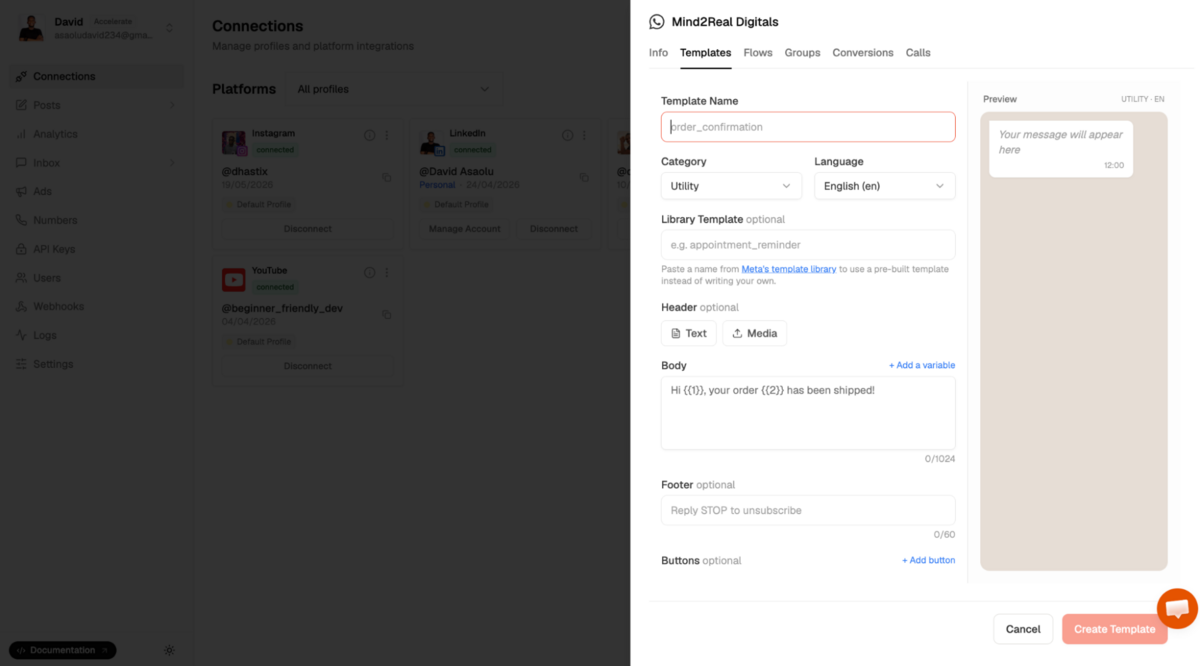
Click the Settings button for your connected WhatsApp account, then navigate to the Templates section to create a new message template.
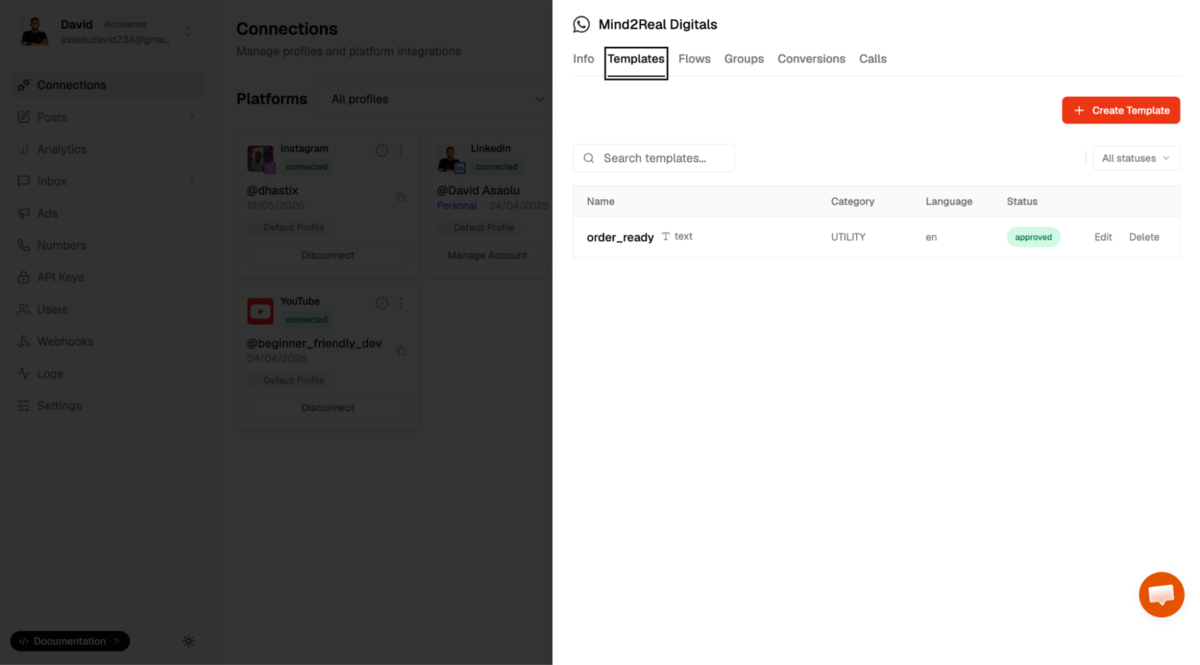
Enter a template name, select the appropriate template category, write the message content, and add buttons if required. Once you're done, click Create Template to submit the template for approval.
Message templates must be approved before they can be used to send broadcast messages. Approval typically takes up to 24 hours, although it may be faster depending on the review process.
Instead of writing a template, you can create one from Meta's pre-approved Template Library. This skips the review wait.
Step 3: Send a Message using the Approved Template
From the sidebar, navigate to Inbox > Messages, then click the Edit icon to start a new conversation.
Enter the recipient's phone number, select the approved template, provide values for the template variables, and click Send to deliver the template message to the recipient.
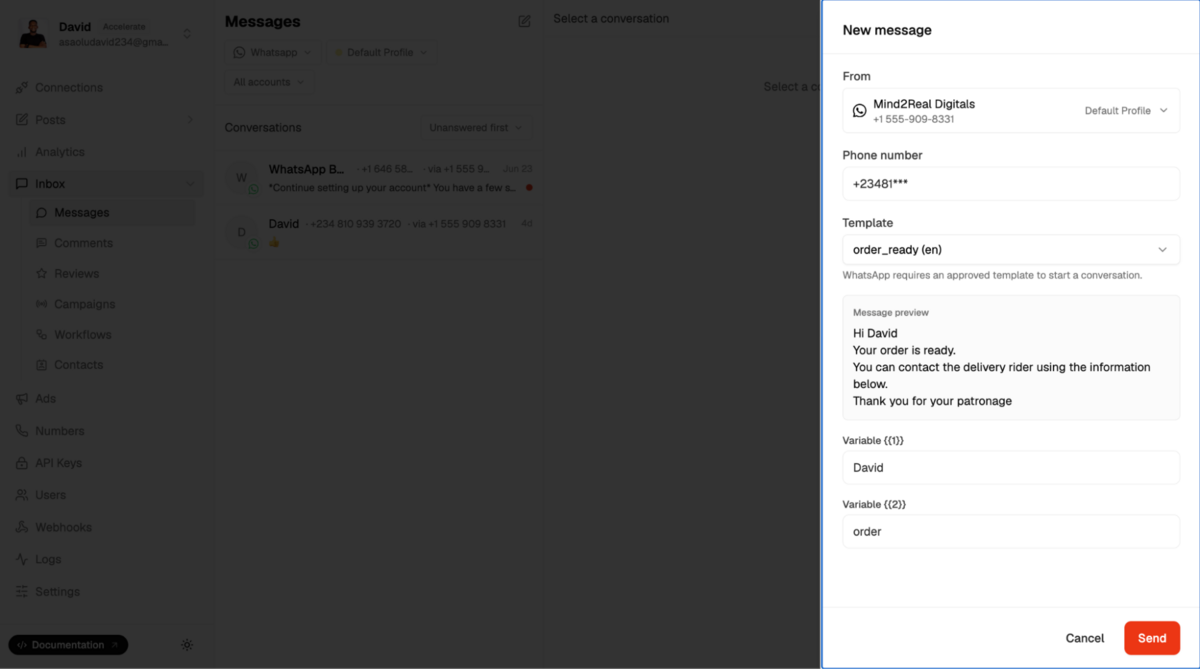
Congratulations! You've successfully sent your first WhatsApp message template using the Zernio Dashboard. Zernio also supports message broadcasts, allowing you to deliver approved template messages to multiple recipients simultaneously.
Using the Zernio API
Zernio is an API-first platform that provides access to the official WhatsApp Business API, enabling developers to build, automate, and scale WhatsApp messaging programmatically using its SDKs or REST API.
First, install the Zernio Node.js SDK
npm install @zernio/nodeCreate an index.js file and initialise the Zernio client using your API key:
const Zernio = require("@zernio/node").default;
const zernio = new Zernio({ apiKey: process.env.ZERNIO_API_KEY });
Use the following code snippet to create a new WhatsApp message template:
const { data } = await zernio.whatsapp.createWhatsAppTemplate({
  body: {
    accountId: 'YOUR_ZERNIO_ACCOUNT_ID',
    name: 'TEMPLATE_NAME',
    category: 'TEMPLATE_CATEGORY',
    language: 'en',
    components: [{
      type: 'BODY',
      text: 'Hi {{1}}, your order {{2}} has been confirmed!'
    }]
  }
});
console.log(`Template created: ${data.template.name} (${data.template.status})`);
Once Meta approves your message template, you can send WhatsApp template messages to your users using the code snippet below:
const { data } = await zernio.whatsapp.sendWhatsAppBulk({
  body: {
    accountId: process.env.ZERNIO_WHATSAPP_ACCOUNT_ID,
    recipients: [
      {
        phone: `${process.env.WHATSAPP_RECIPIENT_PHONE_NUMBER}`,
        variables: { 1: "David", 2: "#0012" },
      },
    ],
    template: {
      name: "order_ready",
      language: "en",
    },
  },
});
console.log(`Sent: ${data.summary.sent}, Failed: ${data.summary.failed}`);
If you prefer using the REST API or one of our other programming SDKs, refer to the complete guide.
Common Reasons for Template Approval Rejections
Before a WhatsApp message template can be used, it must be reviewed and approved by Meta. During the review process, Meta verifies that the template complies with WhatsApp's messaging policies, uses the correct template category, and follows the required formatting rules. If any of these requirements are not met, the template may be rejected.
Common reasons for rejections include:
1. Incorrect Template Category
Every message template must be assigned the correct category when it is created. Meta reviews both the template content and the selected category to ensure they match. For example, promotional offers should be categorised under Marketing, and order confirmations and shipping updates fall under the Utility category. Selecting the wrong category leads to template rejection.
2. Incorrect Variable Formatting
Variables must use the correct positional format, such as {{1}}, {{2}}, and {{3}}. Variables should be sequential, should not contain special characters, and cannot appear at the beginning or end of the message.
For example, the following templates may be rejected:
- Hi {{1}}, your order {{3}} is ready. (missing {{2}})
- {{1}}, your order has been shipped. (starts with a variable)
- Your verification code is {{1}}. (Correct)
3. Policy Violations
Templates that violate the WhatsApp Business Policy or WhatsApp Commerce Policy will be rejected. Avoid requesting sensitive personal or financial information, using misleading or deceptive content, promoting prohibited goods or services, or including abusive or threatening language.
4. Too Many Variables
Using too many variables in a short message can make the template appear generic or spam-like. If your template contains many placeholders, consider reducing the number of variables or adding more meaningful text to provide context.
5. Duplicate Templates
Submitting a template with the same body and footer as an existing template may result in rejection. Before creating a new template, check whether an existing approved template can be reused or updated instead.
6. Exceeding Character Limits and Unsupported Components
Each template component has character limits and formatting requirements. Templates that exceed these limits or use unsupported formatting, invalid button combinations, or unsupported component configurations may fail the review process. Always verify that your header, body, footer, and buttons comply with WhatsApp's requirements before submitting the template for approval.
Summary: Creating WhatsApp Message Templates and Getting Them Approved
WhatsApp message templates are a core feature of the WhatsApp Business Platform, enabling businesses to send notifications, authentication codes, appointment reminders, order updates, marketing campaigns, and other business-initiated messages while complying with WhatsApp's messaging policies.
While the WhatsApp Business Platform provides the foundation for creating and managing message templates, Zernio simplifies development and day-to-day operations by offering an intuitive dashboard, REST APIs, SDKs, AI agent support, WhatsApp calling, and interactive customer experiences with WhatsApp Flows. These capabilities enable businesses to create message templates, send template messages, automate customer communication, and build scalable WhatsApp solutions from a single platform.
When you use the WhatsApp Business API through a provider like Zernio, your teams can manage broadcast campaigns, message templates, and customer conversations from a shared workspace or integrate the WhatsApp Business API directly into your applications without managing the underlying infrastructure or worrying about ongoing maintenance.
FAQs
1. Do WhatsApp message templates require approval?
Yes, every WhatsApp message template must be reviewed and approved by Meta before it can be used.
2. When are WhatsApp message templates required?
Message templates are required whenever a business initiates a conversation with a customer outside the 24-hour customer service window. Within the customer service window, businesses can send free-form (non-template) messages without requiring template approval.
3. How long does it take for Meta to approve a message template?
Most WhatsApp message templates are reviewed within 24 hours, although some may be approved sooner or require additional review.
4. Why was my WhatsApp message template rejected?
Common reasons include selecting the wrong template category, incorrect variable formatting, policy violations, duplicate templates, excessive variables, or exceeding character limits.
5. Can I edit an approved WhatsApp message template?
Yes, you can edit approved WhatsApp message templates, but Meta places strict limits on what can be changed and how often changes can be made.
6. Can I schedule WhatsApp messages?
Yes. With Zernio, you can schedule WhatsApp messages for a specific date and time directly from the dashboard or API endpoint.
7. How can I send multiple WhatsApp messages at once?
You can send multiple WhatsApp messages simultaneously using WhatsApp broadcast messaging. With Zernio, you can send approved template messages to thousands of recipients at scale, personalise each message using template variables, schedule campaigns, segment audiences, and track delivery and engagement.