The LinkedIn Analytics API allows developers to retrieve performance metrics for LinkedIn posts, including impressions, link clicks, reactions, comments, reshares, and post saves. To access these analytics, you must first authenticate users and obtain the required access tokens through LinkedIn's OAuth 2.0 flow.
There are two ways to integrate LinkedIn analytics: directly through LinkedIn's API or through a unified social media API like Zernio.
We'll review both approaches. I'll walk you through authenticating users with LinkedIn OAuth 2.0, retrieving post analytics, and understanding the available metrics. You'll also learn how to access LinkedIn analytics faster and build it into your product using the Zernio API.
How to Access the LinkedIn Analytics API
Accessing the LinkedIn Analytics API starts with creating two LinkedIn developer apps: one for the OAuth 2.0 authentication flow and another for accessing post statistics through the LinkedIn Community Management API.
In this section, you'll learn how to create and configure both LinkedIn developer apps, authenticate users with OAuth 2.0, and access post analytics through the LinkedIn Community Management API.
Prerequisites
Before you begin, ensure you have the following:
- A LinkedIn Company Page, because LinkedIn developer apps must be linked to a page before you can request access to products such as the Community Management API.
- A verified business email address, which is required to access LinkedIn post analytics.
- Node.js and a code editor, such as Visual Studio Code. The code examples in this guide are written in JavaScript.
Authenticating Users with the LinkedIn API
Step 1: Create and configure your LinkedIn developer app
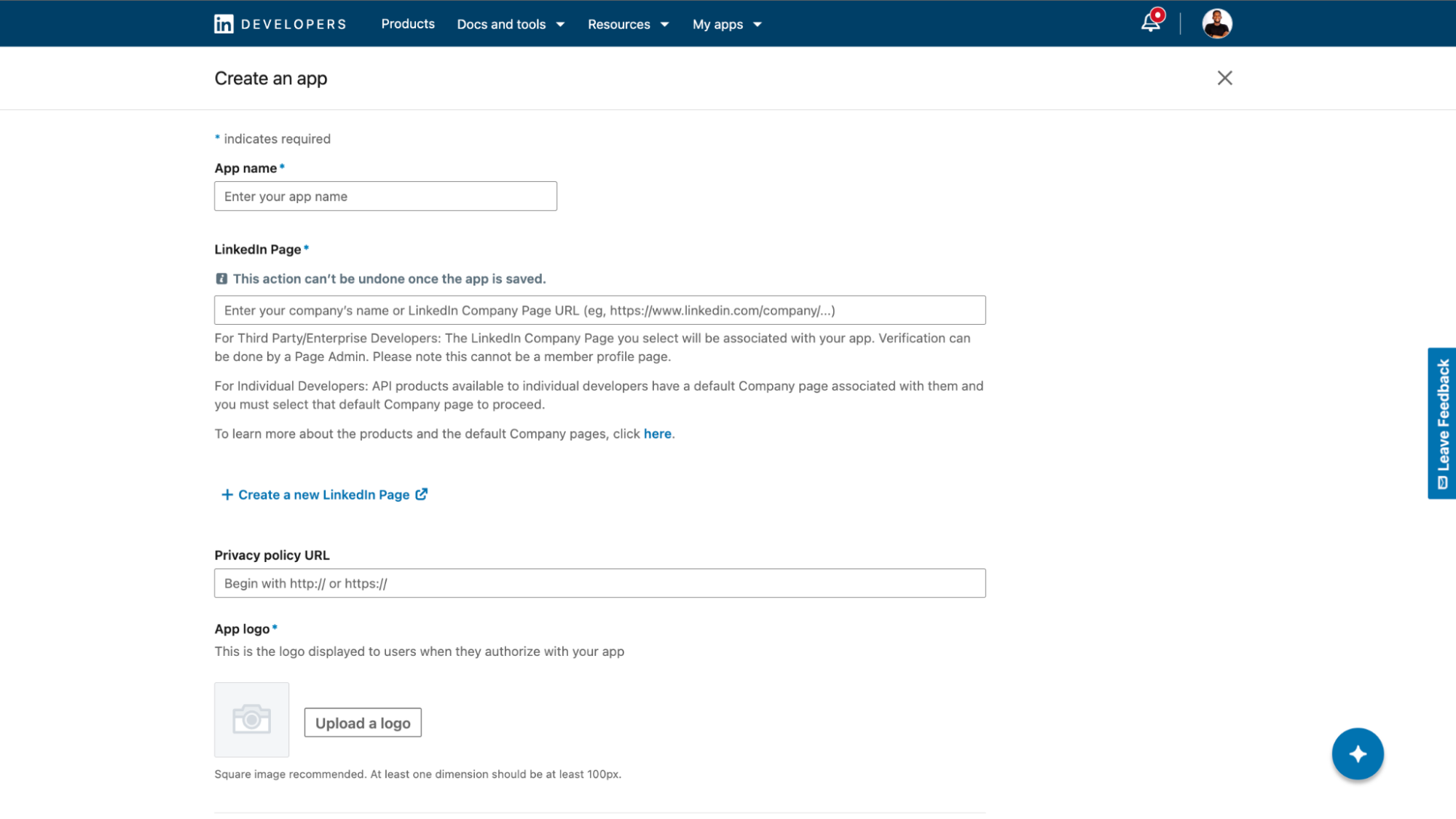
Visit the LinkedIn Developer portal and select My apps from the top navigation to create a new app.
Enter your app details, including the app name, logo, and associated LinkedIn Page. You can also provide an optional privacy policy URL. Once you have entered the required information, click Create app.
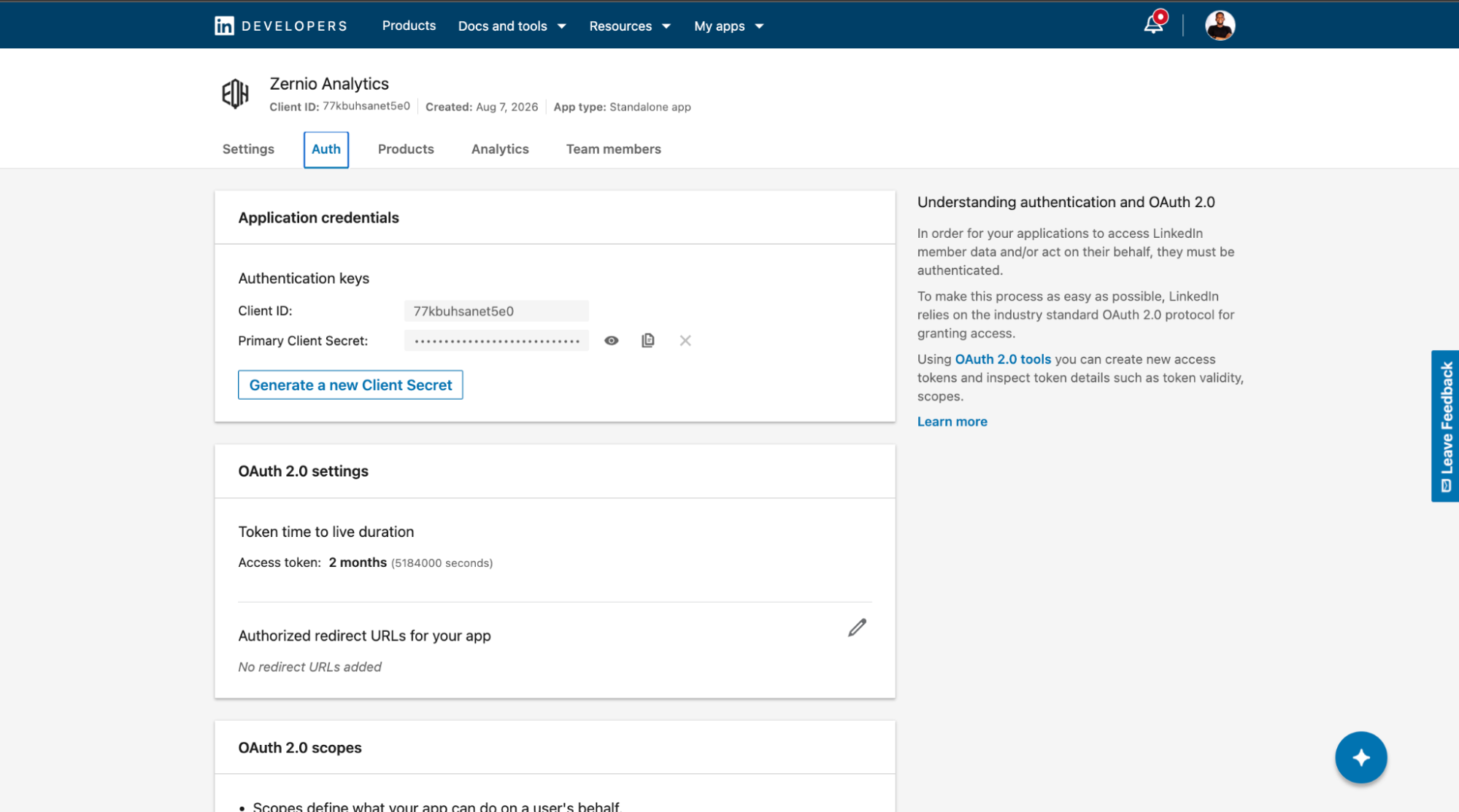
After creating the app, LinkedIn automatically generates your authentication credentials: a Client ID and Client Secret.
Next, open the Settings tab and click Verify to verify that you have access to the LinkedIn Page associated with your app. Select Generate verification URL, then open the generated URL while signed in to the LinkedIn account that manages the associated Page.
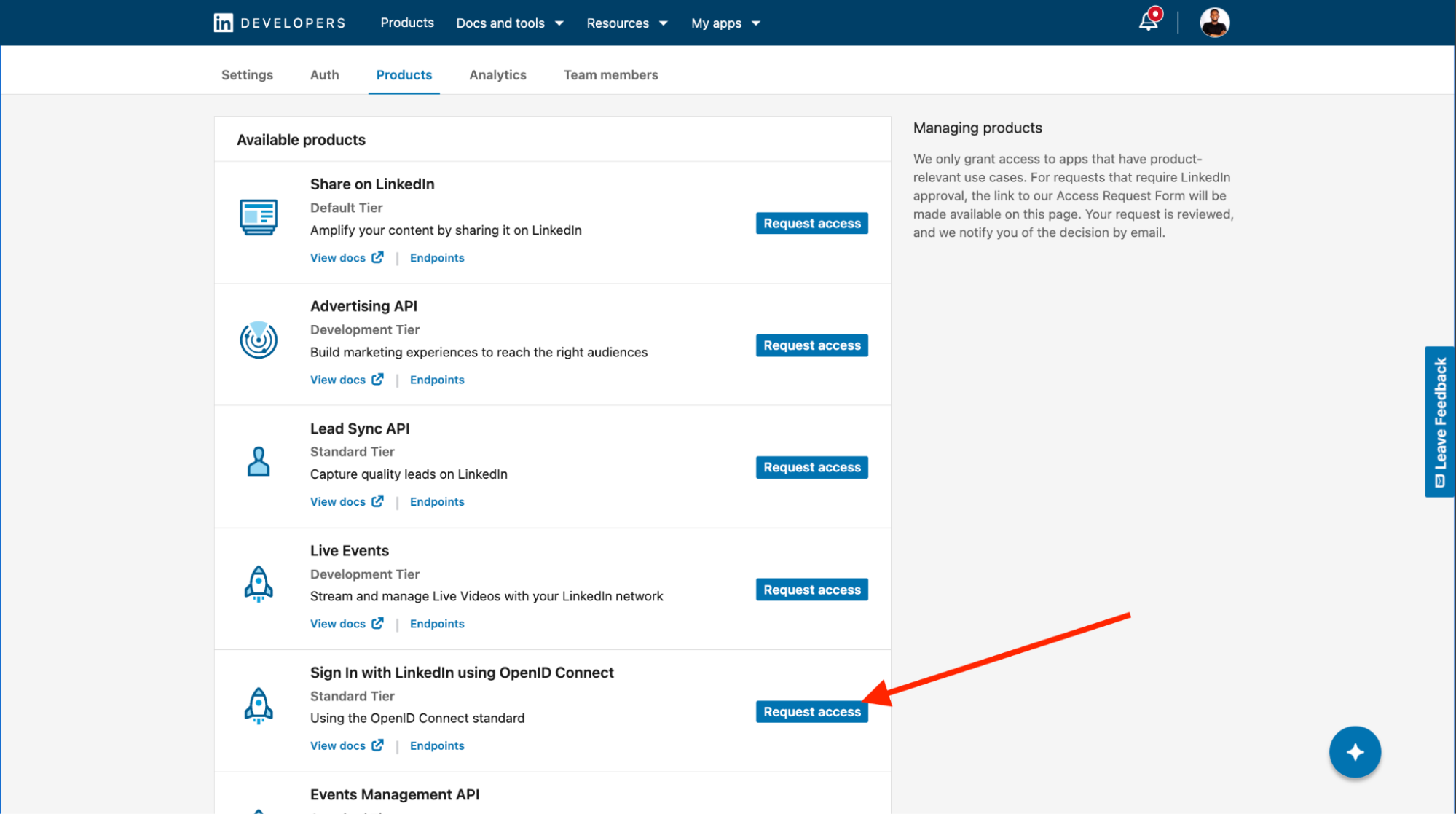
Once the Page is verified, open the Products tab and request access to the Sign In with LinkedIn using OpenID Connect product. LinkedIn provides different products for accessing its platform capabilities, and you must request access to the products required by your application.
After adding the product to your app, return to the Auth tab and refresh the page. You should see the OAuth 2.0 scopes provided by the product.
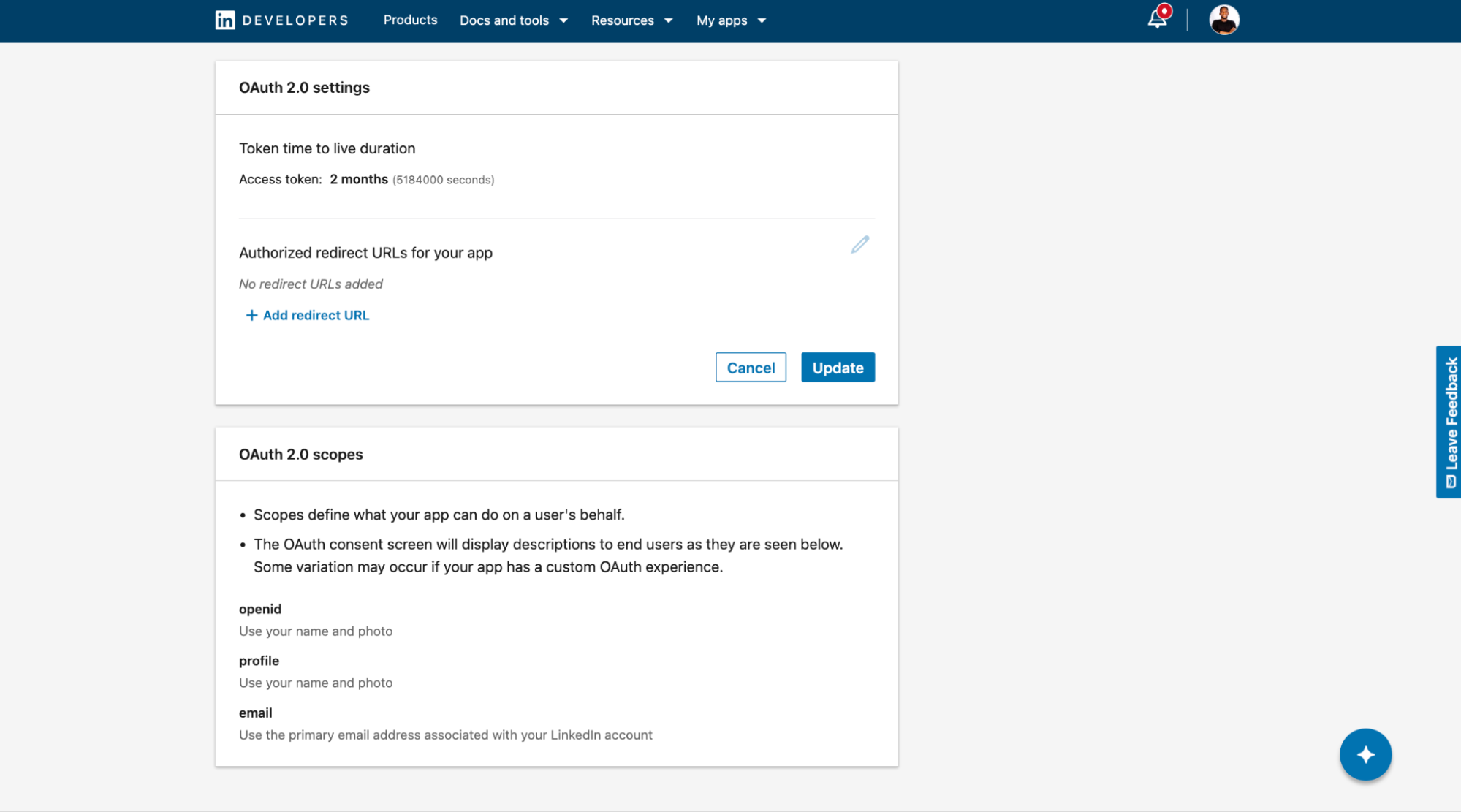
Finally, add the following redirect URL:
http://localhost:3000/auth/linkedin/callback
This is the URL LinkedIn redirects users to after they authorise your application. It should point to the callback route in your application and can be changed to match your server’s URL when you deploy the application. You’ll configure this route in the next steps.
Step 2: Set up your development environment
Create a project folder and initialise a Node.js project by generating a package.json file:
mkdir linkedin-auth
cd linkedin-auth
npm init -y
Next, install the required dependencies. Express configures the web server and routes needed to handle the LinkedIn OAuth flow, while Dotenv loads environment variables from your .env file.
npm install express dotenv
Create a .env file in the project directory and add your LinkedIn app’s Client ID and Client Secret:
LINKEDIN_CLIENT_ID=7**********
LINKEDIN_CLIENT_SECRET=WPL_AP1.***************.******==
Important: Never commit your .env file to a public repository. Add .env to your .gitignore file to prevent your credentials from being accidentally exposed.
Next, create an index.js file in the project directory. Add the following code to load your environment variables, import Express, and configure the values required for the LinkedIn OAuth flow:
// Required dependencies
require("dotenv").config();
const express = require("express");

// Server configuration with Express
const app = express();
const PORT = 3000;

// Store environment variables
const clientId = process.env.LINKEDIN_CLIENT_ID;
const clientSecret = process.env.LINKEDIN_CLIENT_SECRET;

// This URL must exactly match the redirect URL registered in your LinkedIn app
const redirectUri = "http://localhost:3000/auth/linkedin/callback";
Here, clientId and clientSecret variables retrieve the credentials from your .env file, while redirectUri specifies the callback URL that LinkedIn uses to redirect the user back to your application after authentication.
Step 3: Implement the LinkedIn OAuth 2.0 flow
To implement the LinkedIn OAuth 2.0 authentication flow, you first need to generate an authorisation URL that redirects users to LinkedIn to grant your application access.
After the user authorises your application, LinkedIn redirects them back to your application with an authorisation code. You can then exchange this code for an access token, which you can use to make authenticated requests to the LinkedIn API.
Add the following code to your index.js file:
// --- 👇🏻 3. LOGIN ROUTE ---
app.get("/login", (req, res) => {
  const scopes = ["openid", "profile", "email"]; // Adjust scopes as needed
  const authUrl = `https://www.linkedin.com/oauth/v2/authorization?response_type=code&client_id=${clientId}&redirect_uri=${encodeURIComponent(redirectUri)}&scope=${encodeURIComponent(scopes.join(" "))}`;

  console.log("Redirecting user to LinkedIn...");
  res.redirect(authUrl);
});

// --- 👇🏻 4. START THE APP ---
app.listen(PORT, () => {
  console.log(`\n======================================================`);
  console.log(`🌟 SERVER RUNNING!`);
  console.log(`👉 Step 1: Open your browser and go to:`);
  console.log(`   http://localhost:${PORT}/login`);
  console.log(`======================================================\n`);
});
The /login route generates the LinkedIn authorisation URL with your client ID, redirect URI, and requested OAuth scopes. When a user visits http://localhost:3000/login, the route redirects them to LinkedIn’s authorisation page, where they can grant your application the requested permissions.
Next, add the following code before the /login route to handle the callback from LinkedIn and exchange the authorisation code for an access token:
// --- 👇🏻 1. GET ACCESS TOKEN HELPER ---
async function getTokens(authCode) {
  const tokenUrl = "https://www.linkedin.com/oauth/v2/accessToken";

  const response = await fetch(tokenUrl, {
    method: "POST",
    headers: { "Content-Type": "application/x-www-form-urlencoded" },
    body: new URLSearchParams({
      grant_type: "authorization_code",
      code: authCode,
      redirect_uri: redirectUri,
      client_id: clientId,
      client_secret: clientSecret,
    }),
  });

  if (!response.ok) {
    const errorText = await response.text();
    throw new Error(`Token Error: ${response.status} - ${errorText}`);
  }
  return await response.json(); // Returns an object with access_token and expires_in
}

// --- 👇🏻 2. HANDLE THE CALLBACK ---
app.get("/auth/linkedin/callback", async (req, res) => {
  const incomingAuthCodeFromUrl = req.query.code;
  let tokens = null;

  if (!incomingAuthCodeFromUrl) {
    return res.status(400).send("Error: No Authorization Code found in URL.");
  }

  try {
    console.log("\n🚀 Starting LinkedIn Auth Pipeline...");
    tokens = await getTokens(incomingAuthCodeFromUrl);

    console.log({ tokens });
    console.log("✅ Successfully retrieved Tokens.");
  } catch (error) {
    console.error("❌ Auth Pipeline Failed:", error.message);
  }

  if (tokens) {
    res.json({
      message: "Authentication Successful! Here are your tokens:",
      ...tokens,
    });
  } else {
    res.status(500).send("Authentication failed. Check your terminal logs.");
  }
});
From the code above:
- getTokens() function: Sends a POST request to LinkedIn’s token endpoint with the authorisation code, client credentials, and redirect URI. LinkedIn validates these details and returns an access token upon successful exchange.
- Callback route: The /auth/linkedin/callback route is displayed after users authorise your application. It extracts the code query parameter from the callback URL and passes it to getTokens() to obtain the access token.
- Access token: The returned token can be used to make authenticated requests to LinkedIn API endpoints.
Retrieving Post Analytics from the LinkedIn API
Before you can retrieve post analytics, you need access to the LinkedIn Community Management API. You must also verify the LinkedIn Page associated with your organisation and complete LinkedIn’s business verification process before making authorised API requests.
The LinkedIn Community Management API must also be the only product enabled within its specific developer app. You cannot mix it with other products, such as the Advertising API, in the same app.
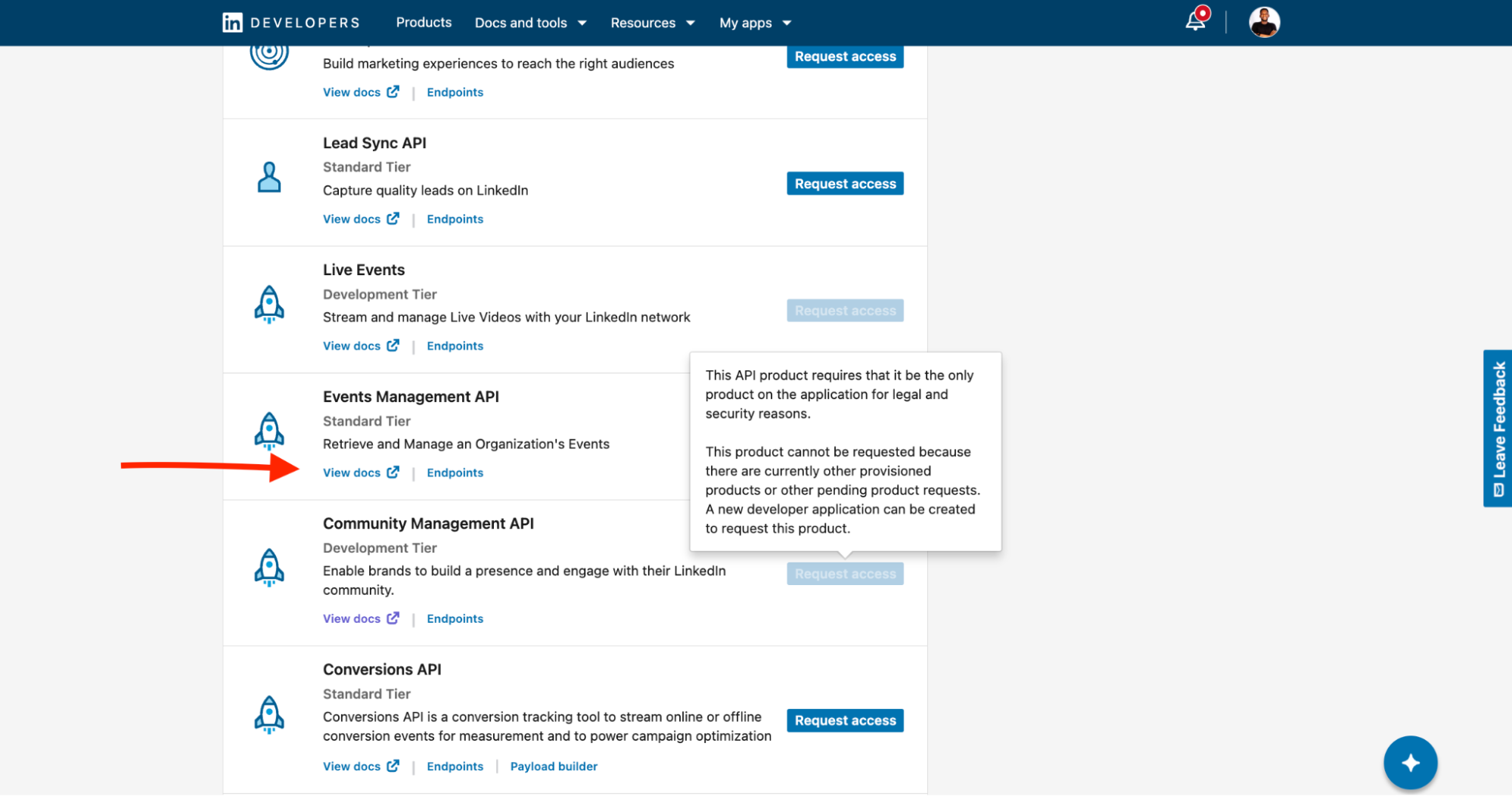
Step 1: Create a LinkedIn developer app and request access to the Community Management API
Create a new LinkedIn developer app, verify that you are an admin of the associated LinkedIn Page, and request access to the Community Management API product. You’ll need to verify your business email address.
Step 2: Update the OAuth scopes
Once your app has access to the Community Management API, update the scopes array in your /login route to include the r_member_postAnalytics permission:
app.get("/login", (req, res) => {
  const scopes = [
    "r_basicprofile",
    "w_member_social",
    "r_member_postAnalytics",
  ];

  const authUrl = `https://www.linkedin.com/oauth/v2/authorization?response_type=code&client_id=${clientId}&redirect_uri=${encodeURIComponent(redirectUri)}&scope=${encodeURIComponent(scopes.join(" "))}`;

  console.log("Redirecting user to LinkedIn...");
  res.redirect(authUrl);
});
The scopes array requests the permissions your application needs to authenticate the user and access their LinkedIn data:
- r_basicprofile allows your application to access basic profile information for the authenticated member.
- w_member_social allows your application to create, modify, and delete posts on behalf of the authenticated member.
- r_member_postAnalytics allows your application to retrieve the authenticated member’s posts and their associated reporting data, including post performance metrics.
You must also update your LINKEDIN_CLIENT_ID and LINKEDIN_CLIENT_SECRET environment variables with the credentials from the new developer app and authorise the application again to obtain an access token with the new permission.
Step 3: Retrieve post analytics through the API endpoint
Finally, add the following function to your index.js file to retrieve analytics for a specific LinkedIn post:
// --- 👇🏻 GET POST ANALYTICS HELPER ---
async function getSinglePostAnalytics(accessToken, postUrn, metricType) {
  // URL-encode the post URN before adding it to the query string
  const encodedUrn = encodeURIComponent(postUrn);

  const url = `https://api.linkedin.com/rest/memberCreatorPostAnalytics?q=entity&entity=${encodedUrn}&queryType=${metricType}&aggregation=TOTAL`;

  const response = await fetch(url, {
    method: "GET",
    headers: {
      Authorization: `Bearer ${accessToken}`,
      "X-Restli-Protocol-Version": "2.0.0",
      "LinkedIn-Version": "202607",
    },
  });

  if (!response.ok) {
    const errorText = await response.text();
    throw new Error(`Analytics API Error: ${response.status} - ${errorText}`);
  }

  return await response.json();
}
From the code above:
- The memberCreatorPostAnalytics API endpoint retrieves analytics for specific and aggregated posts.
- getSinglePostAnalytics() accepts three parameters: accessToken authenticates the request, postUrn identifies the LinkedIn post you want to analyse, and metricType specifies the metric you want to retrieve.
- encodeURIComponent(postUrn) URL-encodes the post URN before adding it to the request URL. LinkedIn requires the post URN to be passed as the entity query parameter.
- queryType specifies the analytics metric to retrieve. The endpoint requires you to request a specific metric for each call. Supported queryType values include IMPRESSION, MEMBERS_REACHED, REACTION, COMMENT, RESHARE, POST_SAVE, POST_SEND, LINK_CLICKS, PREMIUM_CTA_CLICKS, FOLLOWER_GAINED_FROM_CONTENT, and PROFILE_VIEW_FROM_CONTENT.
- aggregation=TOTAL requests the total value for the selected metric. You can use DAILY with a dateRange when you need analytics broken down by day.
Limitations of the LinkedIn Analytics API
The LinkedIn Analytics API provides access to useful post performance data, but a direct integration comes with several technical and operational constraints. These limitations can make the API more difficult to set up, scale, and maintain compared with a unified social media API.
1. Gated Behind Complex Authentication and App Setup
Accessing LinkedIn analytics requires more than generating an API key. You need to create and configure a LinkedIn developer app, associate it with a LinkedIn Page, implement OAuth 2.0, request the appropriate permissions, and exchange authorisation codes for access tokens. This multi-step authentication flow adds to the development work, particularly when your application needs to authenticate multiple LinkedIn users and manage their access tokens.
2. API Access Requires Approval
LinkedIn does not provide unrestricted access to its member and organisation data. Developers must submit an access request for the Community Management API, and LinkedIn reviews the application based on the proposed use case and other requirements.
Changes to an application's functionality after review may also require another review, particularly when applying for higher access tiers. This approval-based model can increase development time, especially when you’re building and testing a new integration.
3. Business Verification Is Required
LinkedIn requires developers requesting access to post analytics to provide a valid business email address, which can be a limitation for individual developers or projects that do not have an established business identity or LinkedIn Page.
4. Frequent API Version Changes
LinkedIn uses a versioned API model and releases new versions regularly. Therefore, applications must specify the API version in the LinkedIn-Version request header, and each version eventually expires and is no longer supported.
This versioning model provides stability by allowing applications to remain on a supported version. However, developers still need to monitor LinkedIn’s release and migration documentation and update their integrations before their version is sunset.
5. Strict Rate Limits
LinkedIn limits the number of API requests an application can make within 24 hours. Limits can apply at both the application and member levels, and exceeding an applicable limit can result in a 429 Too Many Requests response.
If your application retrieves analytics for many posts or users, you need to account for these limits when designing your request strategy. This may require caching, request throttling, and retry handling.
6. Analytics Are Distributed Across Multiple Endpoints
LinkedIn provides different types of analytics data through separate API endpoints. The Community Management API provides endpoints for different analytics use cases, including member post statistics, organisation page statistics, follower statistics, and video analytics.
For example, the memberCreatorPostAnalytics endpoint retrieves member post analytics, while other endpoints handle ads analytics and other types of LinkedIn data. If your application needs to support a broad range of analytics, you must work with multiple endpoints and their respective query parameters.
7. Metrics Have Different Query Capabilities
The available analytics metrics do not support the same query options. For example, the post analytics endpoint supports TOTAL and DAILY aggregations, but certain metrics, such as MEMBERS_REACHED, LINK_CLICKS, and FOLLOWER_GAINED_FROM_CONTENT, are not supported. This means your application needs to account for metric-specific restrictions when building analytics queries.
Stop building social integrations from scratch.
One API call to publish, schedule, and manage posts across 16 platforms.
Skip the LinkedIn API Complexity with Zernio
Zernio is a unified social media management and messaging API that lets you create, schedule, and publish LinkedIn posts with images, videos, and documents, manage ads and DMs, and retrieve post analytics through a single API, without any complex OAuth setup or integration processes.
Zernio simplifies LinkedIn authentication and offers automatic API rate limiting, retry mechanisms, request logs, webhook support, and AI agent integrations through its MCP server. It also handles platform-specific API updates and maintenance across 15 other social media platforms, making it easier to build SaaS integrations and AI-powered social media workflows without managing multiple platform's API separately.
Zernio API or LinkedIn API
The table below compares the LinkedIn API and Zernio API across authentication, analytics, publishing, rate limits, API maintenance, and other integration capabilities.
| Feature | LinkedIn API | Zernio API |
|---|---|---|
| Post & Account Analytics | Fragmented & Segmented. You must query dedicated endpoints for one metric at a time (via queryType). Requires entirely different endpoints for Video vs Text posts, and Personal vs Org accounts (e.g., Saves/Sends are Personal-only, Clicks are Org-only). Retrieving Org aggregates requires ADMINISTRATOR status plus 3 distinct scopes, and exact UNIX timestamps are needed for daily tracking. | Unified & Normalised. Retrieve full post and aggregate analytics through a single unified API call. Zernio automatically normalises data for Personal vs Org accounts and Video vs Text posts, returning all metrics (Impressions, Reach, Likes, Comments, Shares, Sends, Clicks, Views, Saves) in one clean JSON object. Time-series data is easily fetched using standard date formats. |
| Authentication | Can be complex. You must build the full OAuth 2.0 flow, handle redirects, manage access tokens, and build a database to refresh them every 60 days. | Simple. No OAuth in your code. You get a single static API key, and Zernio manages token refreshes. |
| App Approvals | Strict. Requires creating apps, applying for specific products (like Community Management API), and waiting for LinkedIn’s approval. | Instant. Zernio’s master app is already approved. You just connect accounts and start making API calls immediately. |
| Posting Media (Images/Video) | Requires a multi-step process: 1. Register upload, 2. Upload raw binary data via PUT, 3. Attach returned URN to the post. | You just pass a public URL (e.g., https://site.com/image.png). Zernio downloads, resizes, and handles the multi-step upload automatically. |
| Ads & Messaging | Ads and Messaging require entirely different API endpoint structures, different permissions, and different authentication rules. | Provides unified Ads API for LinkedIn, Meta, Pinterest, Google, TikTok, OpenAI, and X Ads data. Also, a unified social inbox and messaging API. |
| Cross-Platform Support | Only works for LinkedIn. | Yes, Zernio supports 16 platforms |
| API Versioning & Headers | Manual. You must constantly track LinkedIn API versions (e.g., LinkedIn-Version: 202607) and update your code so it doesn’t break. | Automated. Zernio handles all platform changes in the background. Your code/endpoints never have to change. |
| Rate Limits & Throttling | Manual. If you send too many requests at once, you will get 429 errors or risk having your API access revoked. | Automated. Zernio queues and drip-feeds requests to keep you safely under LinkedIn’s limits. |
| Cost | Free, but can become expensive in terms of engineering time and ongoing maintenance. | Has a free tier and paid plans start at $6/month for 3+ accounts |
| Webhooks | You must build, host, and verify your own webhook receiving endpoints that adhere to LinkedIn's strict payload formats. | Provides universal webhook support to easily build event-driven workflows (like triggering actions on a new comment). |
| AI Agent Integration | DIY. You must write all the custom tool-calling logic and translation layers to connect your AI agent to LinkedIn's specific endpoints. | Native. Provides MCP (Model Context Protocol) support out of the box, allowing compatible AI assistants to use social capabilities instantly. |
How to Access LinkedIn Analytics with the Zernio API
Zernio API supports analytics for LinkedIn posts scheduled or published from both personal profiles and company pages. In this section, you’ll learn how to view and retrieve LinkedIn post analytics using the Zernio dashboard, API, and MCP server integration.
Using the Zernio Dashboard
The Zernio dashboard provides a central place to manage your LinkedIn content and view its performance.
To get started, log in to your Zernio account and navigate to Connections in the sidebar to connect your LinkedIn personal profile or company Page to Zernio. If you manage multiple LinkedIn Pages, you can connect each one by creating an additional profile.
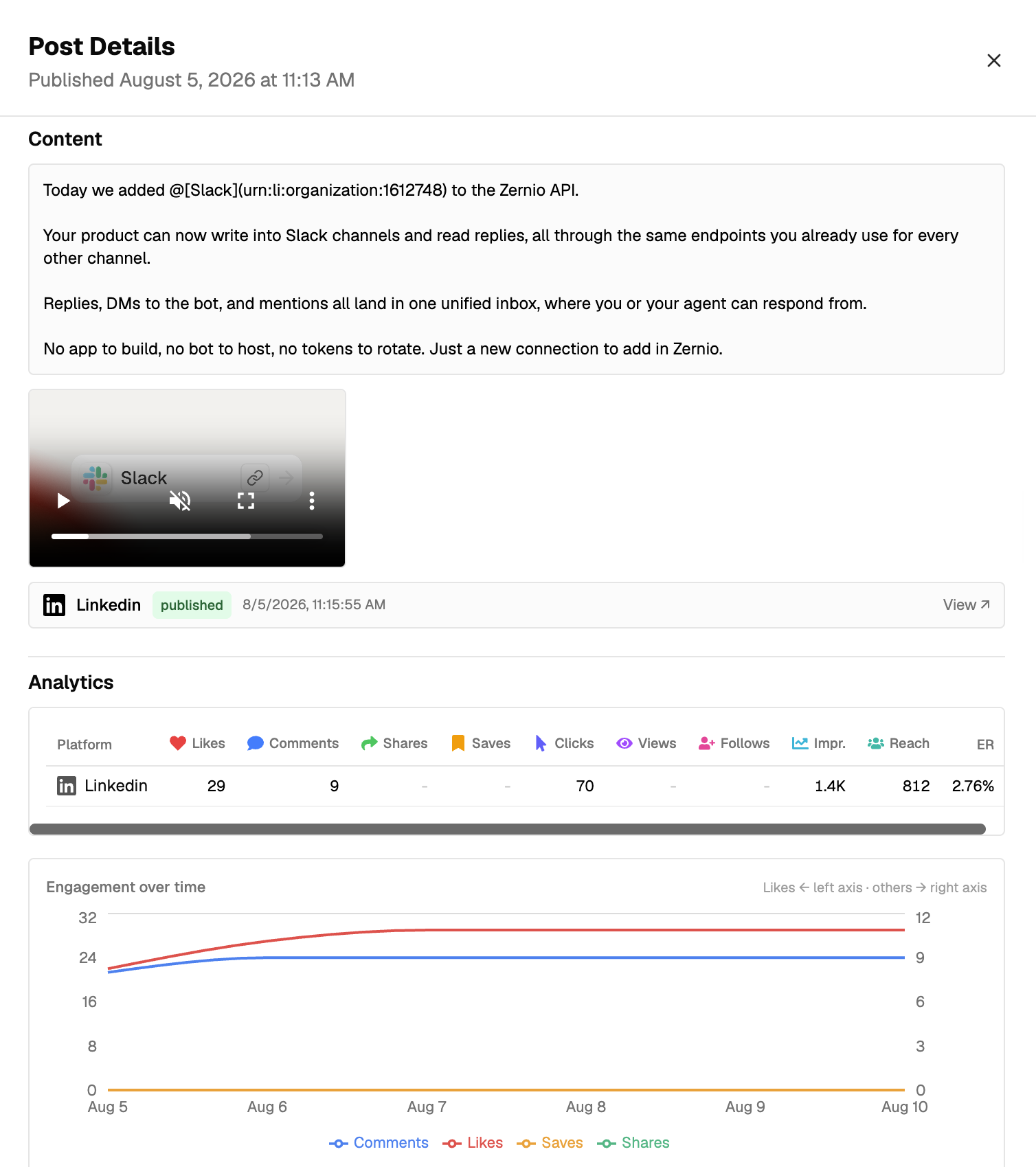
To view the analytics for a single post, open Posts and select a published post. If you don’t have any existing posts, create and publish one from the Zernio dashboard.
You can also view aggregated analytics across all connected social media platforms in the Zernio dashboard by selecting Analytics from the sidebar.
Using the Zernio API
Zernio provides official SDKs for Node.js, Python, Go, Ruby, Java, PHP, .NET, and Rust, allowing you to integrate Zernio using your preferred programming language.
In this tutorial, we’ll use the Zernio Node.js SDK to retrieve analytics across your connected social media accounts and the Zernio REST API to retrieve analytics for a specific post.
Before you begin, select API Keys from the sidebar and create a new API key. Copy the key and save it in the .env file in your project directory.
ZERNIO_API_KEY=sk_********************
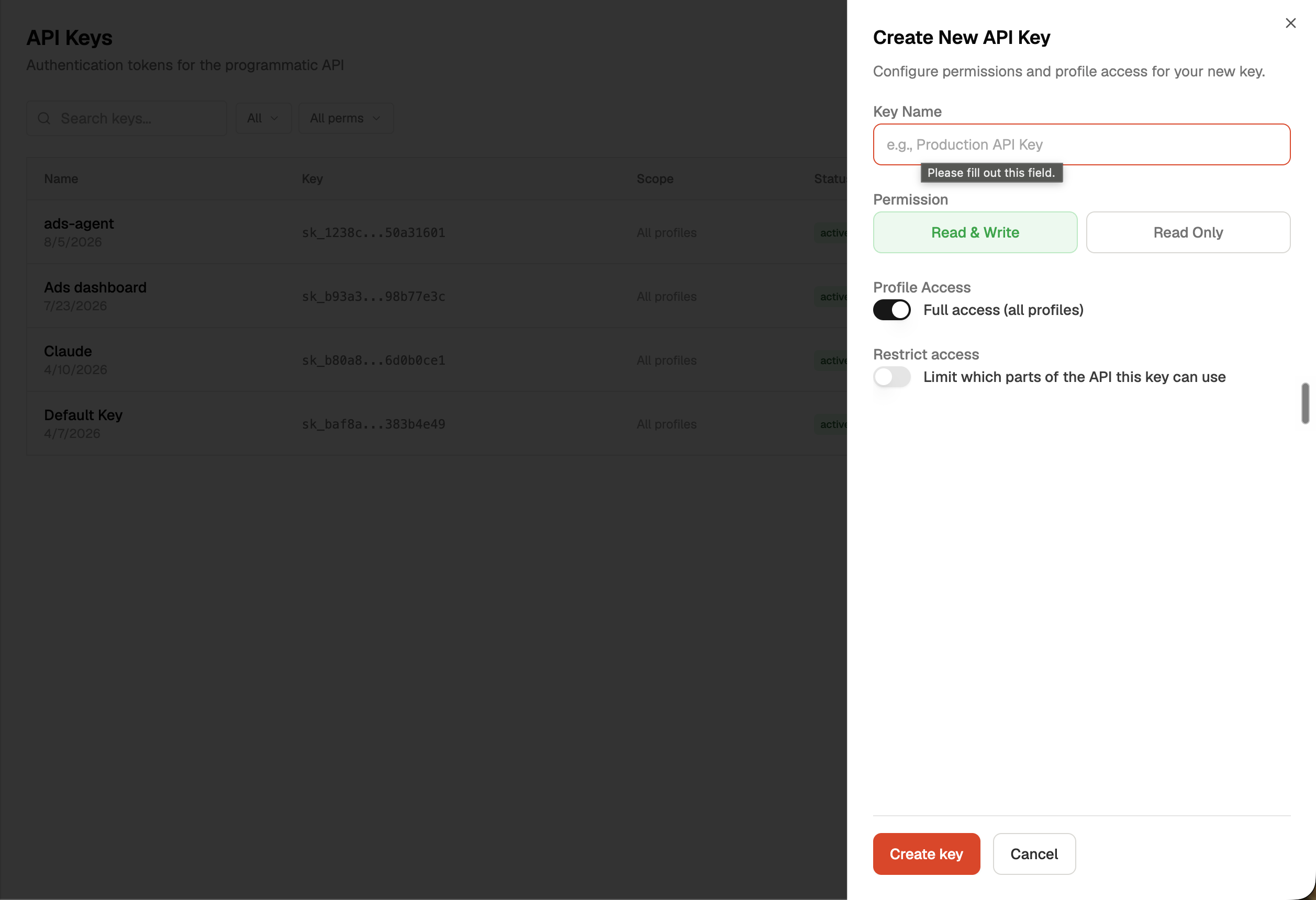
Install the Zernio Node.js SDK:
npm install @zernio/node
Next, import the SDK and initialise the Zernio client in the index.js file:
const Zernio = require("@zernio/node").default;
const zernio = new Zernio({ apiKey: process.env.ZERNIO_API_KEY });
Now, let’s create two Express routes: one to get the analytics for all connected accounts and another to retrieve analytics for a specific post.
To retrieve multi-platform post analytics with the Zernio Node.js SDK, add the following route:
// --- 👇🏻 GET ALL ANALYTICS DATA ---
app.get("/analytics", async (req, res) => {
  try {
    // Fetch analytics
    const { data } = await zernio.analytics.getAnalytics();

    // Send the data to the browser as JSON
    res.json(data);
  } catch (error) {
    console.error("Error fetching analytics:", error);

    // Send a 500 error if something goes wrong
    res.status(500).json({ error: "Failed to fetch analytics data" });
  }
});
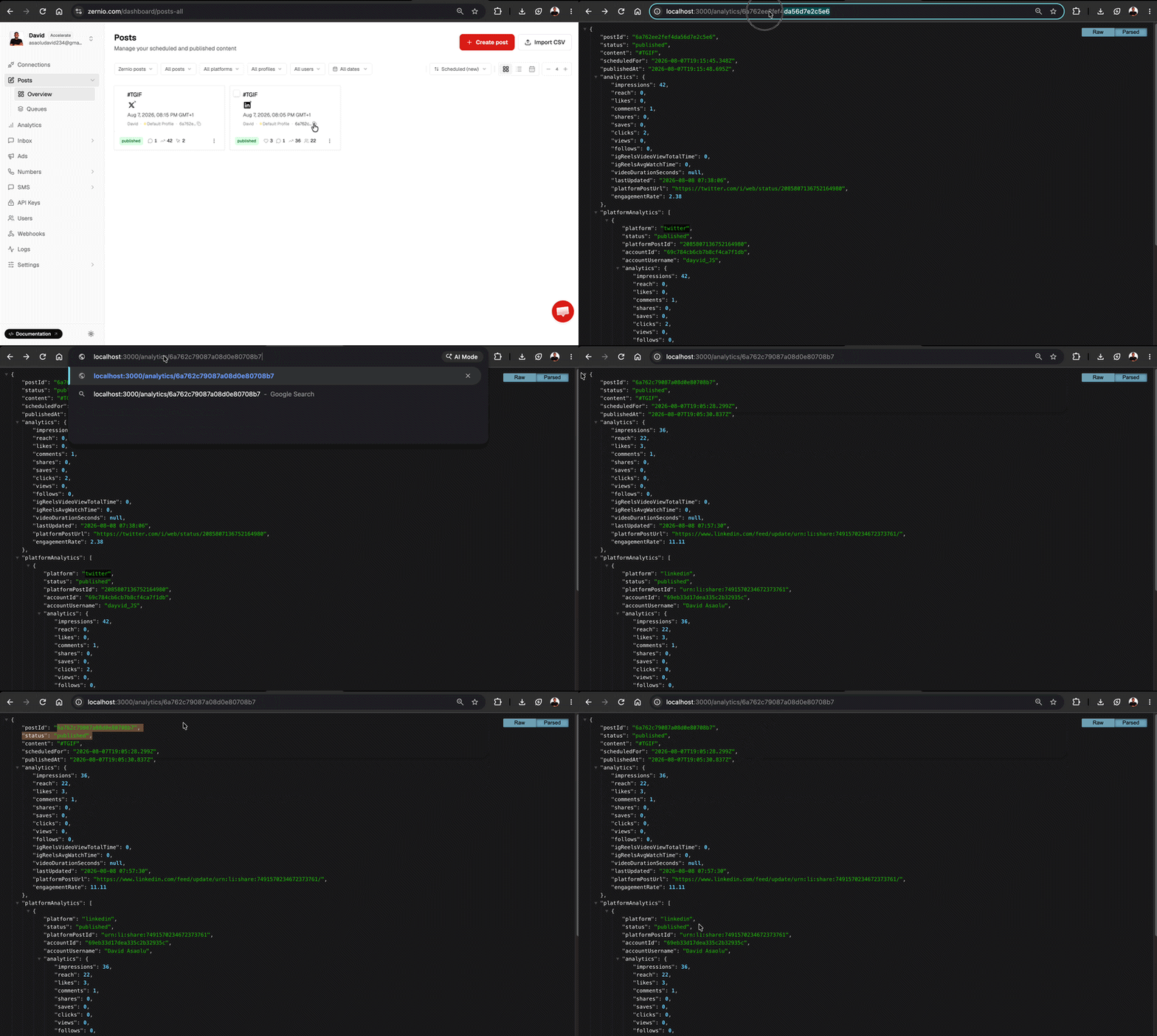
The /analytics route calls Zernio’s getAnalytics() method and returns the analytics data as JSON. When you visit http://localhost:3000/analytics, the Express server sends the request to Zernio and displays the returned analytics in the browser.
To retrieve analytics for a specific post, create another route using the post ID:
// --- 👇🏻 GET ANALYTICS DATA FOR A SPECIFIC POST ---
app.get("/analytics/:postId", async (req, res) => {
  const { postId } = req.params;
  const url = `https://zernio.com/api/v1/analytics?postId=${postId}`;

  try {
    const response = await fetch(url, {
      method: "GET",
      headers: {
        Authorization: `Bearer ${process.env.ZERNIO_API_KEY}`,
        "Content-Type": "application/json",
      },
    });

    // Check if the Zernio API returned an error
    if (!response.ok) {
      const errorData = await response.json();
      return res.status(response.status).json(errorData);
    }

    // Parse and return the analytics data
    const data = await response.json();
    res.json(data);
  } catch (error) {
    console.error("Direct fetch error:", error);
    res.status(500).json({ error: "Server error fetching analytics" });
  }
});
The /analytics/:postId route captures the postId from the URL and adds it to the Zernio API request as a query parameter. For example, visiting http://localhost:3000/analytics/12345 sends a request for the analytics associated with post 12345. The returned analytics are then displayed as JSON in the browser. You can find a post’s ID in the Zernio dashboard.
Using the Zernio MCP Server
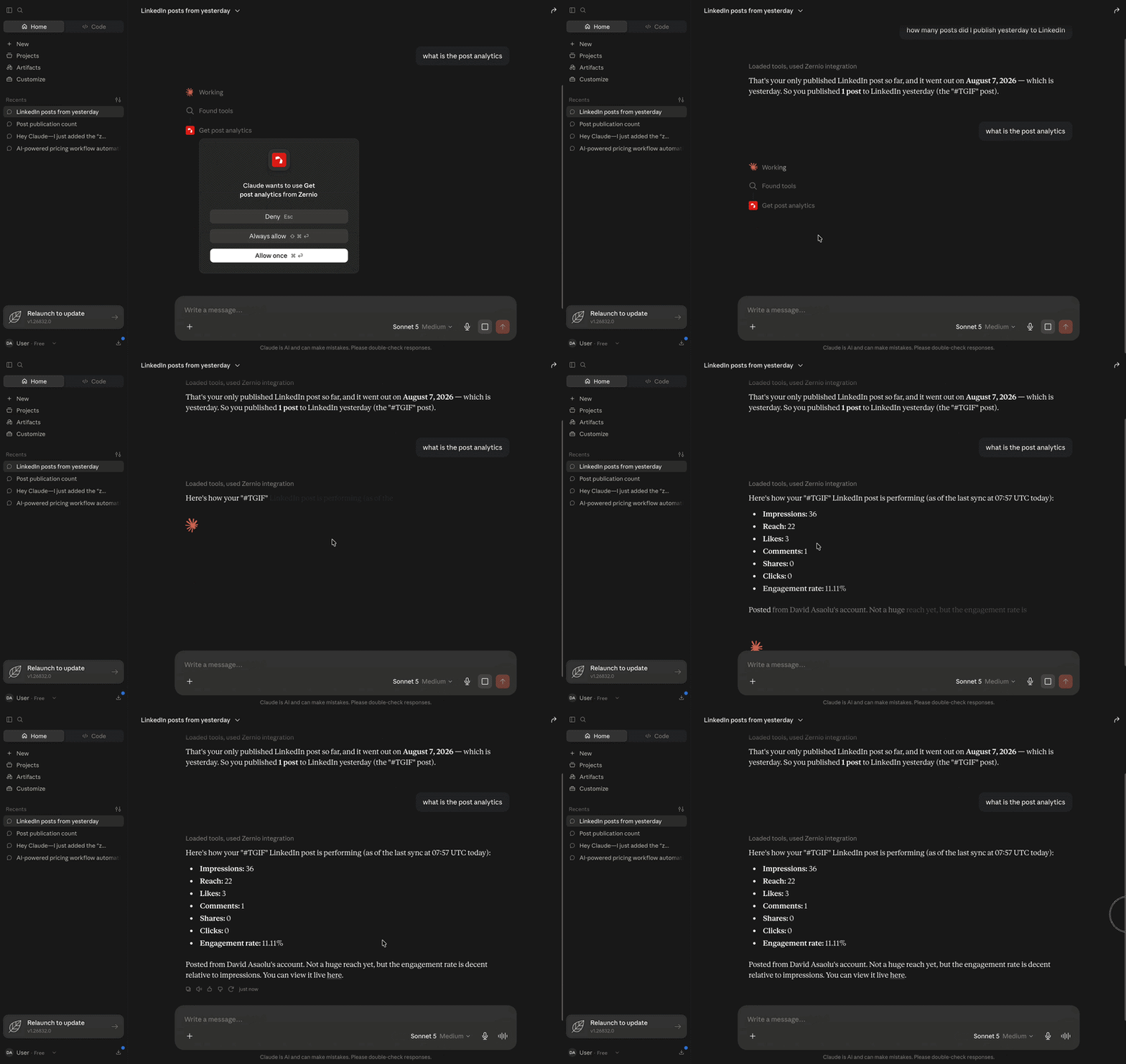
If you use Claude or another MCP-compatible AI assistant, you can connect it to the hosted Zernio MCP server to schedule posts, retrieve scheduled content and post analytics, and manage your social media accounts using natural language.
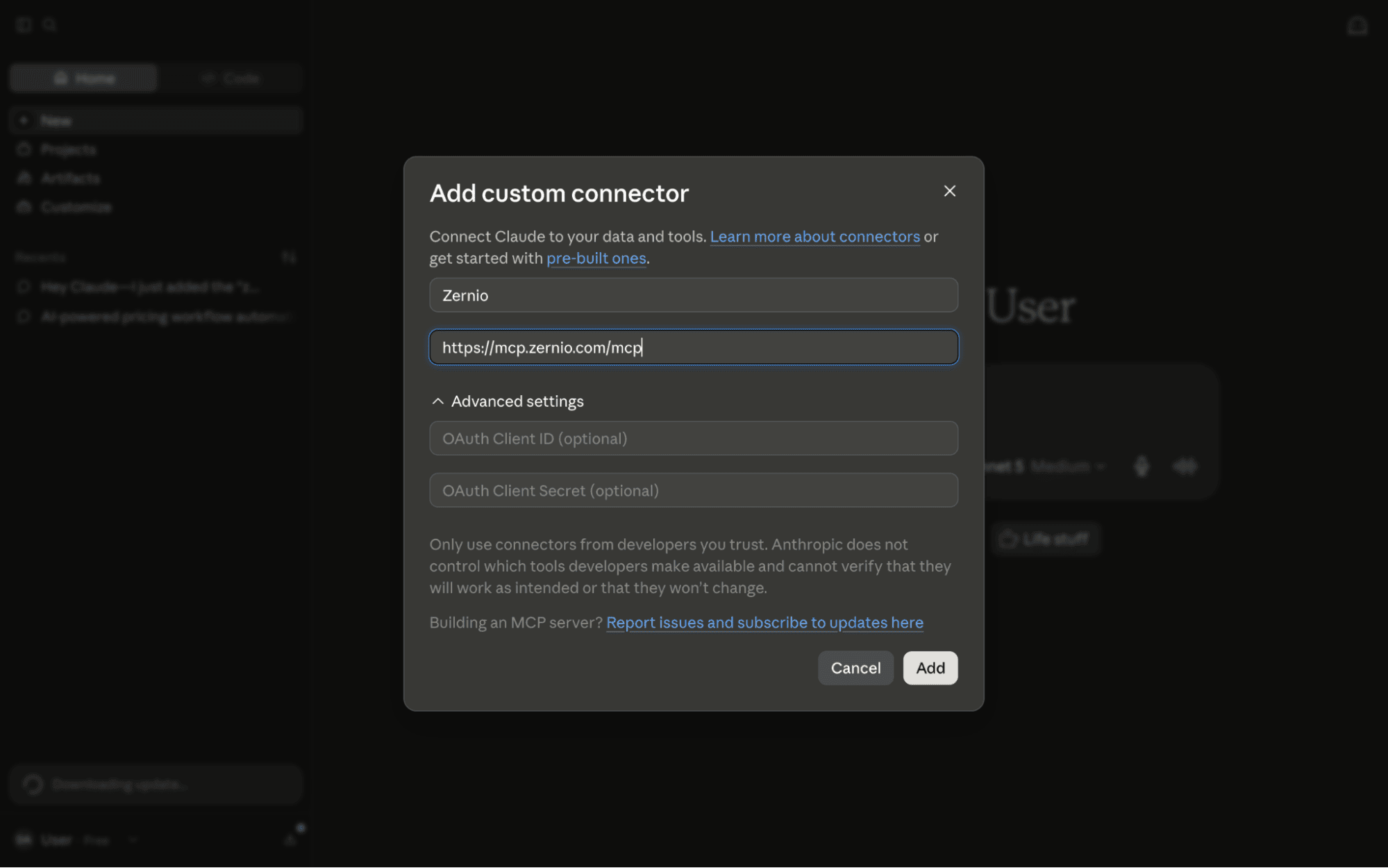
Step 1. Download and install Claude Desktop, Claude Code, or Cowork on your computer. Click the + sign, then select Add connector > Add custom connector.
Step 2. Enter the MCP server URL into the input field to connect Claude to the Zernio API.
Step 3. Once connected, you can retrieve post analytics, schedule posts and manage posts directly from the Claude interface.
Summary: LinkedIn Analytics API, Metrics, OAuth & Code Examples [2026]
The LinkedIn Analytics API provides valuable post performance metrics, but integrating it directly requires handling OAuth 2.0 authentication, API access approvals, business verification, rate limits, API versioning, and metric-specific query requirements. This can add significant development and maintenance work, especially for applications that need to support multiple social media platforms.
Zernio simplifies this process by providing a unified API for LinkedIn and other social platforms, with simplified authentication, automatic rate limiting and retries, request logs, webhooks, and support for AI agent integrations through its MCP server. It also handles platform-specific API updates and maintenance, allowing you and your team to focus on your application logic.
For developers building SaaS products or AI-powered social media workflows, Zernio maintains a unified API integration across 16 social media platforms, including TikTok, Instagram, Threads, X (Twitter), Slack, Pinterest, Facebook, Reddit, YouTube, Telegram, Bluesky, and WhatsApp.
FAQs
What is the LinkedIn Analytics API?
The LinkedIn Analytics API allows authorised applications to retrieve performance data for LinkedIn content. Depending on the API and access level, available data can include impressions, reactions, comments, reshares, clicks, members reached, and saves.
What is the LinkedIn Member Post Analytics API?
The Member Post Analytics API allows authorised applications to retrieve analytics for posts created by the authenticated LinkedIn member. The memberCreatorPostAnalytics endpoint can return metrics such as impressions, reactions, comments, reshares, link clicks, members reached, post saves, and other supported metrics.
What is the LinkedIn Company Page Analytics API?
LinkedIn provides analytics APIs that allow authorised applications to retrieve performance data for organisation Pages, including Page statistics and follower metrics.
What metrics are available through the LinkedIn Post Analytics API?
The available member post analytics metrics include IMPRESSION, REACTION, COMMENT, RESHARE, MEMBERS_REACHED, POST_SEND, POST_SAVE, LINK_CLICKS, PREMIUM_CTA_CLICKS, FOLLOWER_GAINED_FROM_CONTENT, and PROFILE_VIEW_FROM_CONTENT. The metrics and supported query options can change between API versions, so check the official LinkedIn member post statistics documentation for the current list.
How do I access LinkedIn analytics through the API?
To access LinkedIn analytics directly, create a LinkedIn developer app, request access to the required API product, authenticate users with OAuth 2.0, and obtain an access token with the required permissions. You can then call the appropriate analytics endpoint to retrieve available metrics.
Alternatively, Zernio simplifies this process with a unified API for supported LinkedIn analytics, so you don't have to build and maintain the integration yourself.
Is the LinkedIn Marketing API the same as the LinkedIn Analytics API?
LinkedIn’s Marketing APIs provide a broader set of capabilities for marketing and community management, including content publishing, organisation management, advertising, and analytics. Analytics functionality is exposed through specific endpoints within these API products rather than a universal endpoint.
What is the LinkedIn Ads Reporting API?
The LinkedIn Ads Reporting API allows authorised applications to retrieve performance data for LinkedIn advertising campaigns. For simpler LinkedIn Ads management, Zernio lets you create and manage ads, budgets, and spending through a unified API or dashboard.
What are r_member_postAnalytics and r_member_social?
r_member_social is a required LinkedIn permission for accessing member social data, while r_member_postAnalytics allows an authorised application to retrieve the authenticated member’s posts and related analytics data. Both permissions require the appropriate LinkedIn API access before they can be requested during OAuth authentication.
Does LinkedIn have an API?
LinkedIn provides several APIs that developers can use to access and manage LinkedIn data and functionality. However, each API has its own authentication scope, access, and approval requirements. To avoid managing these platform-specific requirements and multiple integrations yourself, Zernio provides a unified API for supported LinkedIn messaging, ads, and post analytics.
Does LinkedIn provide a social listening API?
LinkedIn does not provide a general-purpose public social listening API that gives developers unrestricted access to all LinkedIn conversations, posts, or activity.
Where can I find LinkedIn API examples and documentation?
LinkedIn maintains official documentation covering its API products, authentication, permissions, endpoints, request parameters, and examples. The LinkedIn API documentation is the best starting point when building a new integration because API versions, permissions, and available capabilities can change over time.
Can I export LinkedIn posts through the API?
Yes. Zernio allows you to retrieve your LinkedIn posts and their analytics through a unified API, making it easier to export the data or integrate it into your own applications.
Can the LinkedIn API automatically monitor posts?
You can automate supported LinkedIn API operations, such as retrieving post analytics and periodically checking performance data. However, your application must comply with LinkedIn’s permissions, rate limits, and data restrictions.
For cross-platform monitoring, Zernio provides analytics APIs and webhooks that simplify automated social media workflows, with automatic rate-limit handling and retry mechanisms for API requests.
Can I use the LinkedIn API to build a reporting or analytics dashboard?
Yes. If your application has access to the required analytics APIs, you can retrieve supported LinkedIn metrics and use them to build custom reporting dashboards. You will need to implement OAuth authentication, call the relevant analytics endpoints, handle rate limits, and manage API version changes.
If you want to simplify this process, Zernio provides a unified API for supported LinkedIn analytics, reducing the need to manage LinkedIn-specific authentication, endpoints, and API maintenance yourself.