Your scheduled LinkedIn posts are easy to find once you know where to look. If you used LinkedIn's built-in scheduler, click Start a post on your LinkedIn feed, then select the Clock icon and choose View all scheduled posts. That's where LinkedIn keeps everything you've got queued. For a company page, switch to it first, then do the same thing.
If you scheduled through Zernio instead, LinkedIn won't show it. Zernio is a unified social scheduling API — one place to manage your scheduled posts, whether they're on your personal profile or a company page, instead of switching back and forth.
In this guide, you'll learn how to find scheduled LinkedIn posts using both methods, when to schedule LinkedIn posts, and how to schedule and manage your posts with Zernio.
When You Need to Schedule LinkedIn Posts
Scheduling LinkedIn posts helps you publish content at the right time without having to be online. Whether you're managing your personal profile, a company page, or multiple client accounts, scheduling allows you to plan ahead, stay consistent, and keep your content calendar organised.
Here are some common situations where scheduling LinkedIn posts is especially useful:
1. You Already Have Your Content Planned
If you've already written your posts for the week or month, scheduling them in advance saves time and eliminates the need to publish each post manually. Instead of interrupting your day to post content, you can dedicate a single planning session to create and schedule everything at once.
2. You Manage Multiple LinkedIn Accounts
Managing multiple LinkedIn accounts can quickly become overwhelming if every post has to be published manually. Post scheduling helps you plan content for every account from one place, ensuring each page remains active without constantly switching between LinkedIn accounts.
3. You Want to Publish at the Best Time
This helps you reach more people when they're most likely to engage with your content, and instead of adjusting your schedule around posting times, you can let your post scheduler handle the publishing for you.
4. You Post Several Times Each Week
Posting consistently is one of the most effective ways to build visibility and engagement on LinkedIn. However, manually publishing multiple posts every week or several times a day during campaigns can become repetitive and easy to forget.
Scheduling helps you maintain a consistent posting schedule, keep your LinkedIn personal profile or company page active, maintain audience engagement, and build a more reliable content strategy over time.
How to Find Scheduled LinkedIn Posts
The steps to find your LinkedIn posts depend on how you scheduled them. If you used LinkedIn's built-in scheduler, you can find your scheduled posts directly on LinkedIn. If you used a social media management platform like Zernio, you can access and manage your scheduled posts from its dashboard.
In this section, you'll learn how to find scheduled personal profile and company posts using LinkedIn's built-in scheduler and how to access them when you use Zernio.
LinkedIn Built-in Post Scheduler
Whether you're scheduling posts for your personal profile or a LinkedIn company page, the steps to find your scheduled posts are the same.
To view your scheduled posts, click the Start a post input field on your LinkedIn feed to open the post editor.
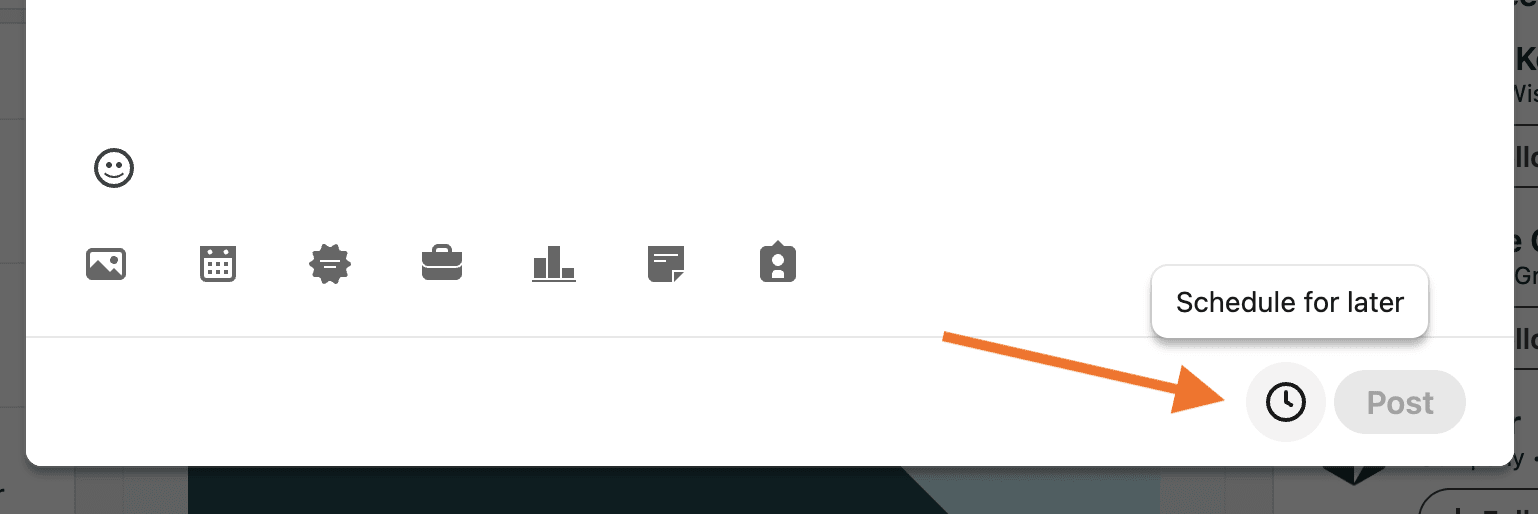
Next, click the Clock icon. A pop-up window will appear, where you can view all the posts you've scheduled for your LinkedIn profile.
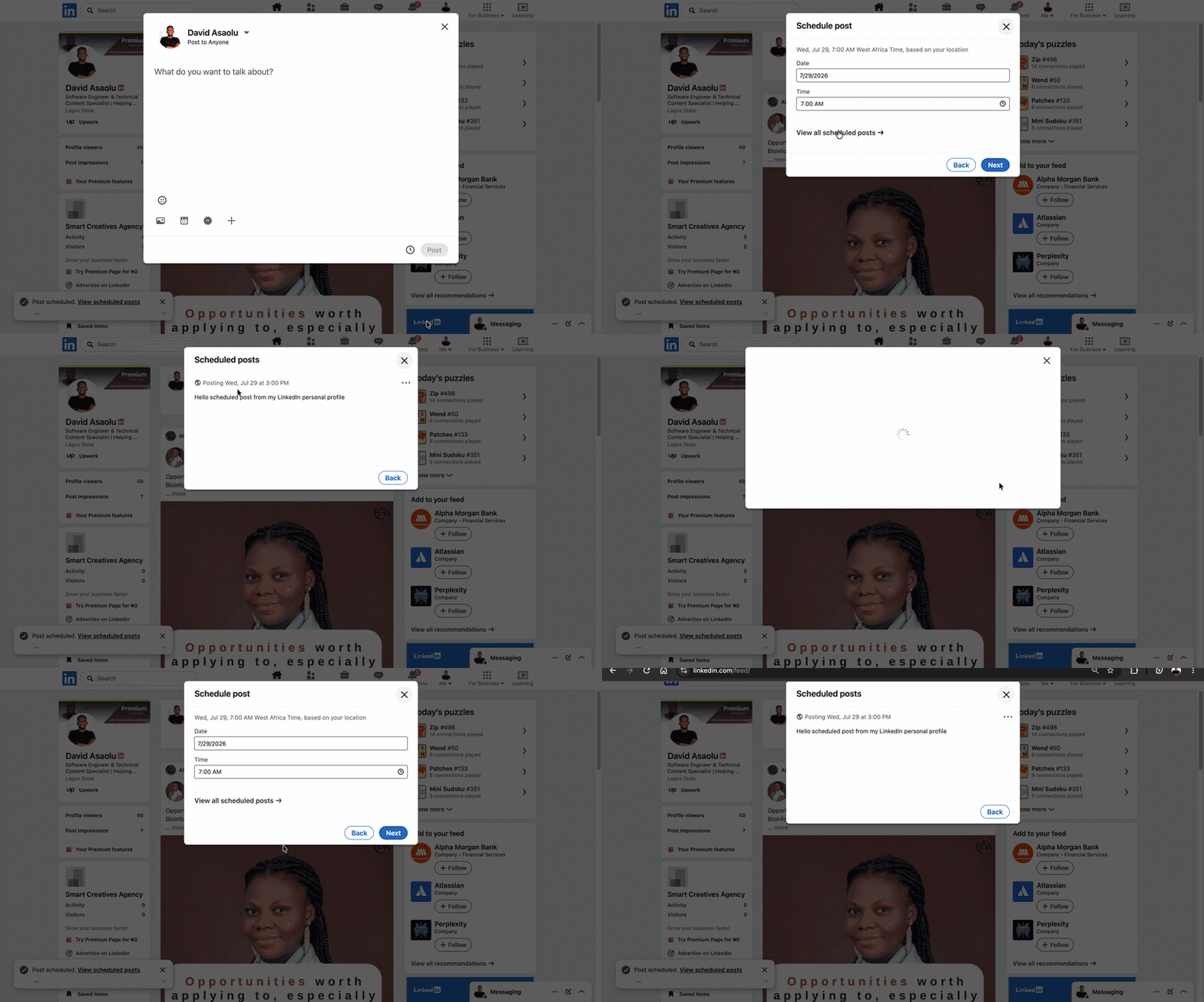
To view scheduled posts for your company page, click the profile selector that displays your name and profile picture, then switch to your company's profile.
After switching profiles, click the Clock icon again to view the scheduled posts for your company page, then select View all scheduled posts to see the posts scheduled for that page. You can easily edit, delete and reschedule posts using the LinkedIn built-in scheduler.
Social Media Management Platforms
Social media management tools like Zernio provide built-in scheduling features that allow you to create, schedule, and manage posts from a single dashboard. When you schedule a LinkedIn post through Zernio, it is managed in the Zernio dashboard rather than LinkedIn's native scheduler. It will not appear in LinkedIn's scheduled posts section, but Zernio will automatically publish it at the scheduled time based on your selected timezone.
There are two ways to view and manage scheduled posts with Zernio:
1. Through Zernio Dashboard
The Zernio dashboard provides a central place to manage all your scheduled and published content. To view your scheduled and published posts, open your Zernio dashboard and navigate to the Posts section.
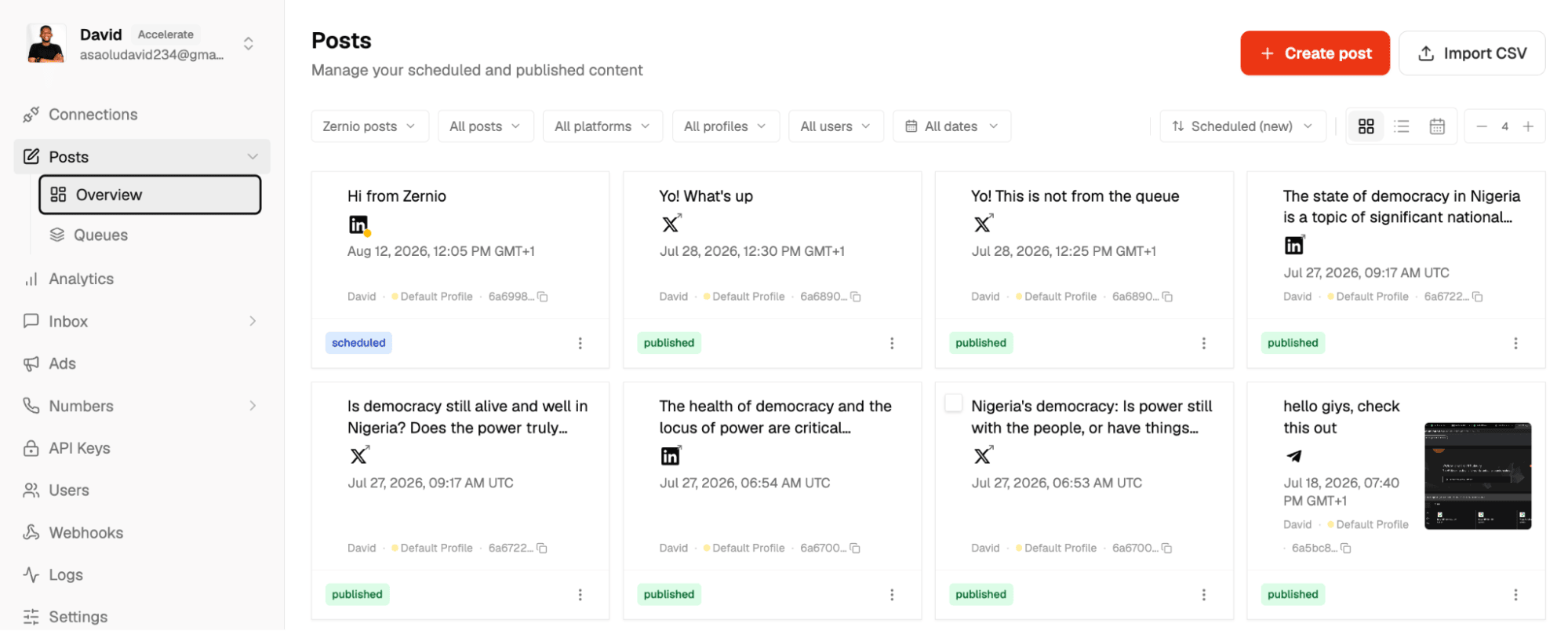
Here, you can find all scheduled and published posts, whether they were scheduled directly from the dashboard or via API integration. You can also edit, reschedule, or delete scheduled posts before they're published, filter posts by social media platform or publishing status, and monitor your publishing history from a single dashboard.
2. Using AI Agent Integrations
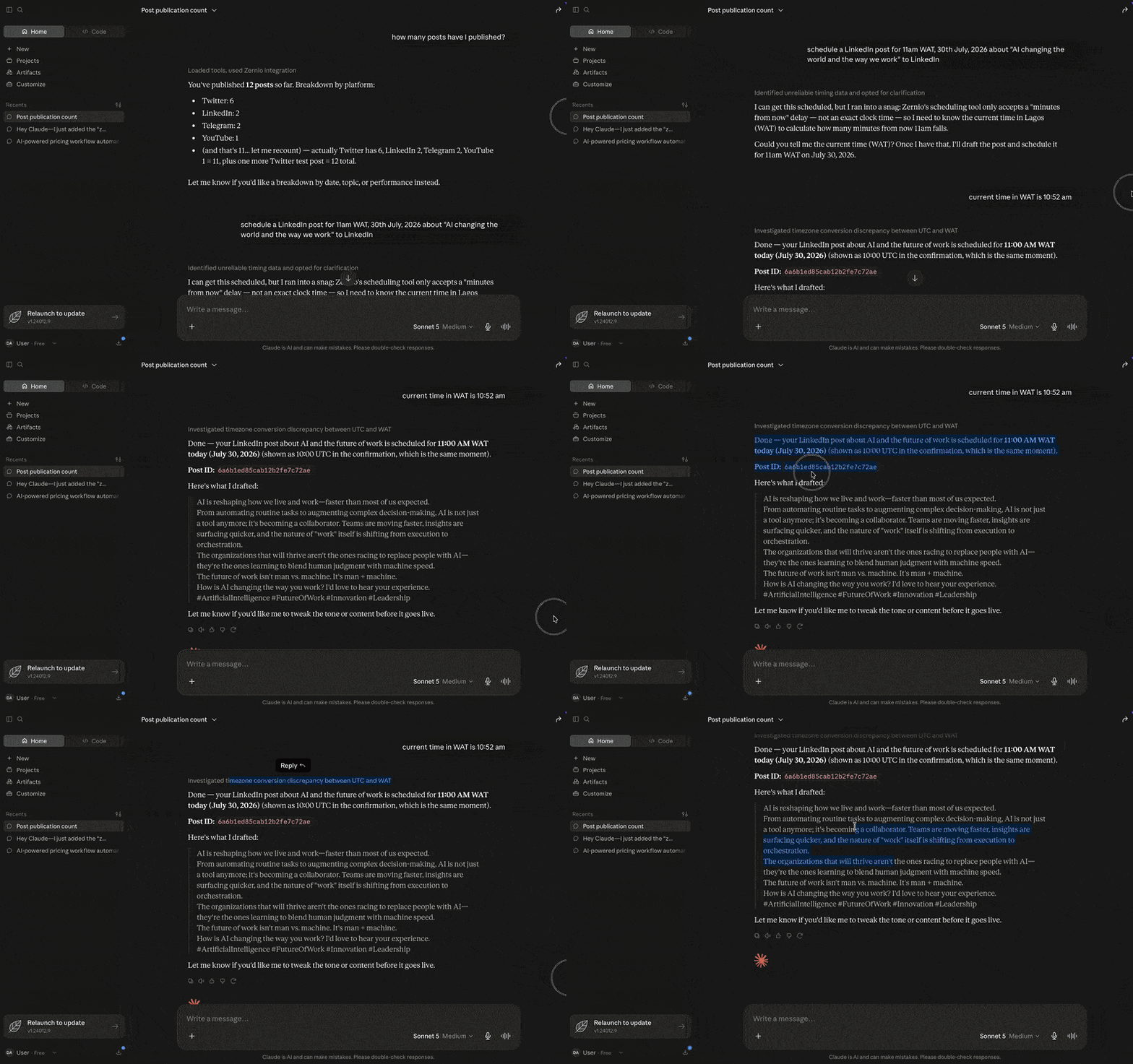
If you're using AI assistants such as ChatGPT, Claude, or any AI agent connected to Zernio through its MCP server, you can manage scheduled LinkedIn posts using natural language.
For example, you can ask your AI agent to:
- Show all scheduled LinkedIn posts.
- List posts scheduled for today or this week.
- Reschedule a post to another date or time.
- Delete a scheduled post.
- Create and schedule new LinkedIn posts.
This allows you to manage your publishing workflow without opening the Zernio dashboard, making it ideal for developers and businesses building AI-powered social media automation.
Stop building social integrations from scratch.
One API call to publish, schedule, and manage posts across 15+ platforms.
How to Access Scheduled Posts with Zernio
Zernio is a unified social media platform that lets you create, schedule, and manage posts across LinkedIn, Facebook, Instagram, TikTok, X (Twitter), and 10 major platforms. It also includes a built-in post scheduler and post queue for planning your content in advance and automatically publishing posts at your preferred times.
The post queue lets you define time slots for your social media accounts and automatically schedules new posts into the next available time slot. This is particularly useful for businesses, agencies, and content creators who want to maintain a consistent posting schedule without manually choosing a publishing time for every post.
In the following sections, you'll learn how to connect your LinkedIn account, schedule and manage LinkedIn posts, create posting queues, and access your scheduled posts through the Zernio dashboard or using AI agents with the Zernio MCP server.
Schedule and Manage LinkedIn Posts with Zernio
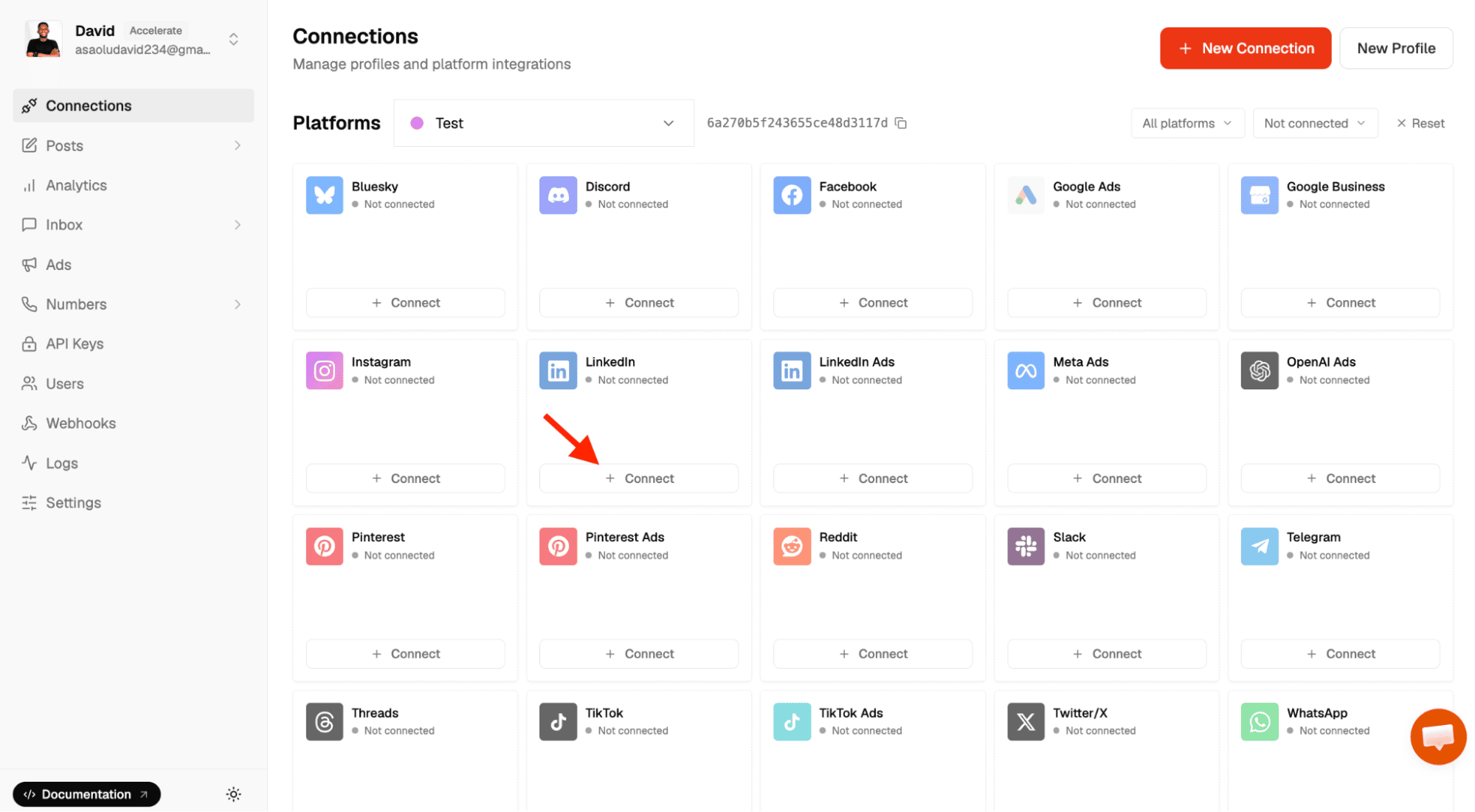
Step 1. Log in to your Zernio account and navigate to Connections from the sidebar to connect your LinkedIn personal profile or company page.
Step 2. Open the Posts section and select your connected LinkedIn account. From the post editor, you can create a new post, publish it immediately, schedule it for a later date, save it as a draft, or add it to a posting queue.
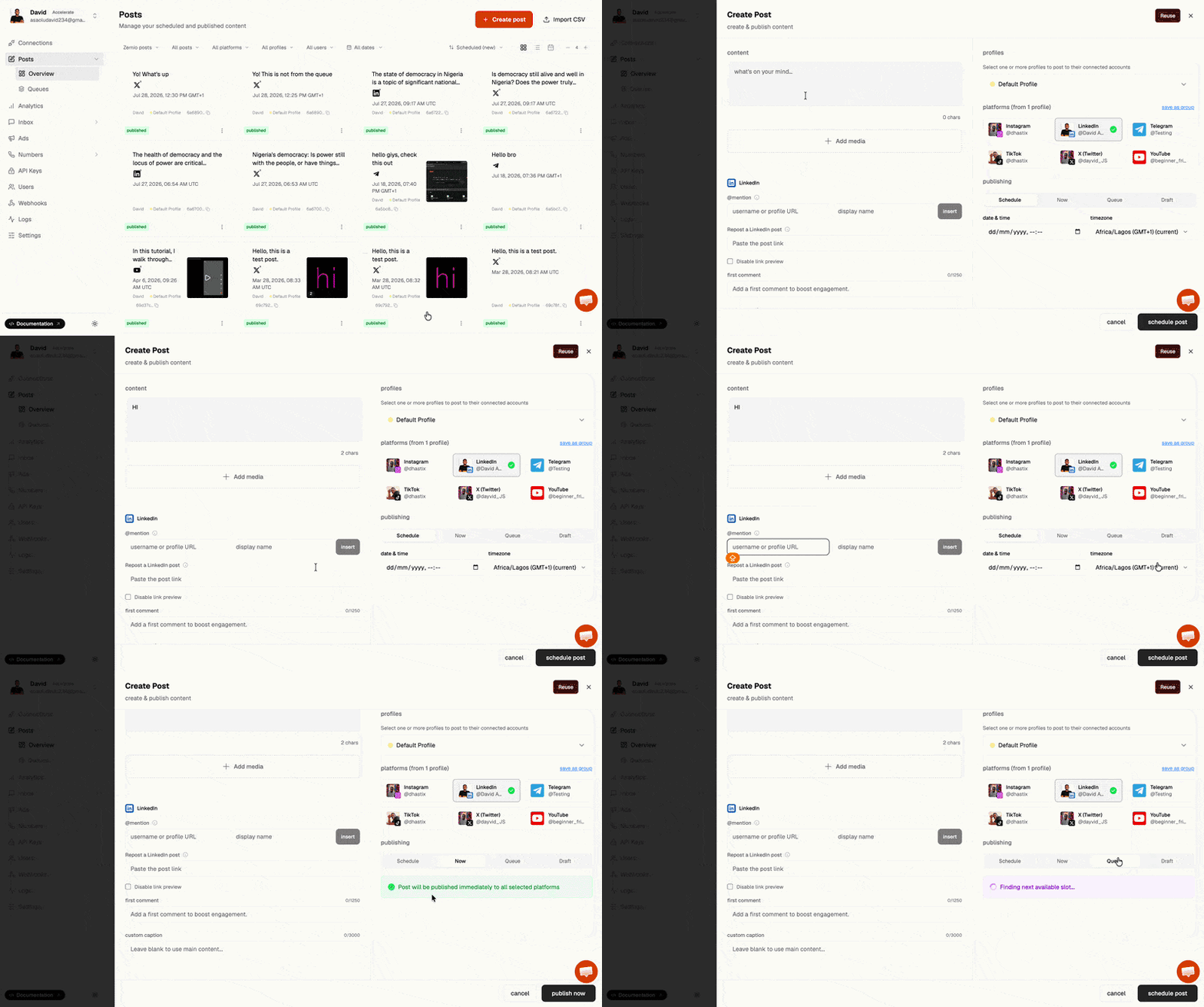
Zernio supports up to 20 images, one video, or one document per LinkedIn post. You can also mention LinkedIn users, repost existing LinkedIn posts, add custom captions, and schedule a first comment directly from the Zernio dashboard.
To create posting queues, navigate to Posts > Queues, then enter the queue name, description, and the time slots for that queue.
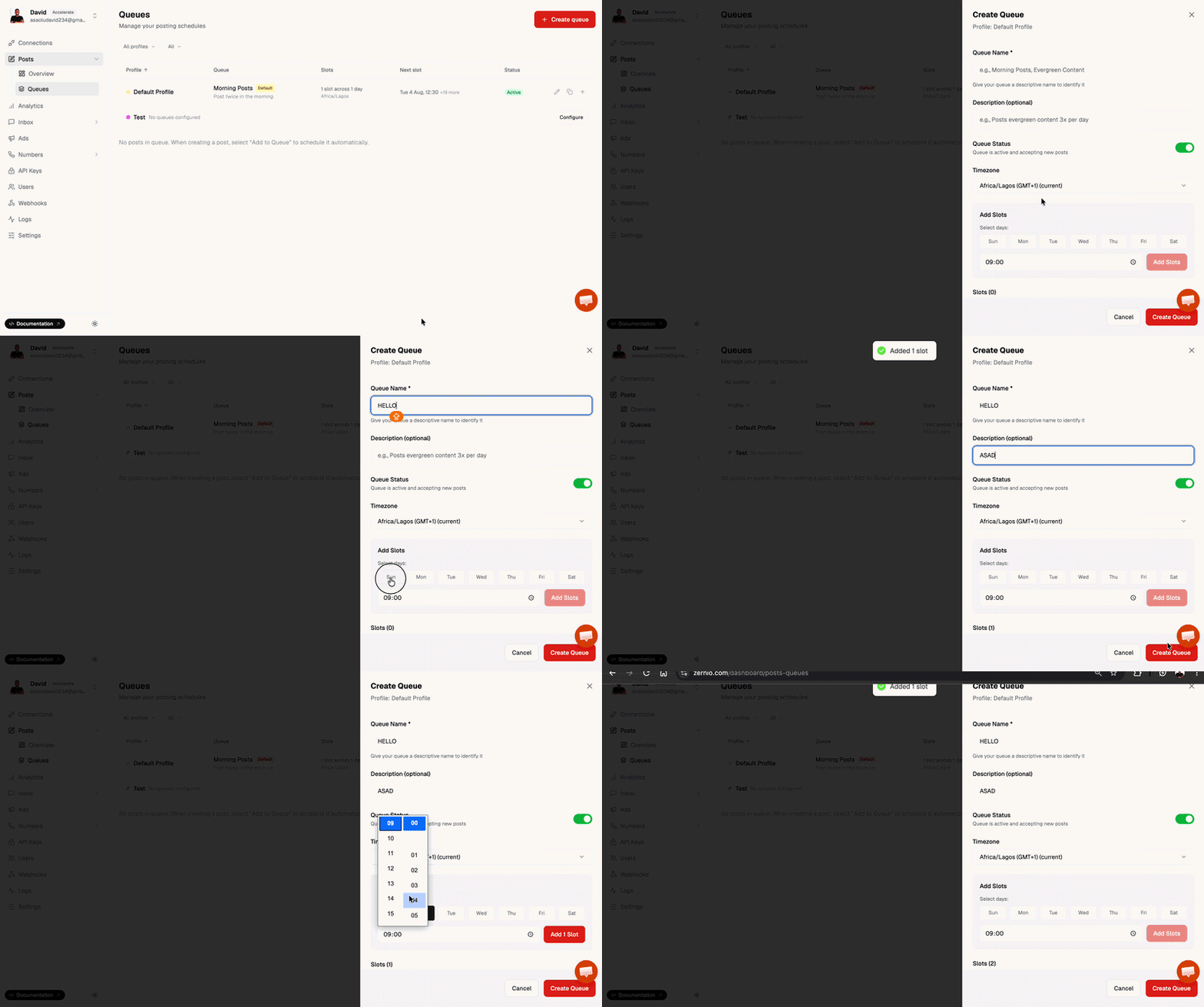
When scheduling a post, select Queue as the publishing option, and Zernio will automatically publish the post at the next available time slot in your selected queue.
For developers, Zernio also provides a unified API that supports LinkedIn messaging and comments management, multiple content types and post analytics.
Schedule LinkedIn Posts using AI agents
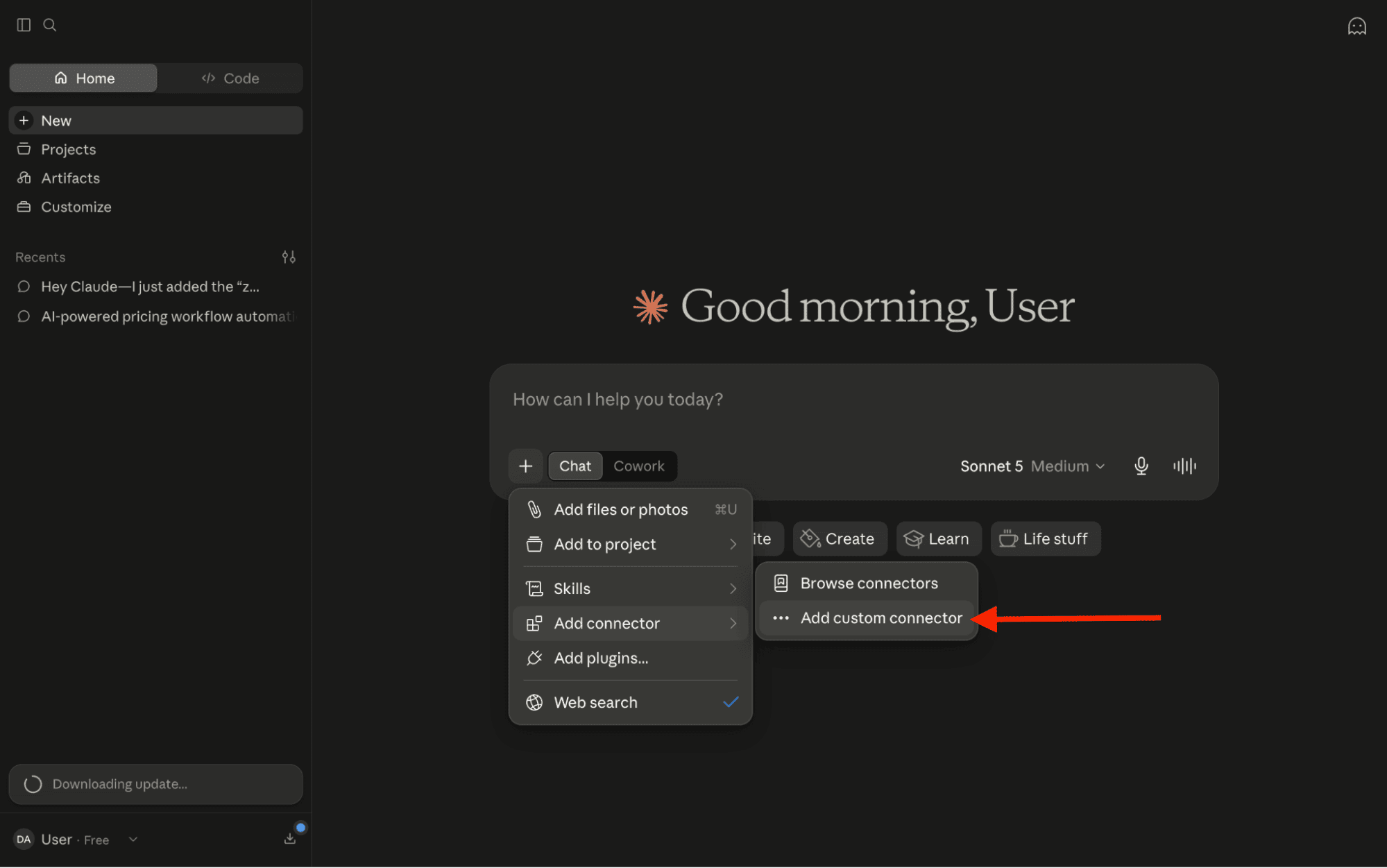
Step 1. Download and install Claude Desktop, Claude Code, or Cowork on your computer. Click the + sign, then select Add connector > Add custom connector.
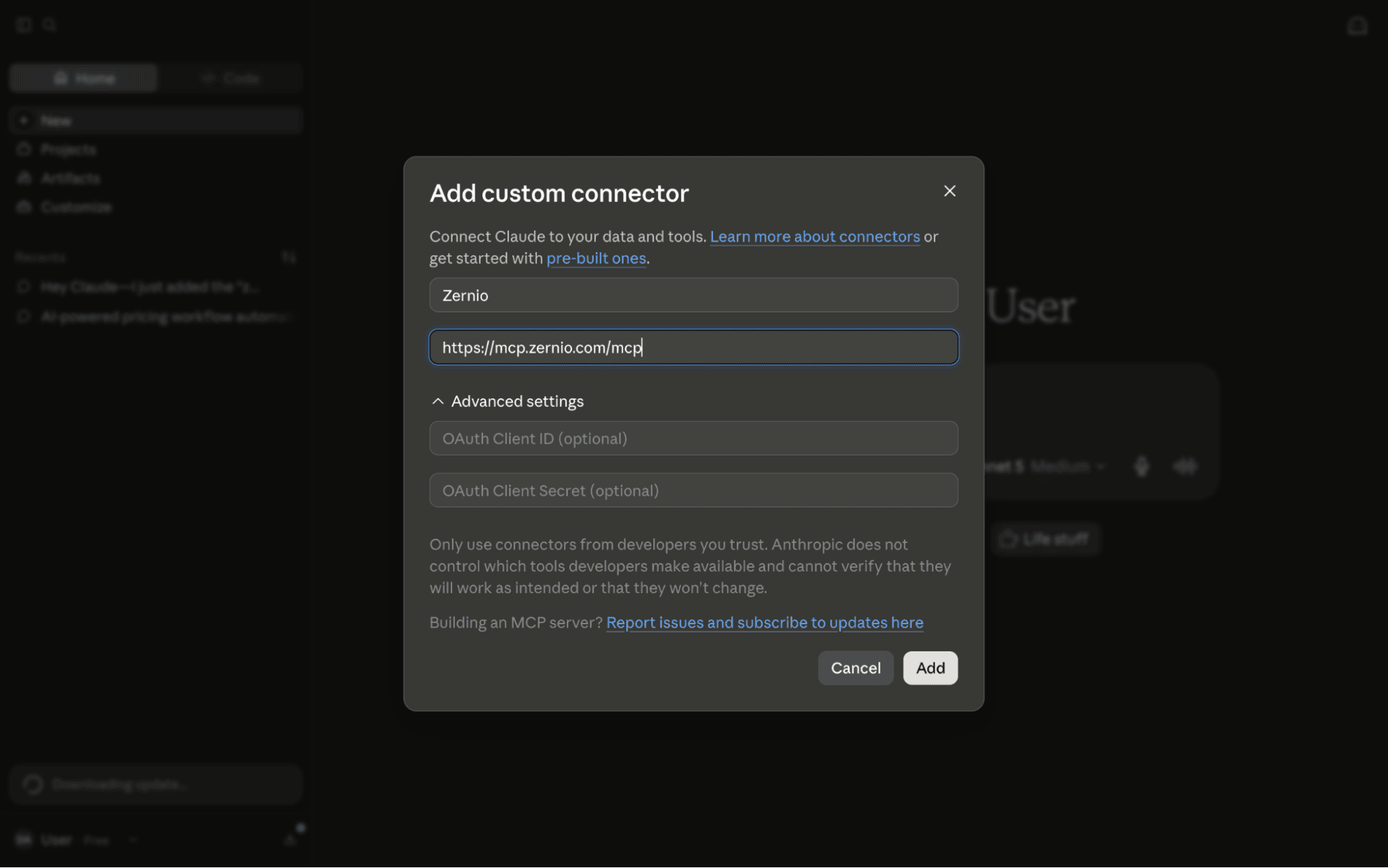
Step 2. Enter the MCP server URL into the input field to connect Claude to the Zernio API.
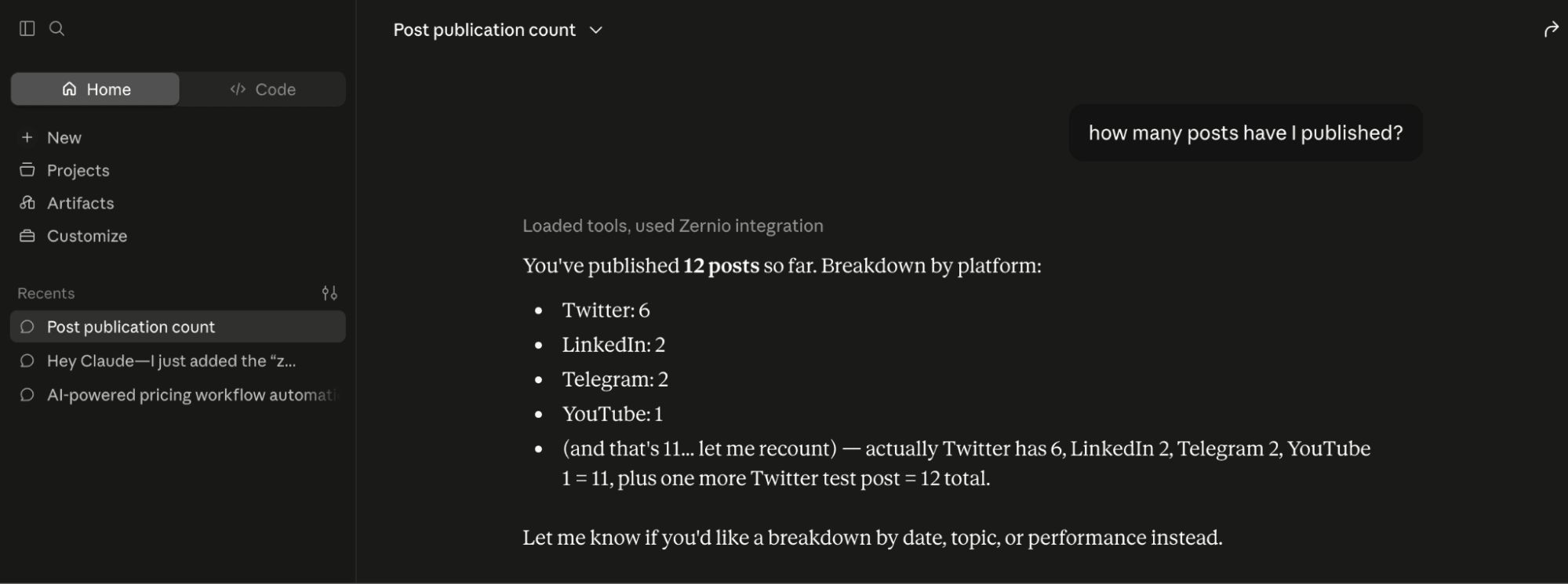
Step 3. Once connected, you can schedule new LinkedIn posts and view, manage, or retrieve your scheduled and published posts directly from the Claude interface.
Read more: How to automate posting, analytics, and ads with Zernio
Conclusion
Finding your scheduled LinkedIn posts is easy once you know where to look. If you schedule posts using LinkedIn's built-in scheduler, you can access them from the post editor by clicking the Clock icon and selecting View all scheduled posts.
If you use a social media management platform like Zernio, you can manage your scheduled posts directly from your dashboard or API integration and benefit from additional features such as posting queues, multi-account management, analytics, and team collaboration.
Whether you're an individual creator, a business managing a company page, or a developer building social media automation, choosing the right scheduling tool can make planning and managing your LinkedIn content much more efficient.
FAQs
1. Where can I find my scheduled posts on LinkedIn?
If you scheduled your post using LinkedIn's built-in scheduler, click Start a post, then select the Clock icon and choose View all scheduled posts. This displays all posts you've scheduled for your personal profile or the currently selected company page.
If you scheduled your post using a social media management platform like Zernio, you can find and manage it from your dashboard under Posts > Overview.
2. Can I schedule posts on LinkedIn?
Yes, LinkedIn lets you schedule posts for both personal profiles and company pages using its built-in scheduler. If you need advanced features such as posting queues, multi-platform scheduling, team collaboration, analytics, or API integrations, Zernio is an excellent choice.
3. Can I edit or delete a scheduled LinkedIn post?
Yes, before your post is published, you can open the View all scheduled posts page, select the scheduled post, and edit, reschedule, or delete it. For Zernio, you can manage scheduled posts directly from your dashboard before they're published.
4. How do I find scheduled posts for a LinkedIn company page?
Switch to the company page from the profile selector in the LinkedIn post editor, then click the Clock icon and select View all scheduled posts. This displays only the posts scheduled for that company page.
5. Can I see scheduled posts in the LinkedIn mobile app?
Yes, but the available scheduling features may vary depending on your device, app version, and whether you're using a personal profile or company page. If you don't see the scheduling options in the mobile app, use the LinkedIn desktop website, where the built-in scheduler provides the full scheduling and management experience.
6. Why can't I find my scheduled LinkedIn post?
If you can't find a scheduled post, first make sure you're viewing the correct LinkedIn profile or company page. If you scheduled the post through a social media management platform like Zernio, it will be managed from that platform's dashboard rather than LinkedIn's scheduler.
Also verify that the post was successfully scheduled and not saved as a draft or rejected because of a publishing error.
7. Why did my scheduled LinkedIn post disappear?
A scheduled post may disappear if it has already been published, was deleted, failed to publish because of an error, or was scheduled from a third-party platform rather than LinkedIn's native scheduler. Check your published posts, your scheduling platform's dashboard, or the publishing logs to confirm its status.
8. Can I schedule LinkedIn posts for free?
Yes, LinkedIn's built-in scheduler is free to use for personal profiles and company pages. If you require additional features such as multi-platform scheduling, posting queues, analytics, team collaboration, or API integrations, choose Zernio.