Modern businesses and content creators manage multiple social media platforms to promote their products and services, engage with their audiences, and share updates. However, creating platform-specific content and publishing it manually across multiple social networks can quickly become repetitive and time-consuming.
This is where workflow automation tools like n8n help by automating repetitive tasks and publishing your content automatically.
In this tutorial, you'll learn how n8n workflows work, why automating social media posting is important, and how to automatically publish content across 15 major social media platforms using the Zernio unified social media API.
What is n8n?
n8n is a node-based workflow automation platform that lets you connect applications, APIs, databases, and services to automate repetitive tasks without writing extensive code. With n8n, you can build automated workflows that run whenever a specific event occurs.
n8n uses a node-based visual editor where each node represents a step in your workflow. These nodes can trigger workflows, process data, apply conditions, call external APIs, or perform actions in connected applications. This flexibility makes n8n popular among developers, businesses, and teams building custom automation for marketing, social media management, AI agents, and CRM systems.
Why Automate Social Media Posting?
Managing social media manually becomes more challenging as your business grows. Keeping up with posting schedules, managing multiple accounts, and coordinating content across different social networks can quickly become time-consuming.
Here are some of the benefits of automating social media posting:
1. Publish to Multiple Platforms at Once
Publishing the same post to multiple social media platforms takes time, especially when you have to log in to each platform and tailor the caption for each audience. Automation allows you to create your content once and automatically publish it everywhere through a single workflow.
2. Maintain a Consistent Posting Schedule
Consistent posting helps keep your audience engaged and improves your visibility on most social media platforms. However, maintaining a regular schedule can be difficult when you're managing multiple campaigns or posting multiple times a week. Automation lets you schedule content days, weeks, or even months in advance, ensuring your social media accounts remain active even outside business hours and your posts are published on time without manual intervention.
3. Scale Content Operations
As your business grows, so does the number of social media accounts, campaigns, and publishing schedules you need to manage. Handling everything manually can quickly become difficult, especially when multiple team members are involved.
Automation allows you to build scalable content publishing workflows that can handle large volumes of posts with minimal manual effort. You can also include approval steps to review posts before they go live, helping your team maintain quality, reduce human error, and manage content operations more efficiently.
4. Manage Multiple Brands and Clients Efficiently
Marketing agencies often manage social media for several brands or clients simultaneously. Automation makes it easier to organise separate publishing schedules and maintain consistent posting across different accounts.
5. Integrate AI into Your Social Media Workflows
Modern automation platforms make it easy to integrate AI into your social media workflows. For example, you can use AI to generate captions, rewrite posts for different platforms, translate content into multiple languages, generate hashtags, summarise blog posts, or review content before it is published.
For more advanced workflows, you can use AI to generate content that aligns with your brand voice, obtain team approvals, publish posts across multiple social media platforms, and notify team members when each step is complete.
6. Create Complete End-to-End Workflows
Social media automation goes beyond scheduling posts. A single workflow can generate and optimise content with AI, retrieve images from cloud storage, approve content, publish posts across multiple platforms, notify your team when publishing is complete, and record post analytics in your CRM or spreadsheet. This creates a fully automated publishing process with minimal manual involvement.
Multi-Platform Social Media Automation with Zernio
n8n provides the automation engine for building workflows, but to automate your social media, you'll still need to connect those workflows to each social media platform through their APIs. Integrating with each platform individually means managing different APIs, authentication methods, rate limits, and platform-specific requirements, which significantly increases development time and becomes unreliable or difficult to maintain.
This is where Zernio comes in. Zernio is a unified social media and messaging API with built-in features such as content scheduling, messaging, ads management, and analytics across 15 major social media platforms. With a single API endpoint, you can connect your social media accounts and integrate Zernio with n8n to automate content scheduling and publishing, messaging, ads management, analytics, and reporting workflows.
Zernio also provides a unified social inbox and centralised dashboard, automatically handles rate limits, keeps your integrations compatible with platform API changes, simplifies authentication, and delivers reliable webhook events across all supported platforms. With Zernio, you get a social media API that handles posting and scheduling across multiple platforms through one integration.
Methods of Automating Social Media Posting
Zernio provides native support for workflow automation, AI agents, and MCP server integrations, making it easy to automate messaging and social media management.
There are three ways to automate social media posting with Zernio:
1. Using Zernio API and SDKs
Developers building SaaS products, internal tools, or customer platforms can integrate social media features directly into their applications using the Zernio REST API and official SDKs. Instead of building and maintaining separate integrations for each social media platform, Zernio allows you to integrate once and access multi-platform capabilities for publishing and scheduling posts, managing conversations, retrieving analytics, and managing ads across 15 platforms.
Zernio also supports popular programming languages, including Ruby, Python, Go, Node.js, Java, PHP, .NET, and Rust, and provides comprehensive API documentation, SDK guides, and code examples to help developers build and ship social media integrations and automation workflows faster.
2. Using Zernio MCP Server
The Zernio MCP server gives AI assistants direct access to the Zernio API through the Model Context Protocol (MCP), an open standard for connecting AI applications to external tools. Once connected, AI assistants can schedule and publish posts, manage ads, automate DMs, and retrieve analytics across 15 platforms using natural language.
Zernio also provides a ready-to-use integration prompt for AI coding agents to enable them to understand the Zernio API, SDKs, authentication, and available endpoints.
3. Using Zernio n8n Templates
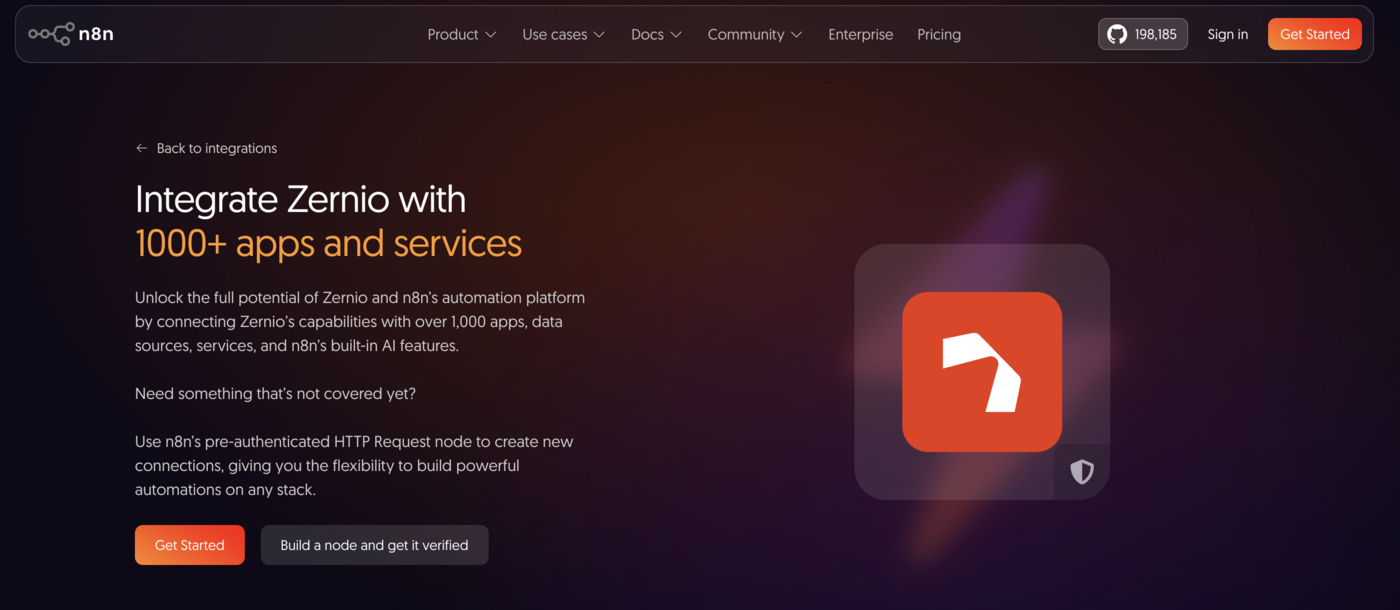
If you prefer a low-code approach, Zernio offers a collection of community-built n8n templates that help businesses, marketers, and content creators automate common social media and business workflows without building them from scratch.
To get started: browse the template library, import a template into your n8n workspace, add your Zernio API key, and activate the workflow. You can also customise each template to match your own business processes, connect additional applications, or extend the workflow as your automation needs evolve.
Getting Started with Zernio
In this section, you'll learn how to create a Zernio account, connect your social media accounts, and generate an API key to integrate Zernio with n8n.
Log in to your Zernio account and navigate to Connections from the sidebar. From there, you can connect your social media accounts to Zernio in just a few clicks.
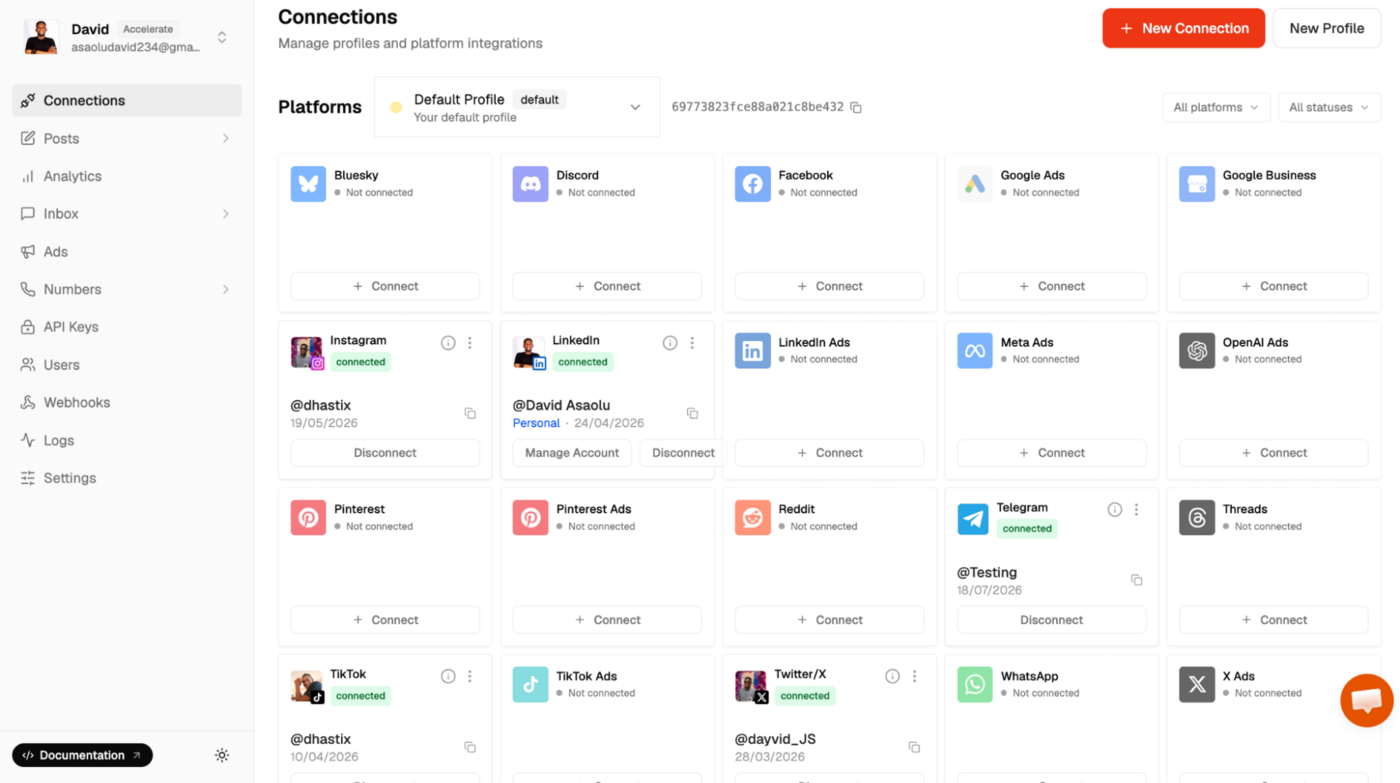
Select your preferred social media platform, and Zernio will redirect you to the platform's authorisation page. Review the requested permissions and approve the connection to link your account.
Once the connection is complete, you can immediately start scheduling and publishing content from the Zernio dashboard.
To generate your API key, navigate to API Keys from the sidebar and click Create Key.
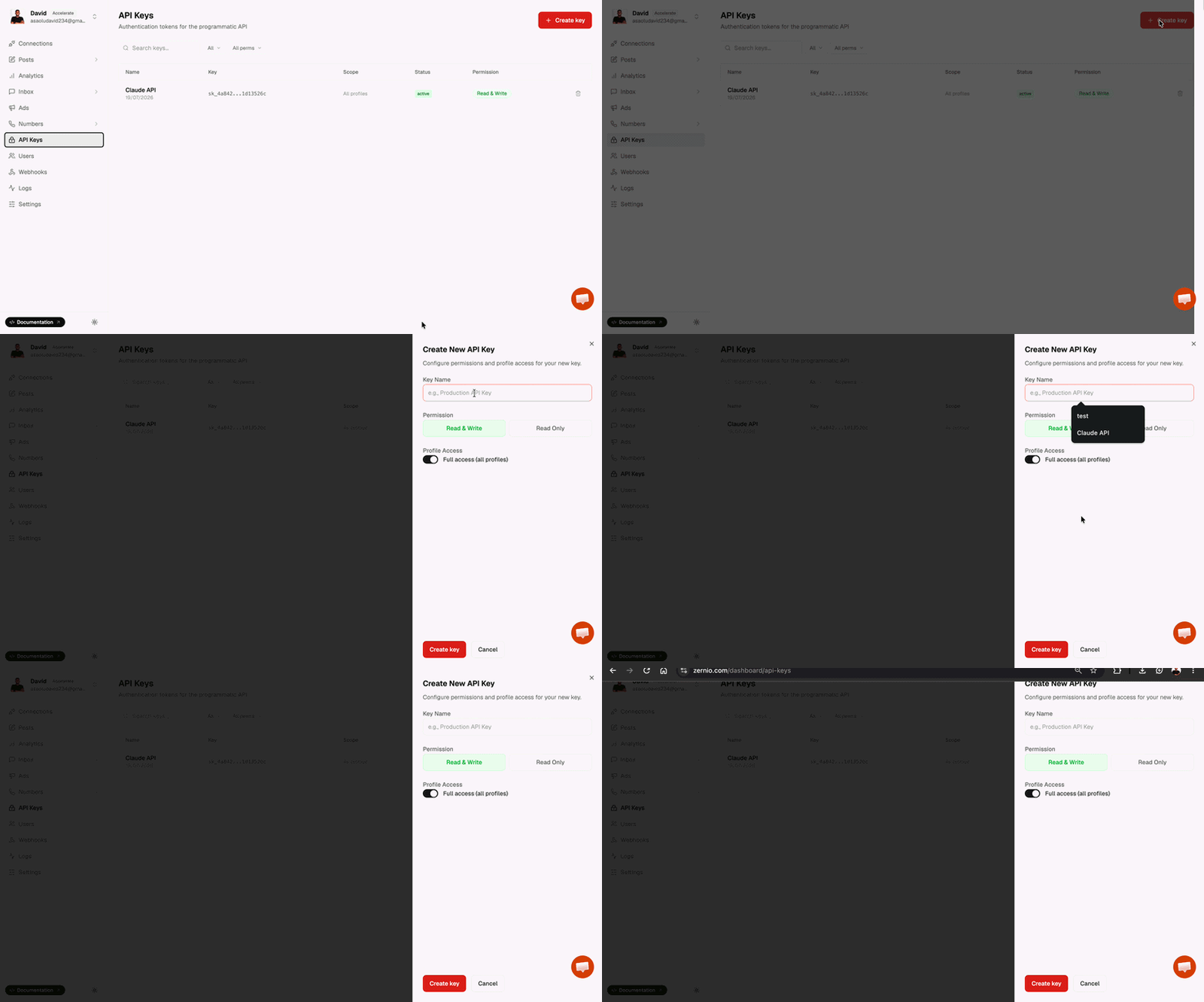
We'll use the API key in the following section to authenticate our n8n automation workflow.
Stop building social integrations from scratch.
One API call to publish, schedule, and manage posts across 16 platforms.
How to Automatically Post to Social Media with n8n
In this section, you'll build an n8n workflow that accepts a topic, generates tailored posts for X (Twitter) and LinkedIn using an AI model, publishes them through Zernio, and saves the published post URLs to Google Sheets — all within a single automated workflow.
Prerequisites
Before you begin, make sure you have the following:
- A Zernio API key with your X (Twitter) and LinkedIn accounts connected
- A Gemini, OpenAI, or Claude API key to generate platform-specific social media posts
- An n8n Cloud or self-hosted instance
- A Google Cloud Client ID and Client Secret to authenticate Google Sheets
Step 1: Create an n8n Workflow with a Form Submission Trigger
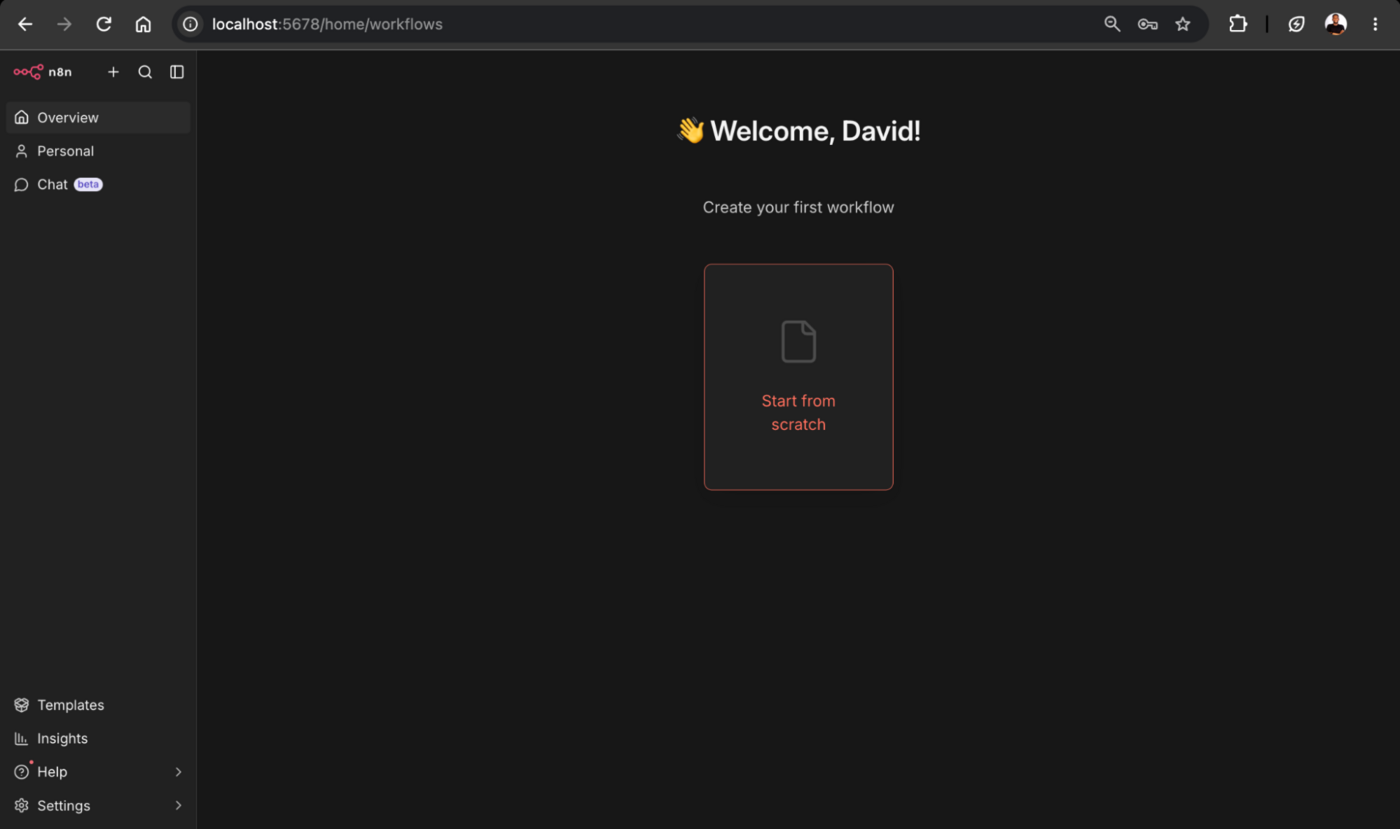
Log in to your n8n account and create a new workflow. In this tutorial, I'll be using the self-hosted version with Docker, which is free to use.
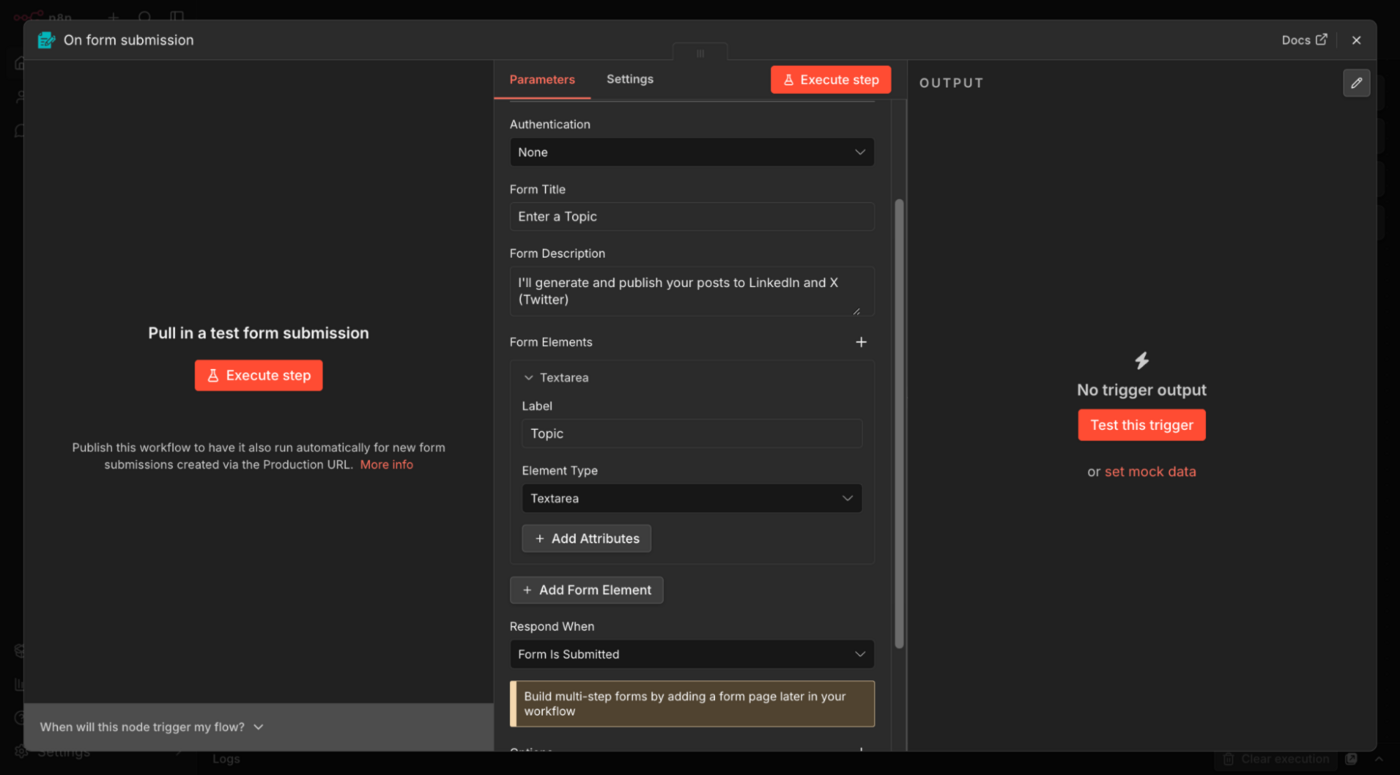
Next, add a Form Submission Trigger node to your workflow. Configure the form by adding a Text input field that accepts the topic for the social media post. For example, a user could enter "Benefits of remote work" or "How AI is changing healthcare".
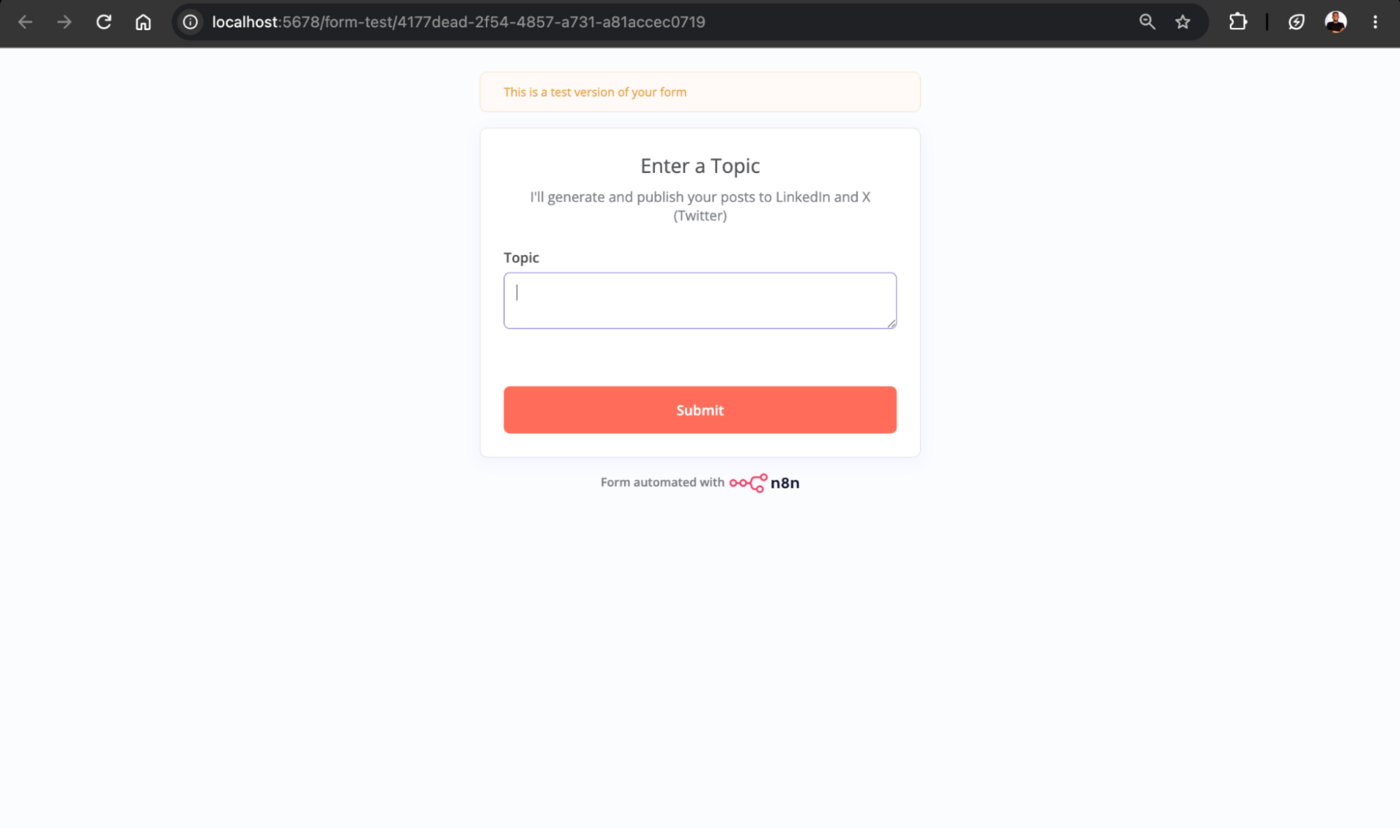
Once configured, click Test Workflow to open the generated form in your browser. Enter a topic and submit the form to test the trigger.
Step 2: Connect your preferred AI Model
From the sidebar, add your preferred AI model to the workflow and connect it to the Form Submission Trigger node.
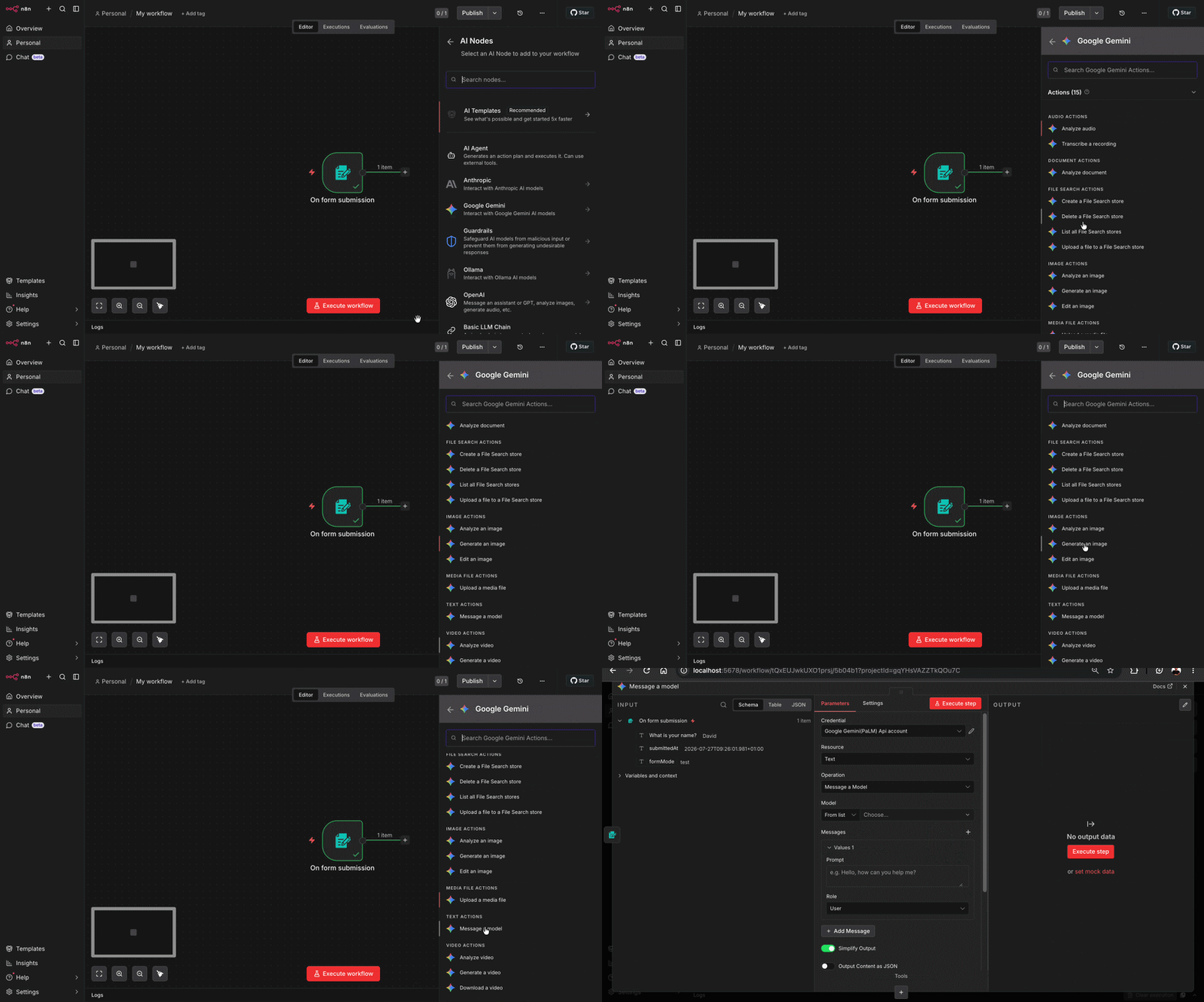
Next, configure the AI model by adding your API key for authentication. In the prompt field, paste the following prompt to instruct the model to generate platform-specific posts for X (Twitter) and LinkedIn.
Write social media posts about the following topic: {{ $json.Topic }}

Generate the following:
- "twitter": A catchy and engaging X (Twitter) post with a maximum of 280 characters.
- "linkedin": A professional, well-structured, and engaging LinkedIn post.

Return **only** a valid JSON object in the following format:
{ "twitter": "<twitter_post>", "linkedin": "<linkedin_post>" }

Rules:
- Do not wrap the JSON in Markdown or code fences.
- Do not include explanations, notes, or introductory text.
- Do not return any additional fields.
- Ensure the output is valid JSON that can be parsed directly.
When you test the workflow, the AI model generates two tailored social media posts: one for X (Twitter) and another for LinkedIn, in a structured JSON format.
Step 3: Connect the AI model output to Zernio
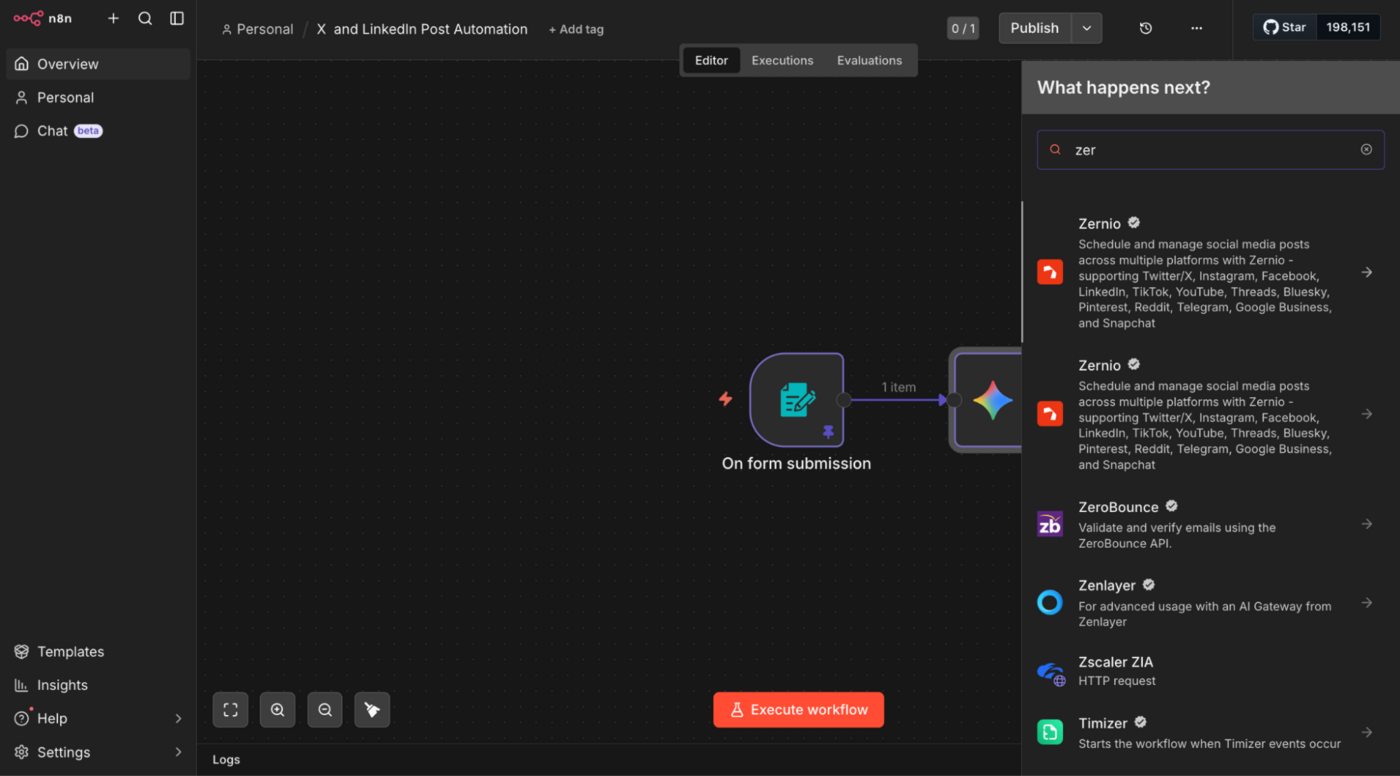
From the Nodes panel, search for Zernio and add the Create Post node to your workflow.
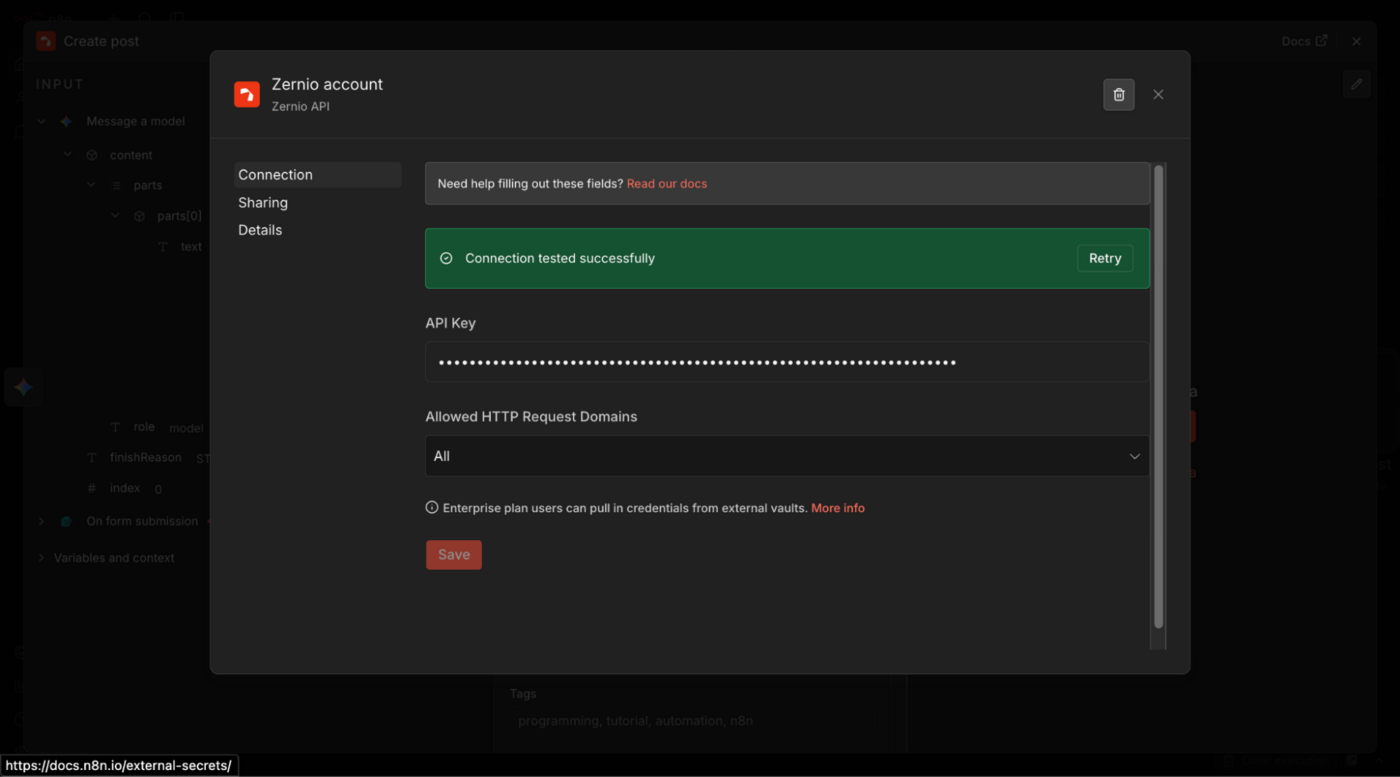
Authenticate the node by entering your Zernio API key.
Choose X (Twitter) as the connected social media account, and Zernio will automatically retrieve all social media accounts connected to your workspace. Since the AI generates different content for X (Twitter) and LinkedIn, you'll need to create two Create Post nodes.
For the post content, use the following expression to extract the X (Twitter) post generated by the AI model:
{{ JSON.parse($json.content.parts[0].text).twitter }}Next, duplicate the Zernio node and configure it to publish to your LinkedIn account. This time, use the LinkedIn content generated by the AI model:
{{ JSON.parse($json.content.parts[0].text).linkedin }}Finally, test the workflow. After you submit a topic through the form, n8n generates tailored posts for X (Twitter) and LinkedIn, and Zernio automatically publishes each post to the corresponding connected account.
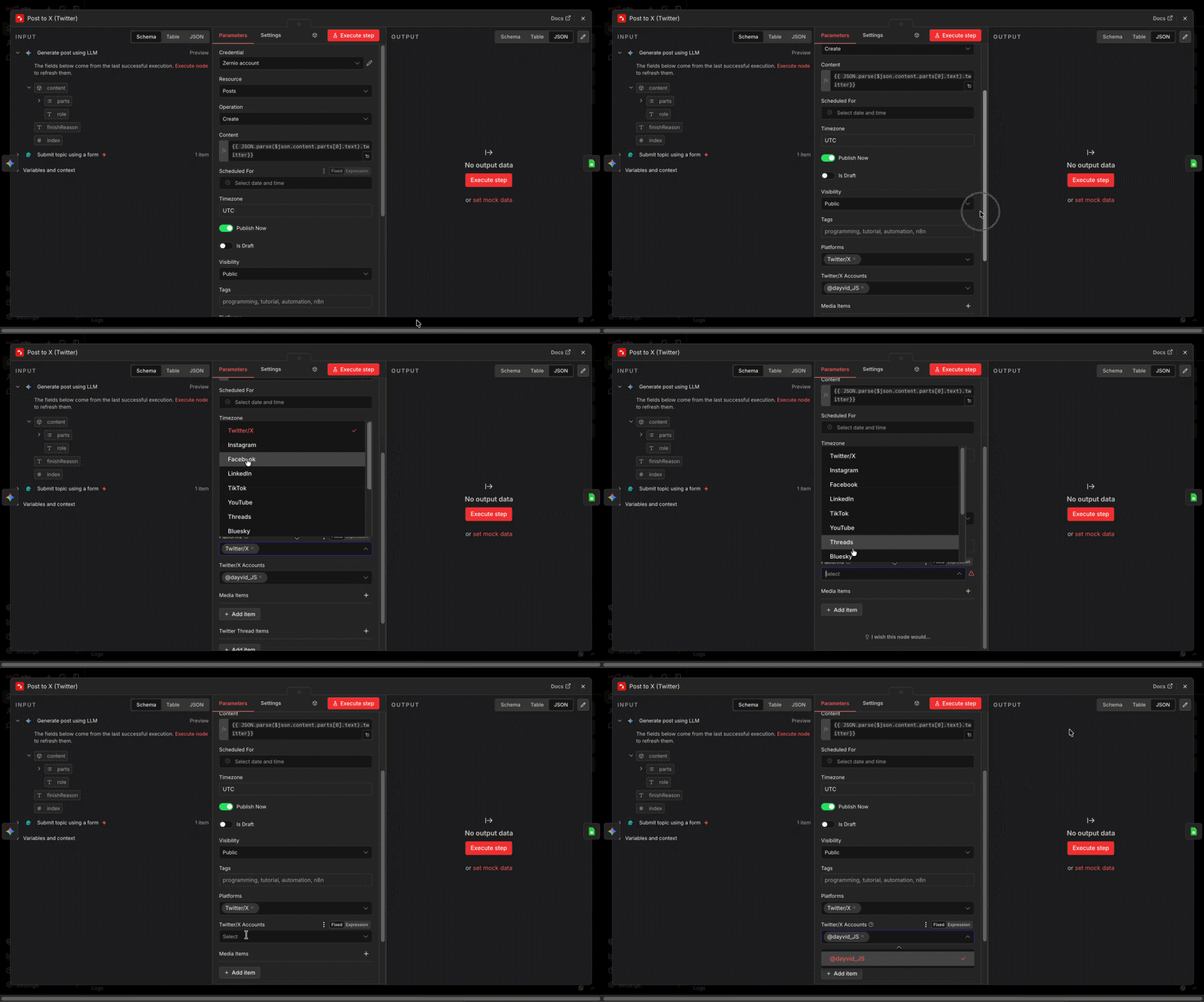
Step 4: Save the published post URL to Google Sheets
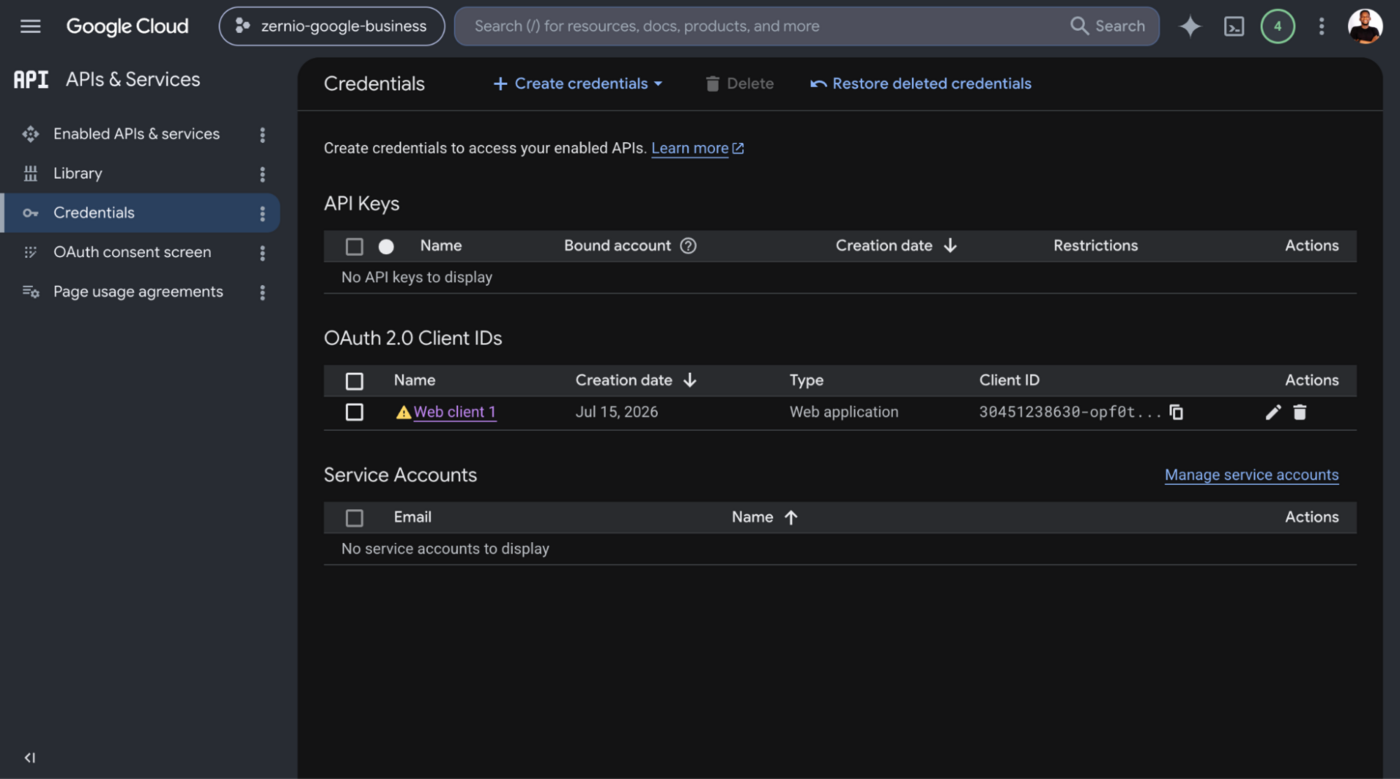
To save the published post URLs, first create a Google Cloud project and generate an OAuth 2.0 Client ID and Client Secret.
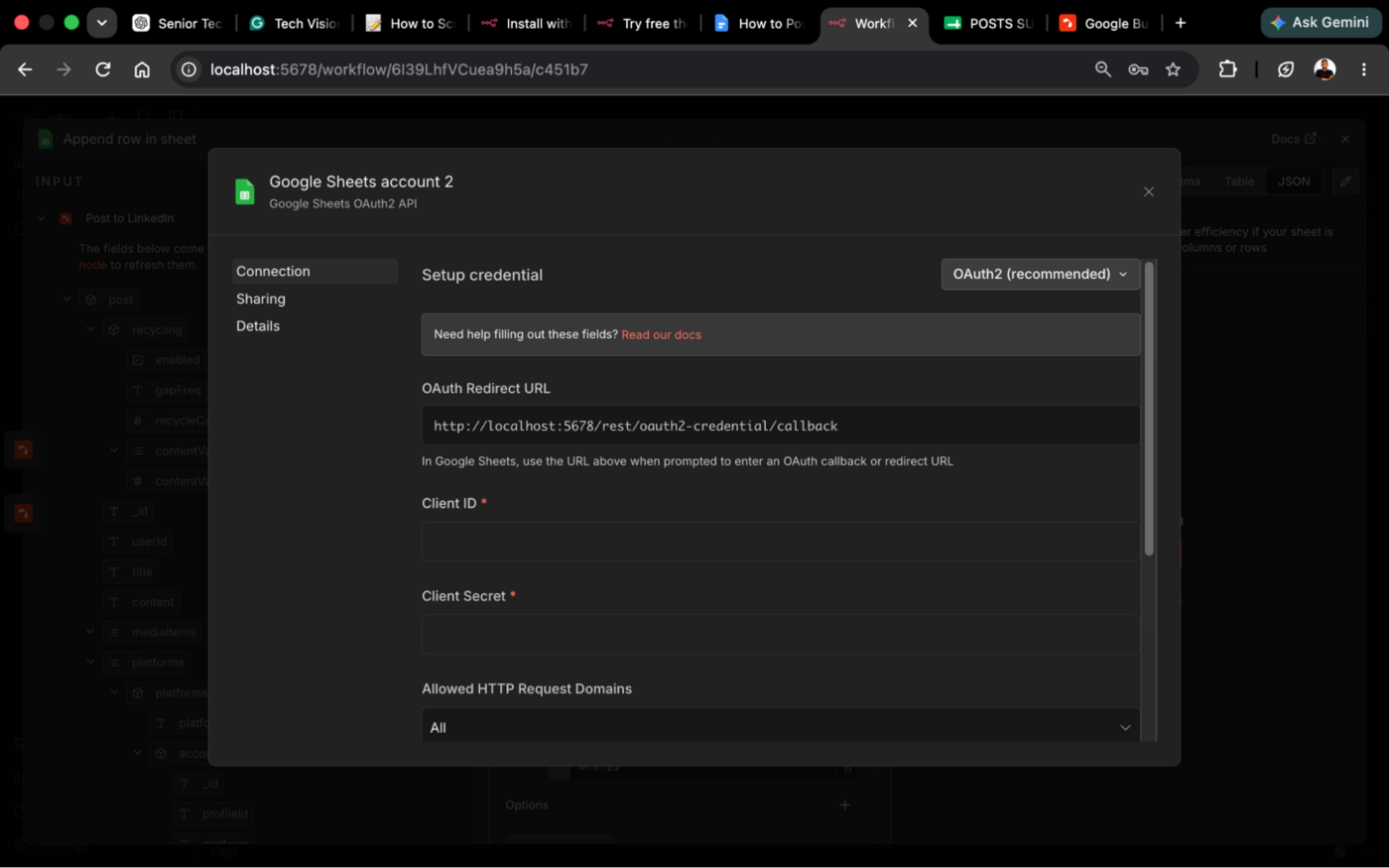
Next, add these credentials to n8n to authenticate your Google account.
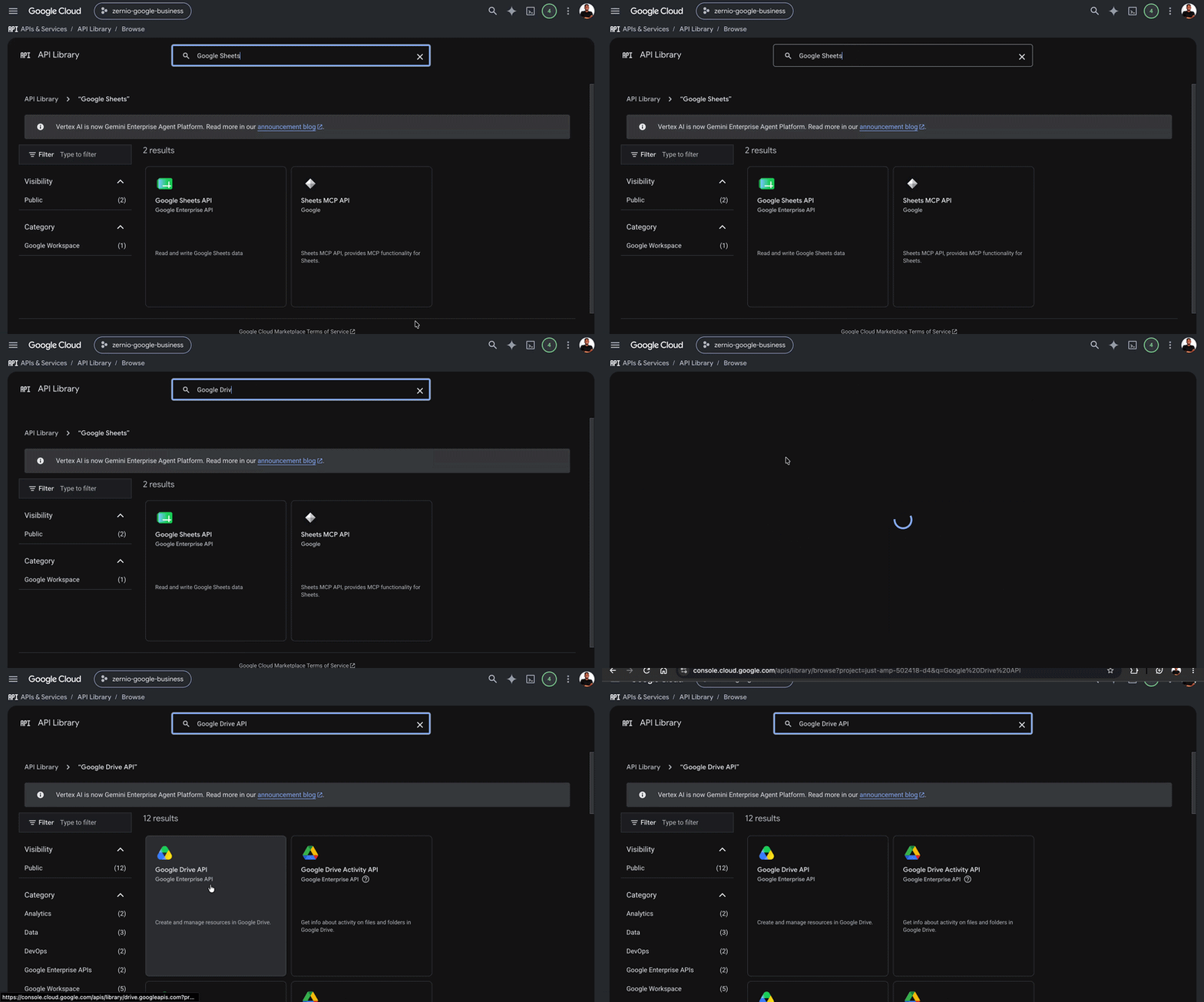
Before connecting Google Sheets, enable both the Google Drive API and Google Sheets API in your Google Cloud project. This allows n8n to access your Google Drive and spreadsheets.
Create a new Google Sheet with two columns: TOPIC and PUBLISHED URL. Then add a Google Sheets node to your workflow, connect it to your spreadsheet, and configure it to save the submitted topic together with the published post URL.
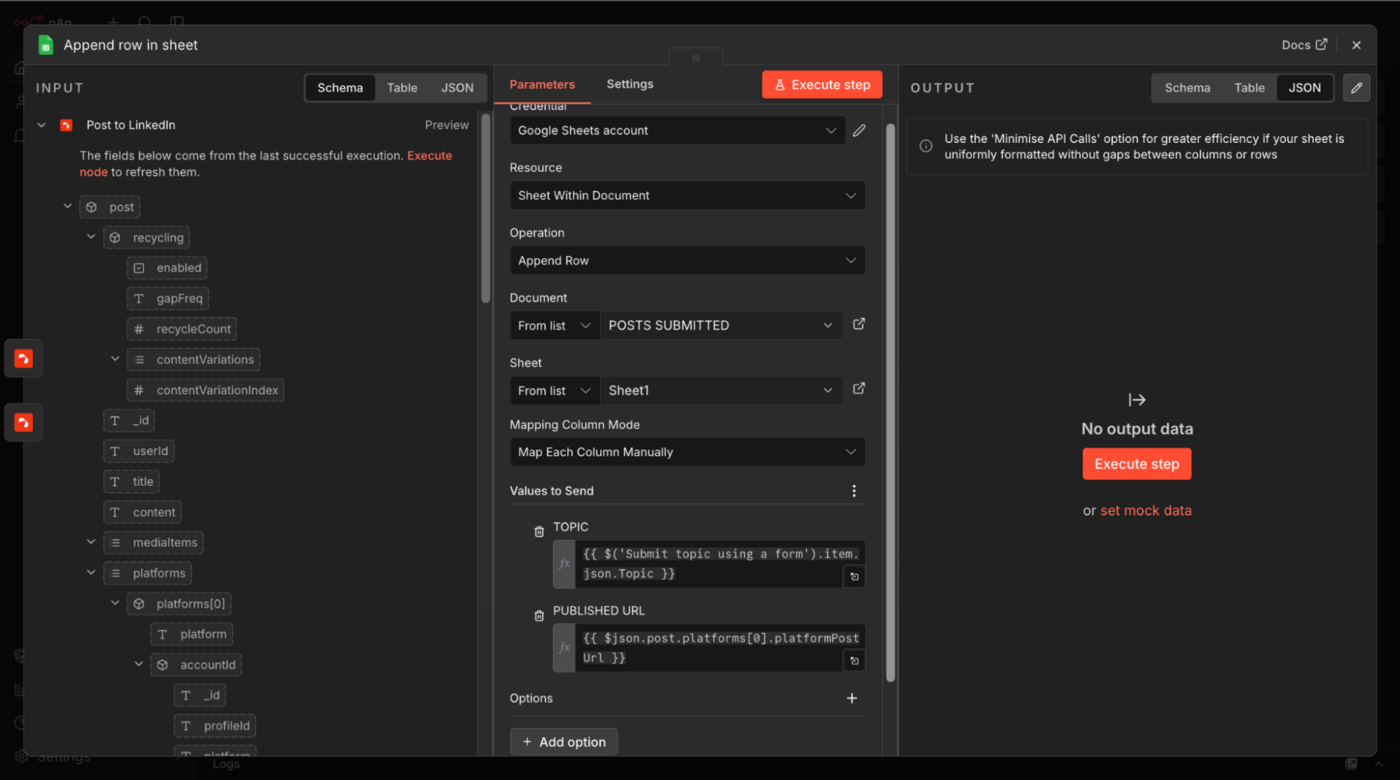
Execute the workflow to automatically generate AI-powered posts, publish them to your connected X (Twitter) and LinkedIn accounts, and save the published post URLs to Google Sheets.
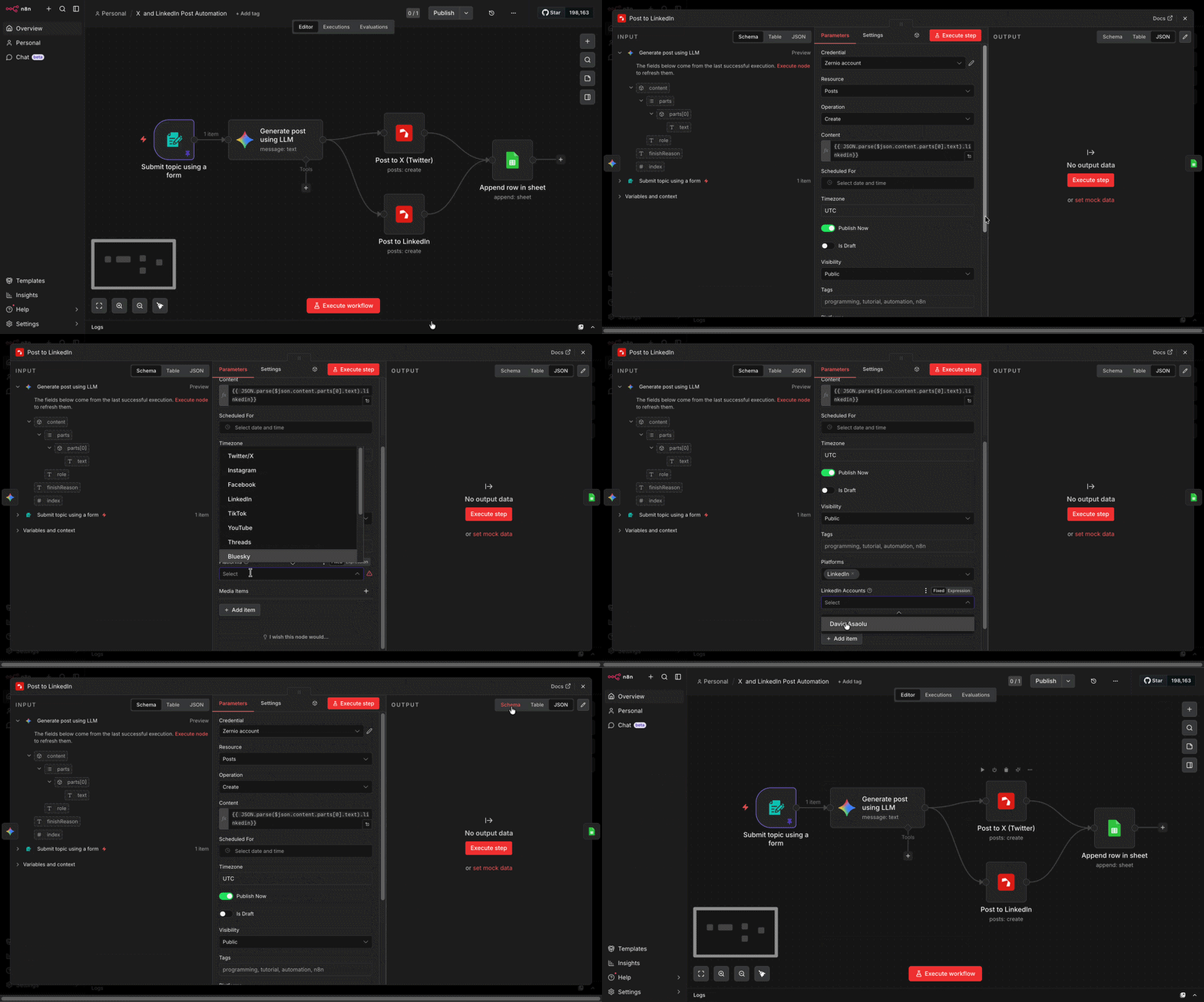
You can also download the complete workflow from GitHub. To automate more advanced publishing, messaging, analytics, and AI workflows, explore the Zernio n8n template library.
Conclusion
Automating social media posting with n8n helps you build reliable workflows that eliminate repetitive publishing tasks and connect your favourite tools in a single workflow. By combining n8n with Zernio, you can optimise your social media content, integrate AI agents and webhooks, schedule and publish posts across multiple social media platforms, and connect with other business applications without managing separate APIs for each platform.
Whether you're a developer building automation for clients or a business looking to automate social media operations, n8n and Zernio provide a flexible foundation for building scalable social media workflows that grow with your business.
FAQs
1. Can I automate social media posting with n8n?
Yes. n8n allows you to build workflows that automatically generate, schedule, and publish social media posts. With Zernio, you can publish content across 15 social media platforms through a single API.
2. Does n8n support AI-generated social media content?
Yes. n8n integrates with popular AI models such as OpenAI, Gemini, and Claude, allowing you to generate captions, rewrite content for different platforms, translate posts, summarise articles, and build complete AI-powered publishing workflows.
3. Why use Zernio with n8n instead of integrating directly with social media APIs?
Integrating directly with each social media platform requires managing different APIs, authentication methods, rate limits, webhooks, and platform-specific requirements. Zernio simplifies this by providing a single API for publishing, messaging, analytics, ads management, and workflow automation across 15 social media platforms, making it much easier to build and maintain automation workflows in n8n.
4. Can I schedule posts instead of publishing them immediately?
Yes. Zernio supports both immediate and scheduled publishing. You can specify a publishing time directly from your n8n workflow, allowing you to automate your entire content calendar.
5. How do I connect n8n workflows to a unified social posting API?
Zernio unified social API has an official n8n integration with pre-built nodes for publishing, scheduling, and pulling analytics, so you skip the manual HTTP setup entirely. Connect your social media accounts to Zernio, add your Zernio API key to the n8n node, and configure the publishing action.