Yes, there's an official Instagram posting API: the Instagram Graph API. Meta's documentation covers the spec. What it doesn't cover well are the parts that break a production build, the container processing delay that fails hasty publish calls, the two OAuth flows and when each one fits, how to read the rate-limit header before you get throttled, what permissions you actually need, and what to do about error 9007.
This guide is for developers shipping a product where Instagram publishing is a feature, not your whole product. It covers both integration paths with the production context built in. Option 1 is the direct Instagram Graph API: full control, multi-step workflow, Python and Node.js code throughout. Option 2 is Zernio: one API call, one bearer token, 15 platforms, working in under 30 minutes. Pick the path that matches what you're building.
Jump to what you need:
- Option 1, Direct Instagram Graph API, build it yourself, full Instagram control
- Option 2, Zernio one-call Instagram publishing API, skip the infrastructure, post in minutes
- Which Instagram posting API should you use?
Option 1: Direct Instagram Graph API
This is the full-control path. You're building directly against Meta's Graph API: managing your own OAuth flow, container creation and status polling, media upload, token refresh, and rate limit handling. It's the right choice if you have a compliance requirement that rules out third-party API middleware, or if you're building deep Instagram-specific functionality.
Here's everything you need for Instagram posting through the Graph API, including the production details Meta's documentation leaves you to find out the hard way.
What are the Instagram Graph API posting requirements?
To use the Instagram Graph API for posting, you need an Instagram Business or Creator account linked to a Facebook Page, a registered Meta Developer App, and the right permissions approved through Meta App Review for production access. Personal Instagram accounts can't use the content publishing endpoints.
| Requirement | Details |
|---|---|
| Account type | Instagram Business or Creator account |
| Facebook Page | Required, must be linked to the Instagram account, even if you never post to Facebook |
| Meta Developer App | Registered at developers.facebook.com, Business app type |
| Permissions | instagram_basic + instagram_content_publish (and instagram_manage_comments for first comment) |
| App Review | Required for production beyond 25 test users, 2–5 business days |
The Facebook Page link catches a lot of developers off-guard. Even if your product never publishes to Facebook, Meta's developer ecosystem treats the Page as the authentication anchor for the Instagram account.
Head to the Meta for Developers portal and create a Business app. You'll get an App ID and an App Secret. Keep the App Secret out of any client-side code. Then add the "Instagram Graph API" product to your app, without that, Instagram-specific permissions won't be available to request during OAuth.
What permissions do you need for posting on the Instagram Graph API?
For a standard Instagram publishing API build, you need instagram_basic and instagram_content_publish. Add instagram_manage_comments if you want to publish first comments. Skipping that last one is the most common posting-permission mistake.
| Permission | What it allows | When you need it |
|---|---|---|
| instagram_basic | Read profile info and media | Every publishing workflow |
| instagram_content_publish | Post photos, videos, Reels, Stories, carousels | All Instagram posting |
| instagram_manage_comments | Post and manage comments | First comment automation |
| pages_show_list | Find the linked Facebook Page | Facebook Login for Business flow |
| business_management | Access Business Manager data | Multi-account enterprise setups |
The Instagram Graph API required permissions for posting need to be requested at the right scope level. Request them all at OAuth time, adding a scope later means re-prompting every connected user.
How does Instagram Graph API authentication work?
The Instagram Graph API supports two OAuth flows. Choosing the wrong one early means reworking your auth later.
Method 1: Instagram Business Login. Users authenticate directly through Instagram. Simpler to set up, works for consumer apps and mobile. Best for single-account tools and user-facing apps.
Method 2: Facebook Login for Business. Authentication goes through Facebook, which then accesses the linked Instagram account. More setup, but integrates with Business Manager and handles multi-client account scenarios cleanly. Best for agencies, enterprise platforms, and anything managing more than a handful of accounts.
| Factor | Instagram Business Login | Facebook Login for Business |
|---|---|---|
| Setup complexity | Moderate | Higher |
| Token source | Direct from Instagram | Via linked Facebook Page |
| Best for | Single accounts, user-facing apps | Multi-account, agency, enterprise |
| Token lifespan | 60 days (long-lived) | 60 days (long-lived) |
In both flows, exchange the short-lived user token (expires in roughly 1 hour) for a long-lived token immediately after OAuth. Long-lived tokens last 60 days. Build a refresh job from the start, if a token expires in production, queued posts fail silently until someone notices the 401s.
For deeper context on the auth + endpoint surface, see the Instagram Graph API guide.
What is the Instagram Graph API posting process?
The Instagram Graph API posting process uses a three-step container workflow for every post type: create a media container, poll its status until processing finishes, then publish the container. Skip the polling step and your publish call returns error 9007.
Step 1: POST /{ig-user-id}/media → returns container_id
Step 2: GET /{container_id}?fields=status_code → poll until FINISHED
Step 3: POST /{ig-user-id}/media_publish → returns published media_id
That three-step pattern holds for photos, Reels, carousels, and Stories. The only variation is what you pass in step 1.
How do you publish photos, Reels, carousels, and Stories?
Instagram Graph API: publish a photo
Step 1, Create the media container:
curl -X POST \
  "https://graph.facebook.com/v21.0/{ig-user-id}/media" \
  -d "image_url=https://example.com/photo.jpg" \
  -d "caption=Your caption here %23hashtag" \
  -d "access_token={your-access-token}"
Step 2, Check container status:
import requests

container_id = '17947137973499426'
access_token = '{your-access-token}'
response = requests.get(
    f'https://graph.facebook.com/v21.0/{container_id}',
    params={'fields': 'status_code', 'access_token': access_token},
)
print(response.json())

# Wait until status_code == "FINISHED" before publishing
Step 3, Publish the container:
ig_user_id = '17841405822304914'
response = requests.post(
    f'https://graph.facebook.com/v21.0/{ig_user_id}/media_publish',
    data={'creation_id': container_id, 'access_token': access_token},
)
print(response.json())  # Returns the new post's media ID
Instagram Graph API: publish Reels
The Instagram Graph API content publishing for Reels uses media_type=REELS and a video_url parameter. Your video has to meet Instagram's encoding rules: H.264 codec, AAC audio, 3 seconds to 15 minutes, aspect ratio between 0.01:1 and 10:1.
Step 1: Create the Reels container
reels_container = requests.post(

    f'https://graph.facebook.com/v21.0/{ig_user_id}/media',

    data={

        'media_type': 'REELS',

        'video_url': 'https://example.com/reel.mp4',

        'caption': 'Reel caption here',

        'share_to_feed': 'true',

        'access_token': access_token,

    },

).json()

container_id = reels_container['id']
Step 2: Poll status, video containers take longer than image containers
# Wait until status_code == "FINISHED"Step 3: Publish
requests.post(

    f'https://graph.facebook.com/v21.0/{ig_user_id}/media_publish',

    data={'creation_id': container_id, 'access_token': access_token},

)
Video containers take noticeably longer to process than image containers. Poll every 5–10 seconds and only publish when you see "FINISHED". Publishing a video container at "IN_PROGRESS" is what produces error 9007 in production.
Instagram Graph API: publish Stories
Stories use media_type=STORIES and follow the same three-step container flow:
story_container = requests.post(

    f'https://graph.facebook.com/v21.0/{ig_user_id}/media',

    data={

        'media_type': 'STORIES',

        'image_url': 'https://example.com/story.jpg',  # or video_url

        'access_token': access_token,

    },

)
For a deeper Stories walk-through with scheduling included, see how to schedule Instagram Stories.
What are the Instagram Graph API rate limits?
Instagram uses a Business Use Case (BUC) rate limiting system. Every connected Instagram account gets 200 API requests per hour. That limit is per account, not per app, 50 connected accounts gives you 10,000 requests per hour in aggregate.
Successful requests count. So do failed requests. So does pagination. Webhook deliveries don't count against your quota.
Monitor your usage by parsing the X-Business-Use-Case-Usage response header:
{

  "ig_api_usage": [{

    "acc_id_util_pct": 75,

    "reset_time_duration": 1800

  }]

}
acc_id_util_pct is the percentage of the hourly limit consumed. Start backing off once it crosses 80. At 100, you're blocked until reset_time_duration seconds elapse.
| Use case | Requests/hour needed | Within limits? |
|---|---|---|
| Dashboard refresh for 5 accounts | ~110 | Yes |
| Comment monitoring every 5 min | ~48 | Yes |
| Bulk publish 25 posts | ~75 | Yes, with headroom |
| Hashtag scrape across 1,000 posts | ~1,000 | Needs 5+ accounts |
Practical rules: cache anything that doesn't change minute-to-minute, use webhooks instead of polling for comment events, and implement exponential backoff (start at 1 second, double each retry, cap at 32) on every 429.
How do you handle Instagram Graph API errors?
| Error code | Common cause | Fix |
|---|---|---|
| 100 | Invalid parameter | Missing or wrong parameter. Check the endpoint docs. |
| 190 | Invalid OAuth token | Token expired, revoked, or malformed. Generate a new one. |
| 200 | Permission denied | User hasn't granted the scope. Re-initiate OAuth. |
| 368 | Temporarily blocked | Posting behavior flagged as spammy. Slow down and review frequency. |
| 9004 | Content not valid | Media fails Instagram specs (aspect ratio, file type, resolution). |
| 9007 | Container not ready | You published before the container finished processing. Poll status first. |
| 24 | Media ID not found | Container doesn't exist or failed to create. Verify step 1. |
The most frequent production error is 9007, publishing too fast after container creation. The check-status step in the three-step Instagram Graph API posting process is not optional.
Option 2: How do you post to Instagram with Zernio?
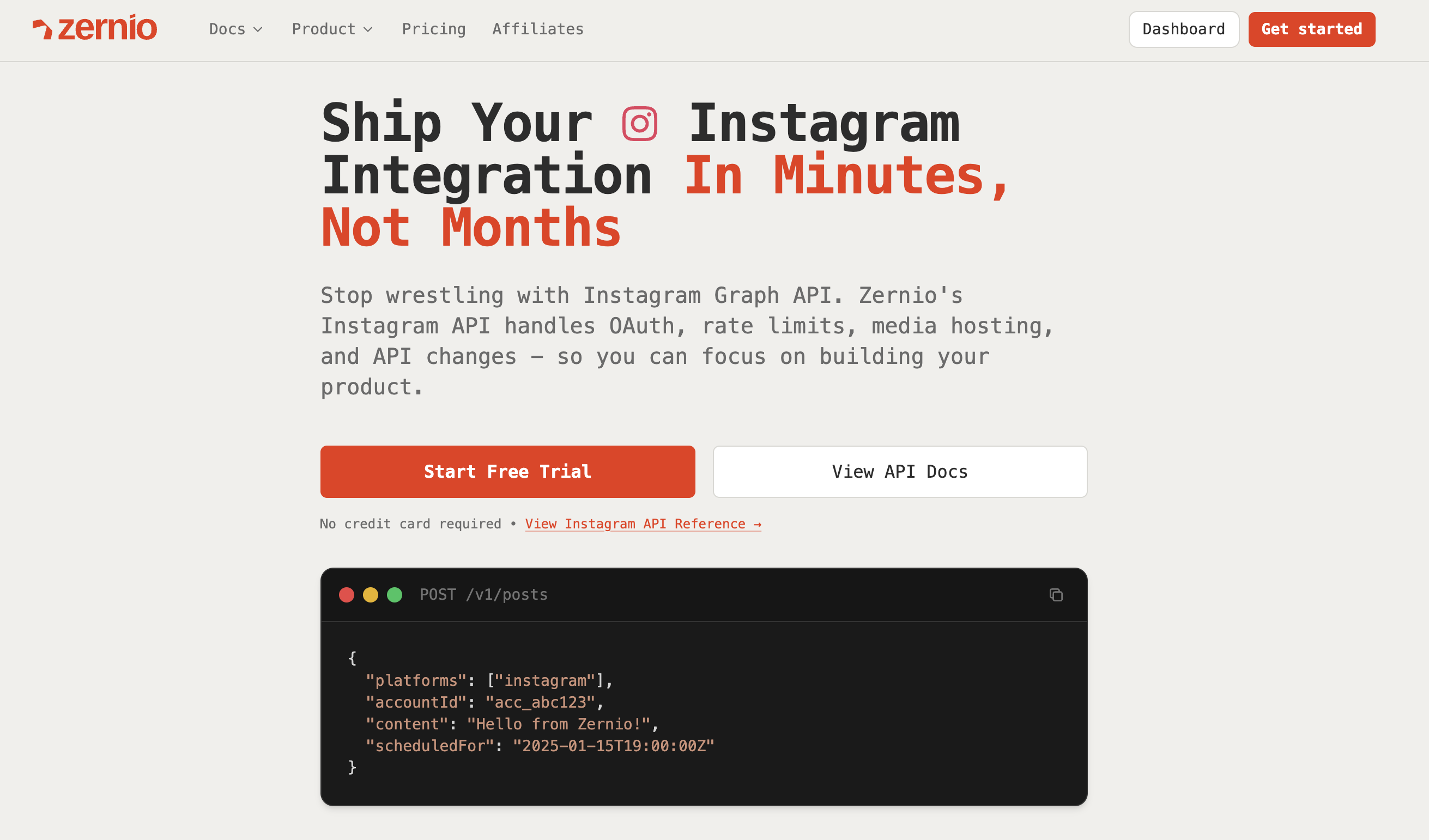
Zernio is a unified Instagram posting API built for developers and AI agents. One bearer token covers Instagram plus 14 other platforms. It's an official Meta Business Partner, Zernio uses the Instagram Graph API under the hood, so posts go through Meta's official infrastructure with no third-party branding on the user's account or in the OAuth flow.
What Zernio absorbs is everything else: app setup, OAuth credential management, the long-lived token refresh cycle, container creation and status polling, media format validation, rate-limit monitoring, and error retries. The three-step Instagram Graph API posting process, create container, poll status, publish, happens server-side. From your code, a post is one call.
What does the Zernio Instagram publishing API look like?
import { Zernio } from '@zernio/sdk';
const zernio = new Zernio({ apiKey: process.env.ZERNIO_API_KEY });
Publish a photo to Instagram
const { post } = await zernio.posts.createPost({
  content: 'Check out this photo!',
  mediaItems: [
    { type: 'image', url: 'https://cdn.example.com/photo.jpg' }
  ],
  platforms: [
    { platform: 'instagram', accountId: 'YOUR_ACCOUNT_ID' }
  ],
  publishNow: true
});
console.log('Posted to Instagram!', post._id);
Publish a Reel, no container polling required
const { post } = await zernio.posts.createPost({
  content: 'New tutorial is up!',
  mediaItems: [
    { type: 'video', url: 'https://cdn.example.com/reel.mp4' }
  ],
  platforms: [{
    platform: 'instagram',
    accountId: 'YOUR_ACCOUNT_ID',
    platformSpecificData: {
      contentType: 'reels',
      shareToFeed: true
    }
  }],
  publishNow: true
});
console.log('Reel posted!', post._id);
Publish a carousel, no child container loop required
const { post } = await zernio.posts.createPost({
  content: 'Trip highlights from last weekend',
  mediaItems: [
    { type: 'image', url: 'https://cdn.example.com/photo1.jpg' },
    { type: 'image', url: 'https://cdn.example.com/photo2.jpg' },
    { type: 'video', url: 'https://cdn.example.com/clip.mp4' },
    { type: 'image', url: 'https://cdn.example.com/photo3.jpg' }
  ],
  platforms: [
    { platform: 'instagram', accountId: 'YOUR_ACCOUNT_ID' }
  ],
  publishNow: true
});
console.log('Carousel posted!', post._id);
Publish first comment in the same call, no separate permission, no second endpoint
await zernio.posts.create({
  accountId: 'your-instagram-account-id',
  content: {
    text: 'Main caption here',
    mediaUrls: ['https://example.com/photo.jpg'],
    firstComment: '#hashtags #moretags',
  },
  platforms: ['instagram'],
});
Publish to Instagram + TikTok + LinkedIn in one call
const { post } = await zernio.posts.createPost({
  content: 'Cross-posting to all my accounts!',
  scheduledFor: '2024-01-16T12:00:00',
  timezone: 'America/New_York',
  platforms: [
    { platform: 'twitter', accountId: 'acc_twitter123' },
    { platform: 'linkedin', accountId: 'acc_linkedin456' },
    { platform: 'bluesky', accountId: 'acc_bluesky789' }
  ]
});
Token management happens automatically. Zernio handles the 60-day refresh cycle, so a production 401 from an expired token isn't something you'll page on. Container status polling runs server-side. Media format validation runs before the post is submitted, so you don't catch error 9004 after a queued post has already failed.
For developers building on a SaaS app where end-users connect their own Instagram accounts, Zernio also handles OAuth-as-a-service, one connect flow for all 15 platforms, no per-platform developer app.
What else does Zernio cover beyond Instagram posting?
Instagram posting is the entry point. Zernio covers the full Instagram surface area through the same integration and the same bearer token.
Instagram comments API
Read, reply, hide, like, and moderate comments on your posts. Useful for engagement workflows, automated moderation, or a unified comment inbox inside your product. Every comment event arrives through normalized webhooks, no per-platform polling code.
Reply to a comment
await zernio.comments.reply({
  accountId: 'your-instagram-account-id',
  commentId: 'comment-id',
  text: 'Thanks for the kind words!',
});
Hide a comment
await zernio.comments.hide({
  accountId: 'your-instagram-account-id',
  commentId: 'spammy-comment-id',
});
Instagram DMs API
Send and receive direct messages programmatically. Zernio handles the 24-hour messaging window rule, incoming message routing, and reply flows, all of which you'd otherwise build on top of the Graph API. Full implementation walk-through in the Instagram Messaging API guide.
Comment-to-DM automation
Auto-DM any user who comments a specific keyword on your post. No webhook infrastructure to build, you define the trigger and the message, Zernio runs it.
DM every user who comments "info" on any post
await zernio.commentAutomations.create({
  accountId: 'your-instagram-account-id',
  trigger: { keyword: 'info' },
  action: { dm: 'Here are the details: [your link]' },
});
This is how brands run gated lead gen, contest entries, and content drops on Instagram. The user comments, gets a DM automatically, your database records the conversion.
Instagram analytics API
Pull impressions, reach, engagement rate, follower history, and demographic breakdowns directly into your systems. No manual exports, no separate analytics endpoint to maintain. The same call structure works across platforms, if you pull Instagram analytics today and add TikTok next quarter, the schema doesn't change.
const analytics = await zernio.analytics.get({

  accountId: 'your-instagram-account-id',

  platform: 'instagram',

  dateRange: { start: '2026-05-01', end: '2026-05-31' },

});

console.log(analytics.impressions, analytics.reach, analytics.engagement_rate);
Multi-account posting
Managing more than one Instagram account? Zernio's post-to-multiple-Instagram-accounts flow is one call with a list of account IDs. No re-authentication per account, no separate publish loop.
Cross-platform posting
Every platform Zernio supports, Instagram, TikTok, LinkedIn, Facebook, X, YouTube, WhatsApp, Threads, Pinterest, Reddit, Bluesky, Telegram, Google Business, Snapchat, Discord, uses the same posts.create call. Once you're integrated for Instagram, adding a new platform is one extra item in the platforms array. Not a new OAuth app, not a new media spec, not a new rate-limit scheme.
Stop building social integrations from scratch.
One API call to publish, schedule, and manage posts across 15+ platforms.
Can an AI agent post to Instagram automatically?
Yes. To automate Instagram posting end-to-end, Zernio runs a hosted MCP server at mcp.zernio.com with 280+ tools, including Instagram posting, comment replies, DM handling, analytics pulls, and ad management. Any MCP-compatible client (Claude Desktop, Cursor, Windsurf) can call them directly. The agent doesn't touch OAuth or container management, and an auto post to Instagram becomes a single tool call.
The same MCP server covers all 15 platforms, so an agent that handles Instagram extends to TikTok or LinkedIn through the same tool server. Zernio also ships a CLI with structured JSON output for scripted workflows and a full OpenAPI spec for function-calling integrations.
Pricing
The Instagram Graph API is free. Direct-build costs are your infrastructure: OAuth server, webhook endpoint, media processing, token refresh jobs, plus the ongoing maintenance every time Meta ships an API change.
For products where end-users connect their own Instagram accounts, those costs scale with every new user.
Zernio uses pay-per-account pricing with volume discounts:
| Account range | Per account / month |
|---|---|
| First 2 accounts | Free |
| Accounts 3–10 | $6 |
| Accounts 11–100 | $3 |
| Accounts 101–2,000 | $1 |
At 100 connected accounts that's $318/mo with every feature included: posting, comments, DMs, analytics, scheduling, ads, and all 15 social platforms. No add-ons, no plan tiers, no per-seat charges.
Start building with Zernio → First 2 accounts free. No credit card required.
Instagram Graph API vs Zernio: which Instagram posting API should you use?
| Instagram Graph API | Zernio | |
|---|---|---|
| Build on | 4-8 weeks | Under 30 minutes |
| Platforms covered | Instagram only | 15 platforms |
| Posting types | Photos, Reels, carousels, Stories | Same, plus first comment in one call |
| Container management | Three-step process, you poll status | Automatic |
| Token management | Manual (60-day refresh cycle) | Automatic |
| Rate-limit monitoring | You parse response headers | Built in |
| Comments, DMs, analytics, ads | Separate builds | Same API, same bearer token |
| Comment-to-DM automation | Build from scratch | Included |
| Multi-account posting | Per-account auth + loops | One call with an account array |
| AI agent / MCP | Build custom tool wrappers | 280+ MCP tools ready |
| Pricing | Free + your infrastructure costs | First 2 accounts free, then $6/$3/$1 per account |
Choose direct Instagram Graph API if you have a vendor compliance requirement that excludes third-party API middleware, or you're building a single-platform tool with very specific Instagram-only functionality (e.g., niche Business Discovery use cases).
Choose Zernio if Instagram publishing is one feature in a broader product, especially if you'll also need comments, DMs, analytics, ads, or any of the other 14 platforms now or later. Zernio uses Meta's official Graph API under the hood, so you keep platform-official posting without the build. For most teams shipping a SaaS product with social features, this is the path that ships first and stays shipped.
Frequently asked questions
What is the Instagram posting API?
The Instagram posting API is the content publishing subset of Meta's Instagram Graph API. It lets developers programmatically publish photos, Reels, carousels, and Stories to Instagram Business or Creator accounts. It requires a Meta Developer App with instagram_basic and instagram_content_publish permissions, plus Meta App Review for production use.
What are the Instagram Graph API posting requirements in 2026?
You need an Instagram Business or Creator account connected to a Facebook Page, a registered Meta Developer App, the instagram_basic and instagram_content_publish permissions, and Meta App Review approval for production access beyond 25 test users.
Can an AI agent post to Instagram automatically?
Yes. Zernio's MCP server at mcp.zernio.com exposes 280+ tools including Instagram posting, comment replies, DM handling, analytics, and ad management. Any MCP-compatible agent (Claude Desktop, Cursor, Windsurf) can call them without managing OAuth or containers. The same server covers 15 platforms.
What's the difference between posting via the Instagram Graph API and posting via Zernio?
The Graph API is direct: you manage container creation, status polling, OAuth tokens, and rate limits yourself in three or more API calls per post. Zernio wraps all of that into one call and handles token refresh, container management, and rate limiting automatically. The Graph API gives you every Instagram feature directly. Zernio covers photos, Reels, carousels, Stories, first comment, plus comments, DMs, analytics, and ads in the same integration.